
Keep API keys and passwords in app secrets
Store API keys, tokens and passwords encrypted in App Secrets, and read them in a workflow's Run Custom Code action without showing them in your app.
- Verified Nov 17, 2026
- Classic builder
On this page
App secrets hold values you must not show anyone, such as an API key, an access token or a password for another service. Tadabase encrypts a secret's value when you save it and never shows it again, not even to you.
App secrets or app variables? #
| App variables | App secrets | |
|---|---|---|
| Stored | As plain text | Encrypted |
| Shown in the builder | Yes, the full value | Only the last four characters |
| Used in | Pages, form emails, workflows | The Run Custom Code workflow action |
| Good for | Contact details, links, totals | API keys, tokens, passwords |
See Store reusable values in app variables for values that are safe to show.
Add a secret #
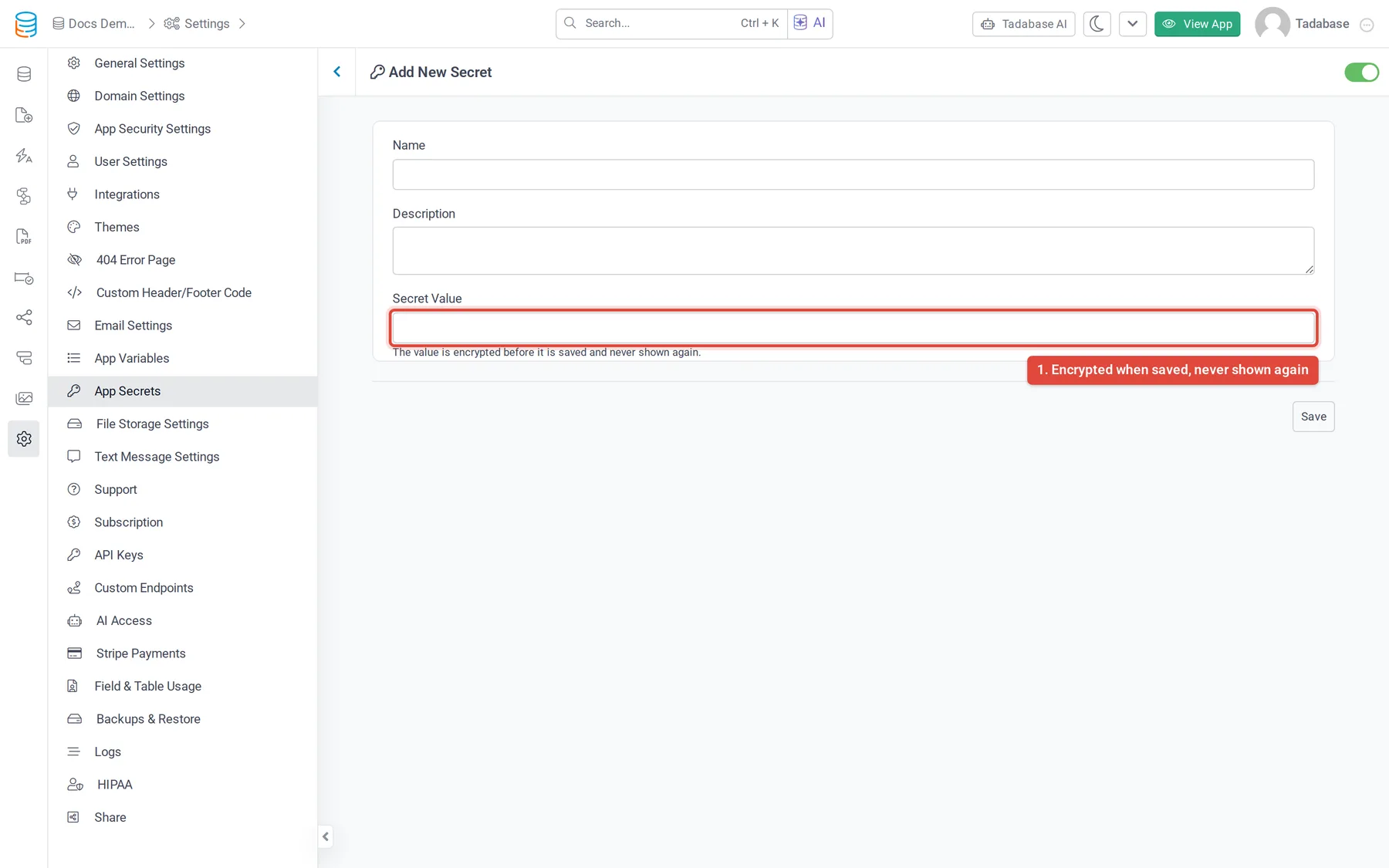
- Open App Secrets In the builder, click Settings in the left menu, then App Secrets, then Add New Secret.
- Name it Enter a Name, for example
STRIPE_KEY. Your code reads the secret by this exact name, so keep it short and do not reuse it. Add a Description so other builders know what it is for. - Enter the value Paste the key or password into Secret Value. The field hides what you type.
- Save Click Save. The list now shows the secret's Name, Description, Masked Value (dots and the last four characters) and Status.
Use a secret in a workflow #
Secrets are read in a workflow's Run Custom Code action. In the code, call getAppSecret("NAME") with the secret's name:
var apiKey = getAppSecret("STRIPE_KEY");- Only the secrets your code names are decrypted for that run.
- If the code returns or prints a secret's value, it is masked in the action's output.
- A secret that is Inactive, or a name that does not exist, gives no value (
undefined).
For more on the action, see Running Custom Javascript.
Change, turn off or delete a secret #
- Replace the value (for example after you rotate a key): click the secret, paste the new value into Secret Value and click Save. Leave the field blank to keep the stored value.
- Turn it off: set the switch at the top right to Inactive and save. Workflows stop receiving its value.
- Delete it: click the secret, then Delete, and confirm.
Plans #
App secrets are a plan feature. If your plan does not include them, App Secrets does not appear in the settings menu.
Was this page helpful?
Something wrong or missing on this page? Tell us.