
Restore an earlier version of a page
Every save of a page or layout keeps a version. Open Page History to load an earlier one, then save to roll the page back.
- Verified Nov 17, 2026
- Classic builder
On this page
Each time you save a page or a layout, Tadabase keeps the previous version. If a change breaks a page, open Page History, load an earlier version and save it to roll that one page back. The rest of your app is not touched; to roll back the whole app, use a backup.
Roll a page back to an earlier version #
- Open the page In the Page Builder, open the page or layout and go to the tab you want to roll back: Content, CSS or JavaScript (a PDF page's PDF tab has history too). Each tab keeps its own history.
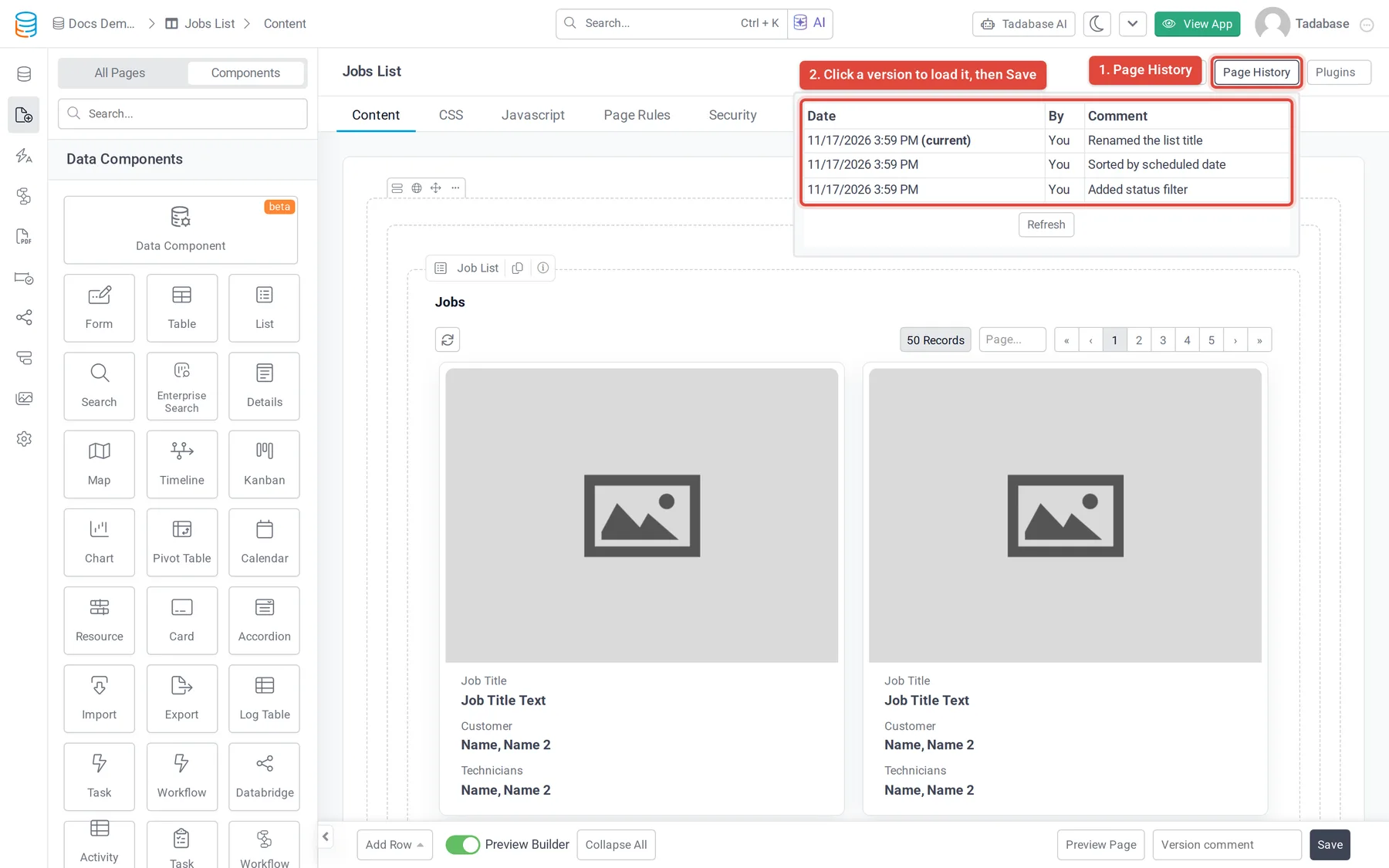
- Open Page History Click the small arrow button next to the page name at the top (its tooltip says Page History). A list of saved versions opens with Date, By and Comment. The newest one is marked (current).
- Load a version Click the version you want. Its content loads into the editor. If you have unsaved changes, you are asked to confirm first, because they will be replaced.
- Check it Look over the page. Nothing is saved yet: your app still shows the current version.
- Save Click Save to make the loaded version the current one. To back out instead, leave the page without saving.
A page or tab that has never been saved shows No content history (or the name of the tab you are on).
Add a comment when you save #
Next to the Save button there is a Version comment box. Type a few words about what you changed before you save. The comment appears in Page History, so you and your team can find the right version later.
To make a comment required for every save:
- Open General Settings Go to Settings > General Settings.
- Turn on the option Switch on Require Version Comment and save the settings.
From then on, saving a page's Content, CSS, JavaScript or PDF without a comment shows Please enter version comment and the page is not saved.
See every page change in the app #
To see recent page saves across the whole app, go to Settings > Logs > Pages. Pick Page - Content, Page - CSS, Page - JavaScript or Page - PDF at the top. Each row shows the Page, who saved it (By), Created At and the Comment, and View opens what was saved. To roll a page back, use Page History on the page itself.
How long versions are kept #
How much page history is kept depends on your plan, and older versions are cleared out over time. If there is a version you will want to come back to, give it a comment when you save it, and take a backup before big changes.
Was this page helpful?
Something wrong or missing on this page? Tell us.