
Save uploaded files to Dropbox
Connect your Dropbox so new uploads from File and Attachments fields are saved there, and organize them with folder paths and date folders.
- Verified Nov 17, 2026
- Classic builder
On this page
Save new uploads from File and Attachments fields to your own Dropbox account instead of Tadabase storage. Tadabase saves each file to Dropbox and links to it with a Dropbox shared link.
Before you start #
- Dropbox must be included in your plan. If it is not, the option is greyed out in File Storage Settings.
- Only the app owner can authorize Dropbox. Sign in to the builder as the owner of the app.
- Dropbox does not support secure files. Files are opened through Dropbox shared links, and the Secured setting is not shown on file fields while Dropbox is selected. If you need secure files, use Tadabase storage or your own Amazon S3 bucket.
- Only new uploads go to Dropbox. Files already uploaded stay where they are.
Connect Dropbox #
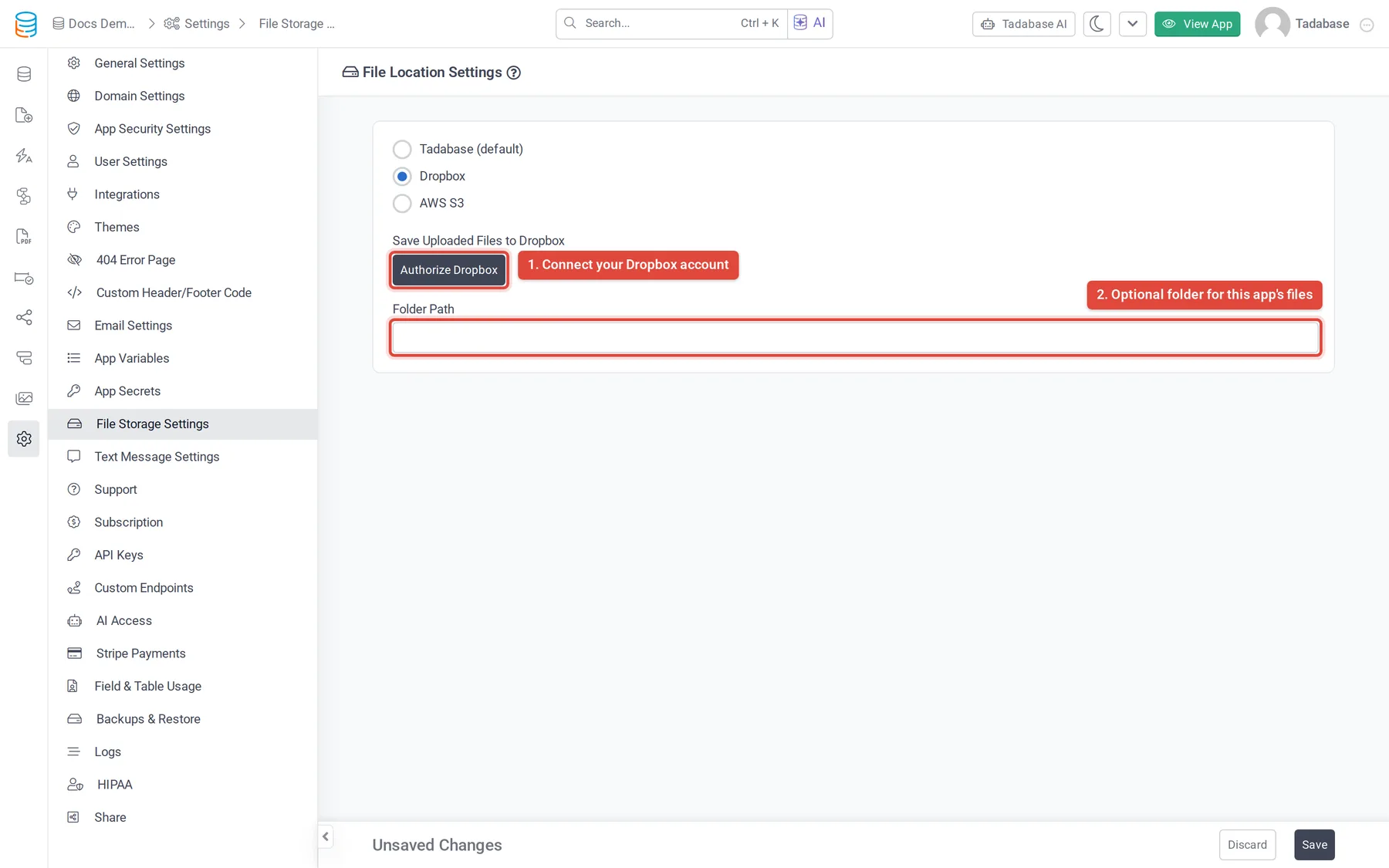
- Open File Storage Settings In the builder, click Settings, then File Storage Settings.
- Select Dropbox Under File Storage Service Location, select Dropbox.
- Authorize Dropbox Next to Save Uploaded Files to Dropbox, click Authorize Dropbox. Dropbox opens; sign in and allow access.
- Return to the builder Dropbox sends you back to File Storage Settings, with Dropbox now saved as the storage location.
- Set a folder path (optional) Enter a Folder Path (see below) and click Save in the Unsaved Changes bar.
Choose the folders #
Paths are relative to the folder Tadabase can write to in your Dropbox. Two settings build the path, one after the other:
| Setting | Where | Example |
|---|---|---|
| App Folder Path | Settings > File Storage Settings | Field Service |
| Field Folder Path | In the Data Builder, edit the File or Attachments field | invoices/{year}/{month} |
With both examples above, a file uploaded in June 2026 is saved in Field Service/invoices/2026/6/. Leave both empty to save files at the top of the folder.
Three date tokens are replaced with the upload date in either setting:
| Token | Value |
|---|---|
{year} | Year, for example 2026 |
{month} | Month without a leading zero, for example 6 for June |
{day} | Day of the month without a leading zero, for example 5 |
Other tokens, such as {month2} or {record_id}, only work with Tadabase storage and Amazon S3.
Several apps on one Dropbox #
If you connect more than one app to the same Dropbox account, all of them save to the same place unless you set a different app Folder Path in each app. Give each app its own folder, for example its name.
How file links open #
While Dropbox is selected, File and Attachments fields have an Open In Dropbox setting. With Open In Dropbox on, a file link opens the file's Dropbox page. With it off (the default), the link downloads the file.
Check that it worked #
Upload a file to a File or Attachments field in your app, then look for it in your Dropbox under the folder path you set. If it is not there, check that Dropbox is still selected and saved in File Storage Settings, and authorize again if the connection was removed.
Stop using Dropbox #
- Switch the storage location In Settings > File Storage Settings, select Tadabase (default) or AWS S3 and click Save. New uploads go to the new location.
- Remove Tadabase's access in Dropbox (optional) In your Dropbox account settings, open the list of connected apps and disconnect Tadabase.
Was this page helpful?
Something wrong or missing on this page? Tell us.