
Set page titles, meta tags and clean URLs
Remove the #! from your app's URLs, then set default and per-page titles and meta tags, including values from the record on a details page.
- Verified Nov 17, 2026
- Classic builder
On this page
The page title is the text in the browser tab and the headline in search results. Meta tags, such as description or og:image, tell search engines and social networks what a page is about and which picture to show when someone shares a link.
In Tadabase you set them in two places: defaults for the whole app in Domain Settings, and titles and tags for one page in that page's Settings tab.
Turn on clean URLs first #
By default, app addresses contain #! (for example /#!/jobs). Titles and meta tags are written into the page that search engines and link previews read only when Remove hash (#!) from URL is on, and the Default Page Settings and App Meta Tags sections appear only then.
- Open Domain Settings In the builder, open Settings and click Domain Settings.
- Remove the hash On the General tab, turn on Remove hash (#!) from URL. If your plan does not include clean URLs, the switch is disabled and shows an upgrade icon.
- Save Click Save on the Unsaved Changes bar. Your app's addresses no longer contain
#!.
Set defaults for every page #
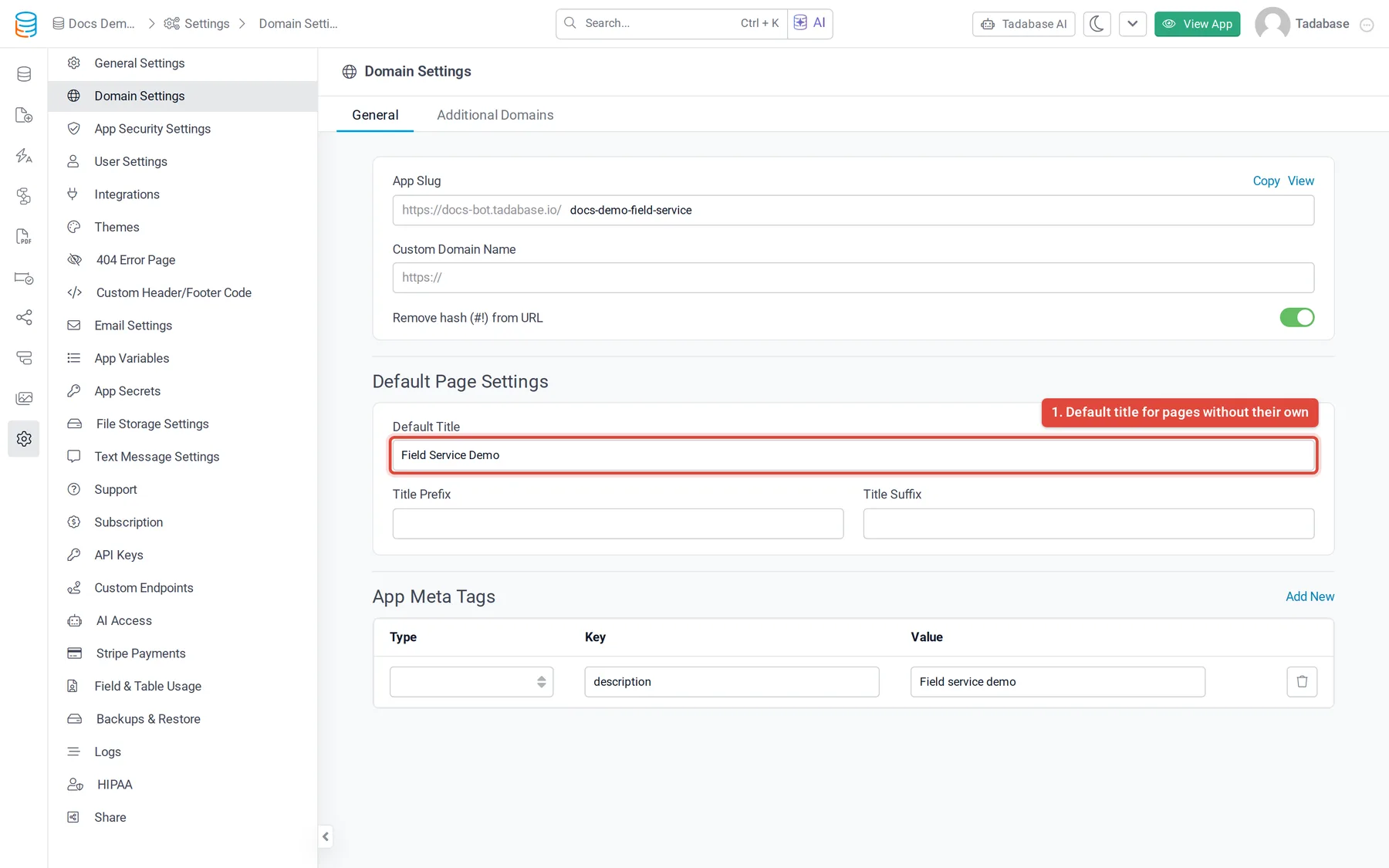
With clean URLs on, two sections appear under the switch in Domain Settings.
| Setting | What it does |
|---|---|
| Default Title | The title of any page that has no Page Title of its own. |
| Title Prefix | Added before every page title, followed by a space. For example Acme | gives Acme | Jobs. |
| Title Suffix | Added after every page title, after a space. For example - Acme gives Jobs - Acme. |
| App Meta Tags | Meta tags for every page that has no meta tags of its own. Click Add New, then fill in Type, Key and Value for each tag. |
In App Meta Tags and Page Meta Tags, Type decides how the tag is written: Property writes <meta property="Key" content="Value">, used by Open Graph tags such as og:title and og:image; Name writes <meta name="Key" content="Value">, used by tags such as description and twitter:card.
Set a title and tags for one page #
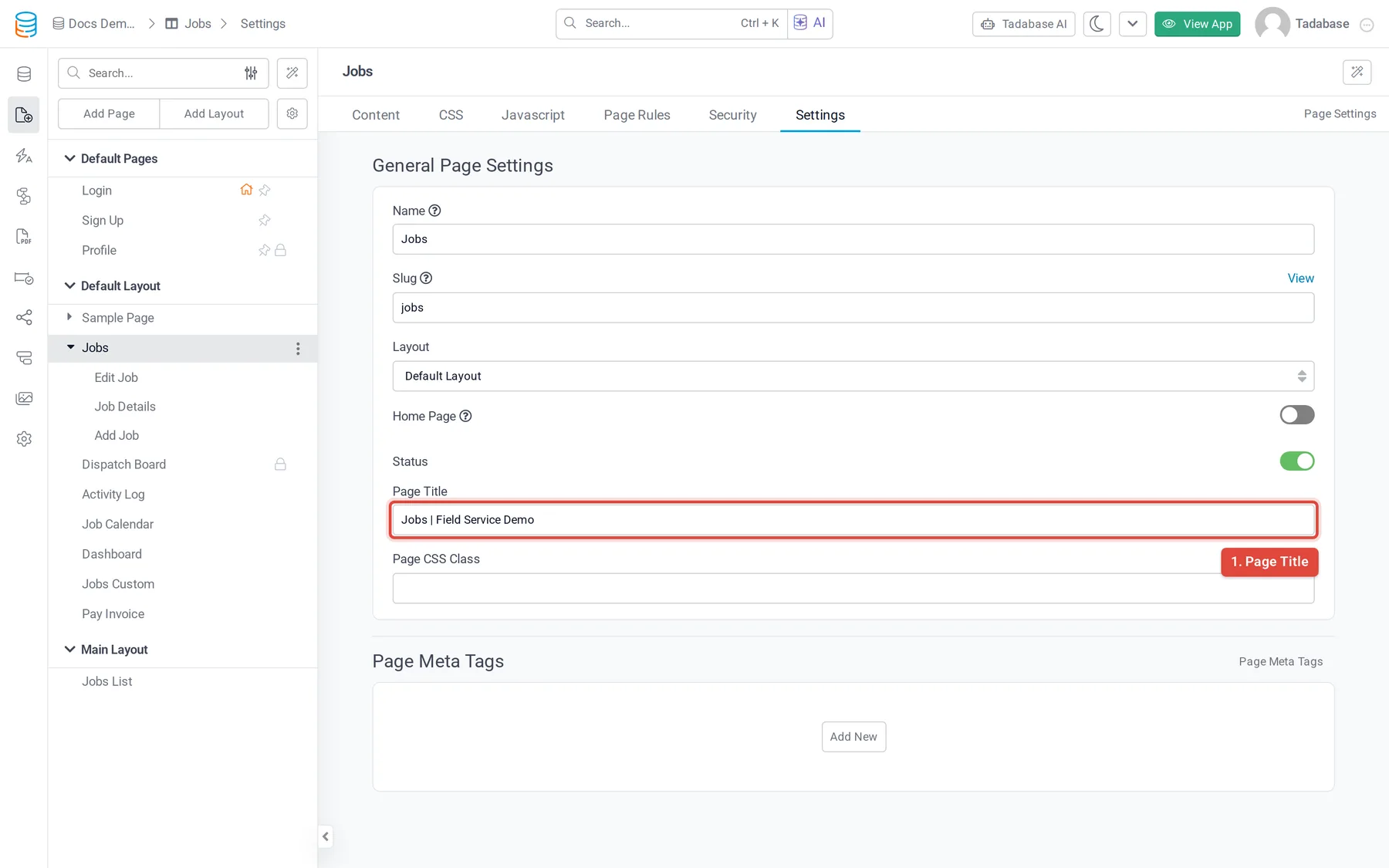
- Open the page's settings In Pages, open the page and click its Settings tab.
- Enter a Page Title Type the title in Page Title. The Title Prefix and Title Suffix from Domain Settings are still added around it.
- Add Page Meta Tags Under Page Meta Tags, click Add New and fill in Type, Key and Value. If a page has any meta tags of its own, they replace the App Meta Tags on that page; the app tags are not added as well.
- Save Click Save on the Unsaved Changes bar.
Use record values on details pages #
On a child page that shows one record (a details page), the Page Title and the meta tag values can include values from that record. Write the field name in braces after pageField.:
{pageField.Customer Name} - Job {pageField.Record ID}- Use the field's name exactly as it appears in the table, including spaces and capitals.
{pageField.Record ID}gives the record's encoded ID and{pageField.Auto Increment}its number.- Plain fields such as text, numbers and choices work best. Record values are filled in only on a child page that shows a record.
Check your tags #
- Open the live page and view its source (
Ctrl+Uon Windows,Cmd+Option+Uon a Mac). Look for<title>and the<meta>tags near the top. - Paste the page's address into a link preview checker, such as the Facebook Sharing Debugger, to see how it will look when shared. Social networks cache previews, so use the checker's re-scrape button after a change.
- If the tags are missing, check that Remove hash (#!) from URL is on and that you saved.
Was this page helpful?
Something wrong or missing on this page? Tell us.