
Store reusable values in app variables
Save a value or a calculated total once as an app variable, then use it in page text, form emails and workflows with its {!code!}.
- Verified Nov 17, 2026
- Classic builder
On this page
An app variable is a named value you set once and reuse across your app, such as a support email, a company address or the total of all open invoices. Change the variable and every place that uses it shows the new value.
App variables are visible to anyone who can see the page or email they appear in. For API keys and passwords, use app secrets instead.
Built-in variables #
Click Settings in the builder's left menu, then App Variables. The list shows each variable's Name, Description, Type, Value and Code. Every app has these built-in variables, which you cannot edit:
| Name | Code | Value |
|---|---|---|
| Logged in User Name | {!loggedInUserFullName!} | The name of the user who is logged in |
| Logged in User Created | {!loggedInUserCreatedDate!} | The date that user was created |
| Logged in User Roles | {!loggedInUserRoles!} | That user's roles, separated by commas |
| Current Date | {!currentDate!} | Today's date in the app's date format |
| Current Time | {!currentTime!} | The current time in the app's time format |
Add a variable #
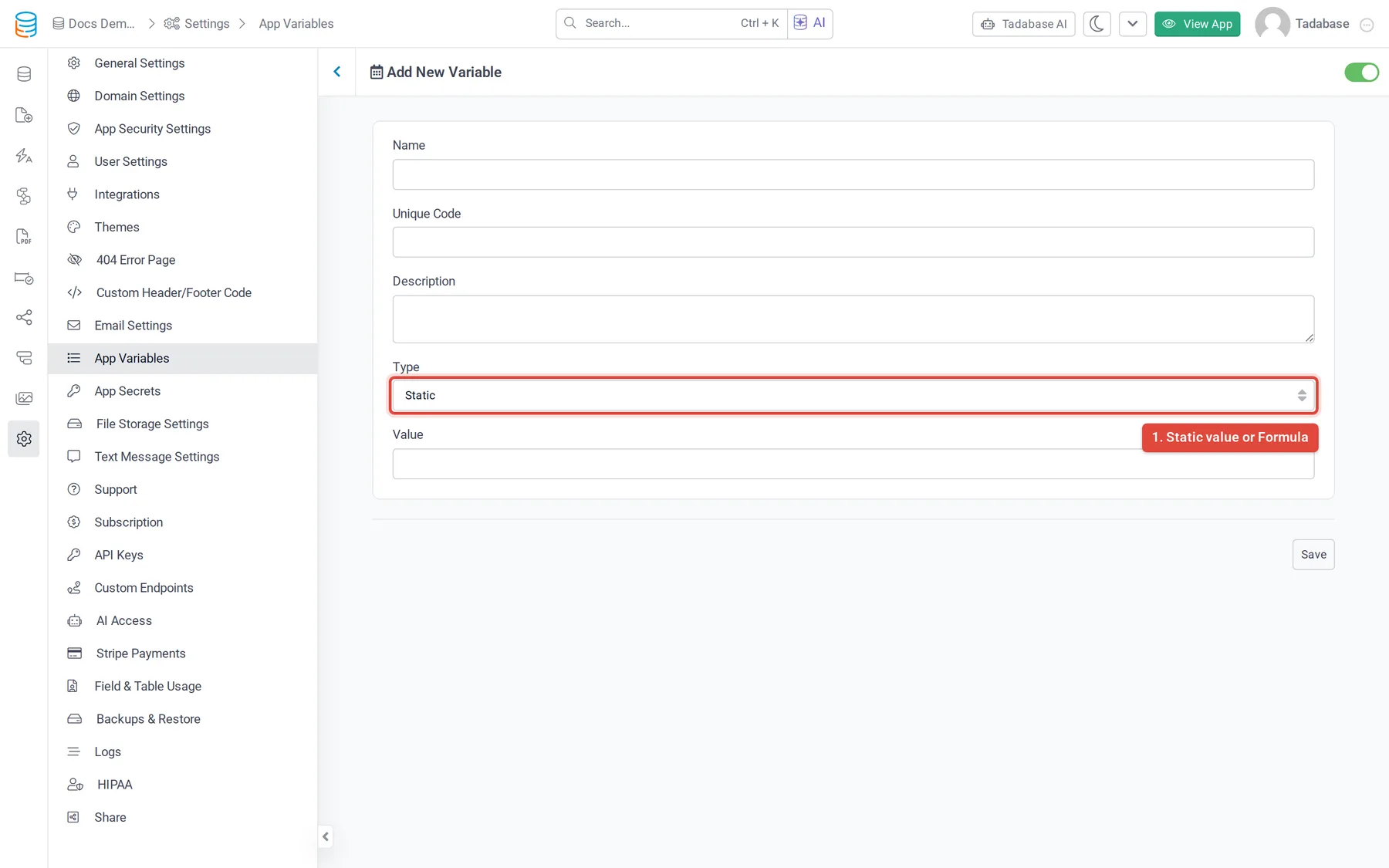
- Start a new variable On the App Variables screen, click Add New Variable.
- Name it Enter a Name and a Unique Code, and optionally a Description. The code is what you type to use the variable. It is saved in lowercase, with underscores in place of spaces, and must be unique in the app.
- Choose the type Under Type, choose Static for a fixed value or Formula for a total calculated from a table (see below). For Static, type the Value.
- Save Click Save. The switch at the top right sets the variable Active or Inactive.
Calculate a value with a Formula variable #
A Formula variable works out a single number from the records in a table each time it is used.
| Option | What to choose |
|---|---|
| Data Table | The table to calculate from. |
| Formula Function | Count Record, Minimum Value, Maximum Value, Average Value or Sum Value. |
| Value Field | The Number or Currency field to calculate. Not needed for Count Record. |
| Data Condition | Click Add Criteria to only include records that match conditions, for example invoices whose status is Open. |
The result is rounded to two decimal places.
Use a variable #
Type the variable's code between {! and !}, as shown in the Code column. For example, a variable with the code support_email is written {!support_email!}.
- Pages: in an HTML component, and in the text you add to data components such as lists, accordions, kanban boards, maps and timelines.
- Emails sent by forms: in the subject and message.
- Workflows: in any value picker, open Static & Generated and choose App Variables, then pick the variable. The value is read when the workflow runs. In a Run Custom Code action, use
getAppVariable("code"). - Additional domains: a domain can give a variable a different value with App Variable Overrides in its domain settings.
Change or delete a variable #
Click a variable in the list to open Edit Variable. Change it and click Save, or click Delete and confirm.
Plans #
App variables are a plan feature. If your plan does not include them, an upgrade icon shows next to Add New Variable.
Was this page helpful?
Something wrong or missing on this page? Tell us.