
See your account and app usage on the Dashboard
Open the account Dashboard or one app's Dashboard to see records, storage, logins, imports, tasks, traffic and more, over the time period you pick.
- Verified Nov 17, 2026
- Classic builder
On this page
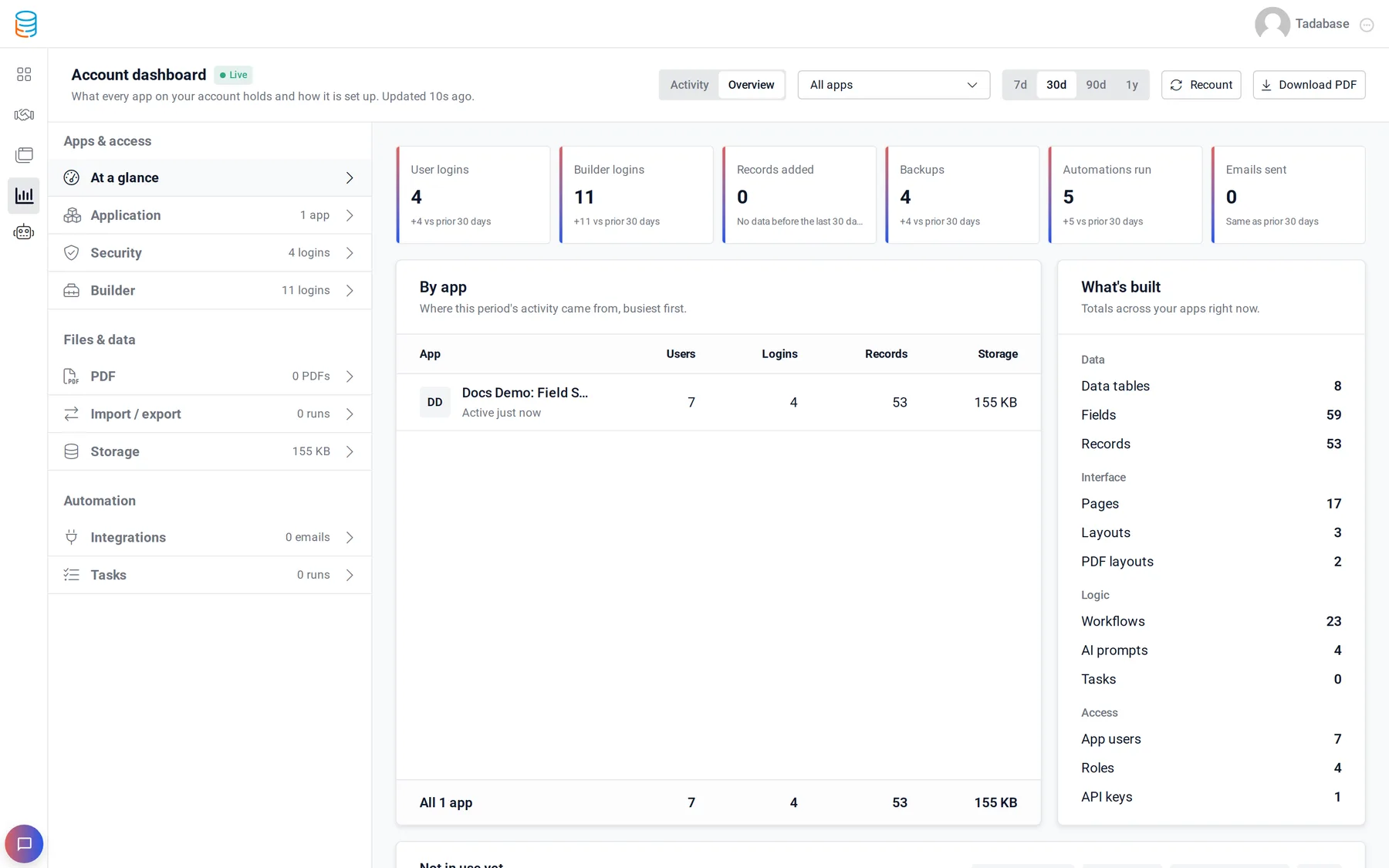
The Dashboard shows what your apps hold and how they are used: records, storage, logins, imports, tasks, traffic and more. There is one for your whole account and one inside each app. It replaced the Stats pop-ups of the older builder; every place that used to open Stats now opens the Dashboard.
Open the Dashboard #
| Dashboard | How to open it | What it covers |
|---|---|---|
| Account dashboard | In My Apps, click the Dashboard icon in the left bar. | All your apps, or one app you pick. |
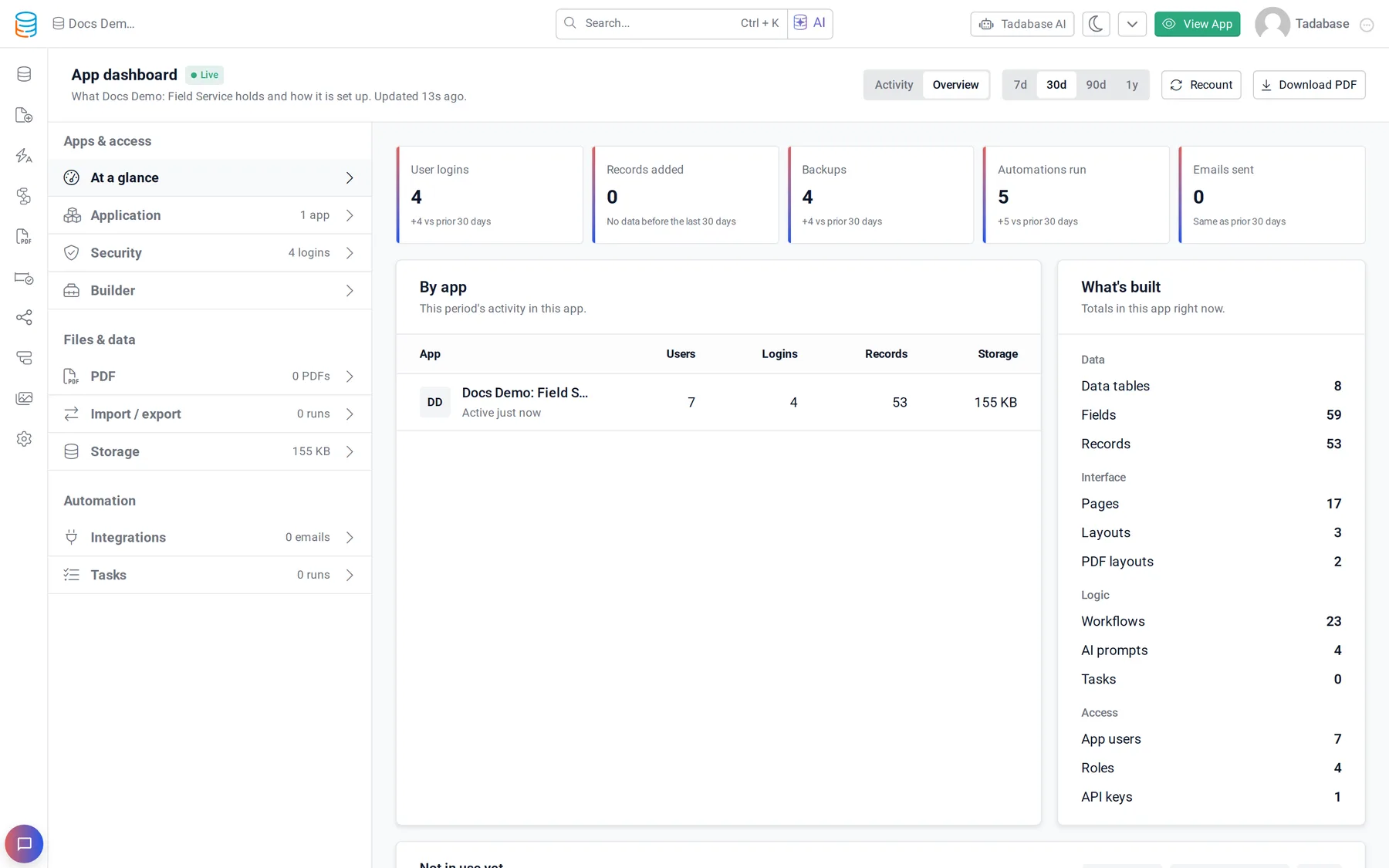
| App dashboard | In an app, open the menu next to View App in the top bar (the down arrow) and click Dashboard. | This app only. |
Every plan has the Dashboard. People you share an app's builder with see that app's Dashboard when they have the See usage on the Dashboard permission (see Share your builder).
Pick what you see #
| Control | Options |
|---|---|
| View | Overview: what your apps hold and how they are set up. Activity: how your apps were used. |
| App | Account dashboard only. All apps, or one app from My apps or Shared with me. |
| Apps counted | Account dashboard, when apps are shared with you: Owned or Owned and shared. |
| Time period | Overview: 7d, 30d, 90d or 1y. Activity: 24h, 7d, 30d or 90d. |
| Recount | Counts records and storage again now. The new numbers show within a minute. |
| Download PDF | Saves the section you are looking at as a PDF. |
The address in your browser follows what you open, so you can bookmark a section or send the link to someone with access.
Overview sections #
| Section | What it shows |
|---|---|
| At a glance | Apps, app users, user logins and records. |
| Application | Apps, custom domains, data tables, fields, records, pages, layouts, roles, workflows, automations, tasks, pipes, API keys, AI prompts, tasks run and equations processed, with charts of records and tasks run. |
| Security | User logins, failed logins, app users and roles, with recent login activity. |
| Builder | Account dashboard only. Builder logins and backups taken, with recent builder actions. |
| PDF Forms, PDF Pages, PDF layouts and PDFs created. | |
| Import / export | Imports run, records imported, import templates and export templates. |
| Storage | Total storage and the number of files, split into images, PDFs, videos, spreadsheets, documents and other. |
| Integrations | Incoming and outgoing webhooks, webhooks received and sent, secure downloads, emails sent and API keys, with magic link activity and secure file downloads. |
| Tasks | Tasks, tasks run, records processed, automations and automations run. |
Activity sections #
Activity starts on At a glance and has a section for each kind of use, including Traffic, Errors, Pages & components, Data & records, API, Users & access, Web load, Bandwidth, Performance, Workflows, Webhooks and Email & SMS. Some sections appear only when they apply to your account.
The app dashboard #
Inside an app, the Dashboard has the same views and sections but is fixed to that app, so there is no app picker. Account-wide figures, such as the number of apps and custom domains and the Builder section, are left out.
Usage and your plan #
To compare your usage with your plan's limits, open Manage Subscriptions from the user menu: Plan Details shows each limit with how much you use. See Plans and what happens at your plan limits.
Was this page helpful?
Something wrong or missing on this page? Tell us.