
Check outgoing webhook deliveries
Open an outgoing webhook's Logs tab to see each send, whether the receiving URL accepted it, and the reason when it failed.
- Verified Nov 17, 2026
- Classic builder
On this page
Each outgoing webhook keeps a log of every time it sent a record. Check it when the receiving service says it never got the data.
Open a webhook's log #
- Open the webhook In the builder, open Automation and choose Outgoing Webhooks. Click the webhook.
- Go to the log Click the Logs tab. If no send has happened yet it says No webhook logs were found.
- Load new entries Click Refresh to load sends that happened while the page was open.
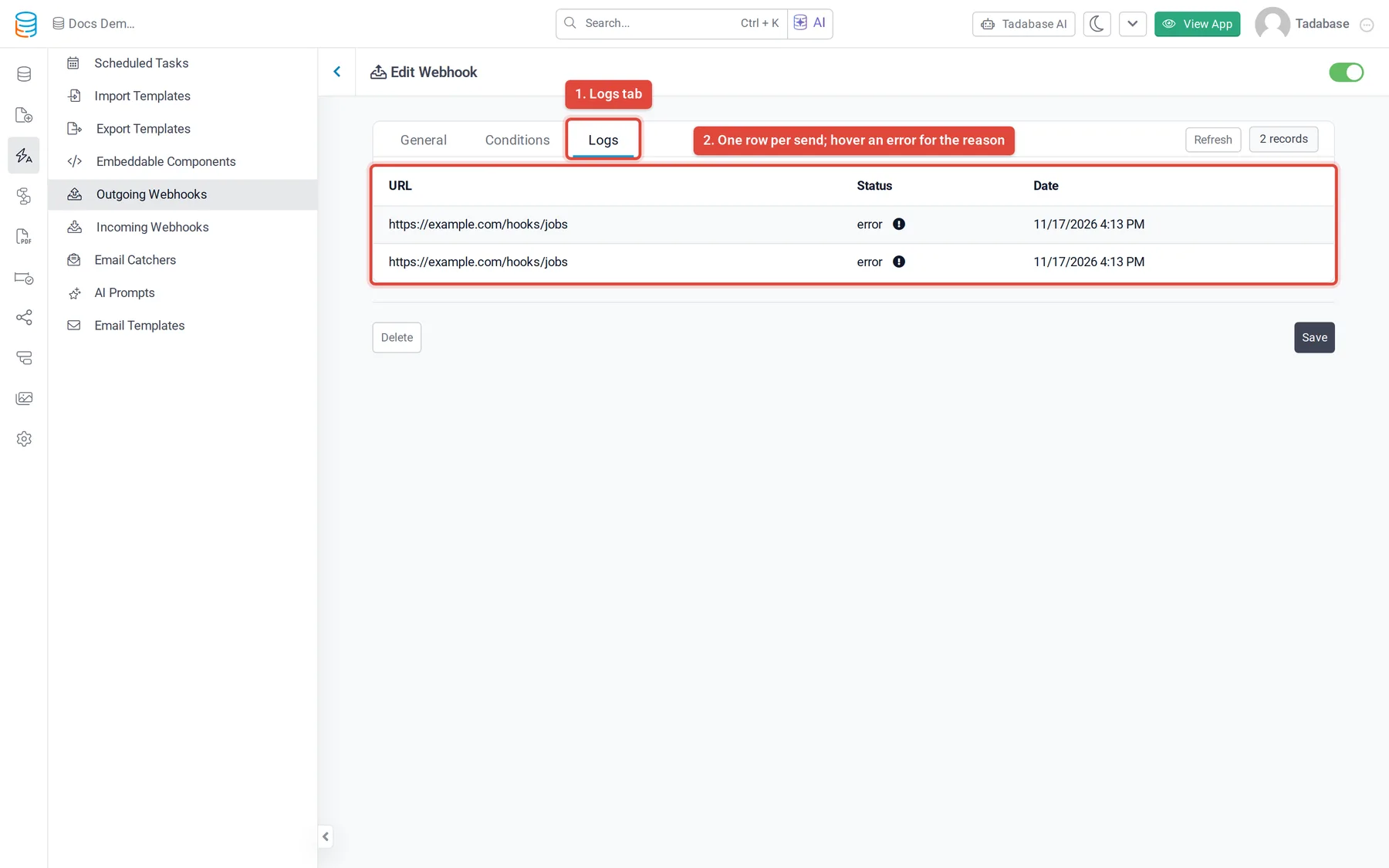
What each row shows #
| Column | What it shows |
|---|---|
| URL | The address the data was posted to. |
| Status | success when the request went through, error when it failed. Hover the icon next to error to read the reason. |
| Date | When the send happened. |
Common failure reasons #
| Reason shown | What to check |
|---|---|
An HTTP code such as 404 Not Found, 401 Unauthorized or 500 Internal Server Error | The receiving service answered with an error. Check the URL and the service's own logs. |
Host not found – check DNS/ | The domain in the URL does not exist. Fix the URL on the General tab. |
Connection refused – target is not accepting connections | The server is down or not listening on that address. |
Timeout – request took too long | The receiving service did not answer in time. |
SSL error – certificate problem | The receiving site's HTTPS certificate is invalid or expired. |
429 rate limited | The receiving service is refusing requests because there are too many. Turn on Sending Limit for the webhook. See Manage outgoing webhooks under Automation. |
A failed send is not retried automatically, and there is no retry button. The next time the record event happens, the webhook sends again.
Why a send can appear a little later #
Outgoing webhooks are sent from a background queue, not while the record is being saved, so a log row can appear a few seconds after the change. With Sending Limit on, sends over the limit wait their turn and are logged when they actually go out. A send held back by the limit is not counted as a failure.
Show webhook logs in your app #
The Outgoing Webhook Logs type of the Log Table component shows the same sends on a page of your live app, with the webhook, table, record, status, error message, URL and date. See Show logs inside your live app.
Was this page helpful?
Something wrong or missing on this page? Tell us.