
Manage outgoing webhooks under Automation
Edit, pause, limit and delete the outgoing webhooks set up under Automation, which send record data to a URL when records are added, edited or deleted.
- Verified Nov 17, 2026
- Classic builder
On this page
An outgoing webhook sends a record's data to a URL each time a record in one table is added, edited or deleted. Use it to notify another service, such as a chat tool, an automation platform or your own server.
Find your outgoing webhooks #
In the builder, open Automation and choose Outgoing Webhooks. The list shows each webhook's Name, Data Table, URL, Event and Status. Use Search... to filter by name, URL, status or table name. Click a row to open it.
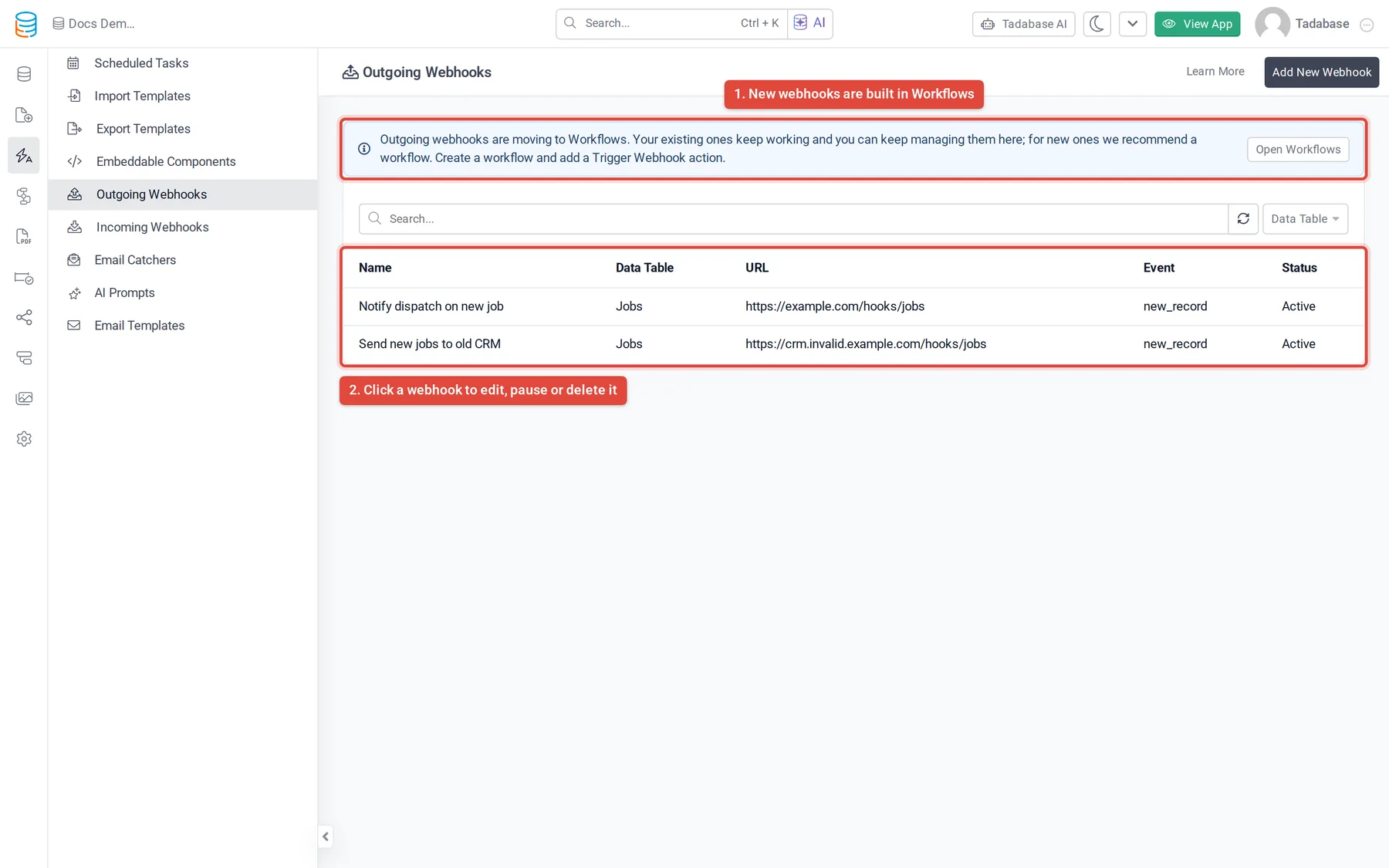
What the page shows depends on whether your app can use Workflows:
- Workflows available, no outgoing webhooks yet: the page says outgoing webhooks are no longer managed here and offers Go to Workflows. You cannot add a new one on this page.
- Workflows available, some outgoing webhooks: a notice above the list says they are moving to Workflows. Your webhooks keep working and you can still edit them and use Add New Webhook.
- Workflows not available: the page works as before.
Settings on the General tab #
| Setting | What it does |
|---|---|
| Name, Description | Your label and notes for the webhook. |
| Data Table | The table whose records trigger it. It cannot be changed after the webhook is saved. |
| URL | Where the data is sent. It must be a valid URL. |
| Event | New Record (a record is added), Update Record (a record is edited) or Delete Record (a record is deleted). |
| Sending Limit | Off by default: every change is sent right away. See Limit how fast it sends. |
| Active / Inactive | The switch at the top right. Only active webhooks send anything. |
Click Save to keep your changes.
Send only for some records #
Open the Conditions tab and click Add Condition to compare the record's fields with values. When conditions are set, the webhook sends only for records that match them.
Limit how fast it sends #
Turn on Sending Limit when the receiving service accepts only so many requests. Then set Send at most a number (1 to 100,000) per second, minute or hour.
- Sends over the limit wait their turn and go out in order, evenly spaced.
- Turning the limit off sends anything still waiting right away.
- If a webhook already has about a day of sends waiting, new sends are logged as not sent instead of joining the queue.
- A send held back by the limit does not count as a failure.
What the receiving service gets #
Each send is an HTTP POST with form-encoded fields (not JSON). The record's values are keyed by field slug, and id holds the record's encoded ID:
id=abc123xyz
field_31=Jane Doe
field_32=jane@example.com
To see exactly what was sent and what came back, use Outgoing webhook logs. A webhook's own Logs tab lists its sends with the URL, status and date; hover the icon next to an error to read it.
Turn a webhook off or delete it #
- Open the webhook In Automation › Outgoing Webhooks, click its row.
- Pause it Set the switch at the top right to Inactive and click Save. Nothing is sent until you set it back to Active.
- Or delete it Click Delete and confirm. This cannot be undone.
Plans and limits #
Outgoing webhooks need a plan that includes them, and each plan caps how many an app can have. On the current plans: Business Starter 3, Business Growth 5, Business Pro 10 and Business Elite 15. When your plan does not include them, the page shows an upgrade button instead of the list.
Was this page helpful?
Something wrong or missing on this page? Tell us.