
Send app email through your own SMTP server
Connect your own mail server or provider (SendGrid, Gmail, Microsoft 365 and others) so your app's emails are sent from your own address.
- Verified Nov 17, 2026
- Classic builder
- Available on: Business Starter, Business Growth, Business Pro, Business Elite
On this page
By default your app's emails go out through Tadabase's mail server. Connect your own SMTP server to send them through your mail provider, from your own address, with your provider's tracking and reports.
Connect your SMTP server #
- Open the SMTP tab In the builder, open Settings > Email Settings and click the SMTP tab.
- Turn it on Set Use Custom SMTP Settings to Enable. The connection fields appear on the Default tab.
- Enter the connection details Fill in Host, Port, Username, Password and Encryption with the values from your mail provider (see the table below).
- Send a test Click Send Test Email. A message with the subject Test Email From Tadabase.io goes to the email address of your builder account. The result shows above the button. You can test before saving.
- Set your sender address On the General tab, set Default From Email to an address your provider lets you send from, and a Default From Name. See Set your app's default sender name and email.
- Save Click Save on the Unsaved Changes bar at the bottom of the screen.
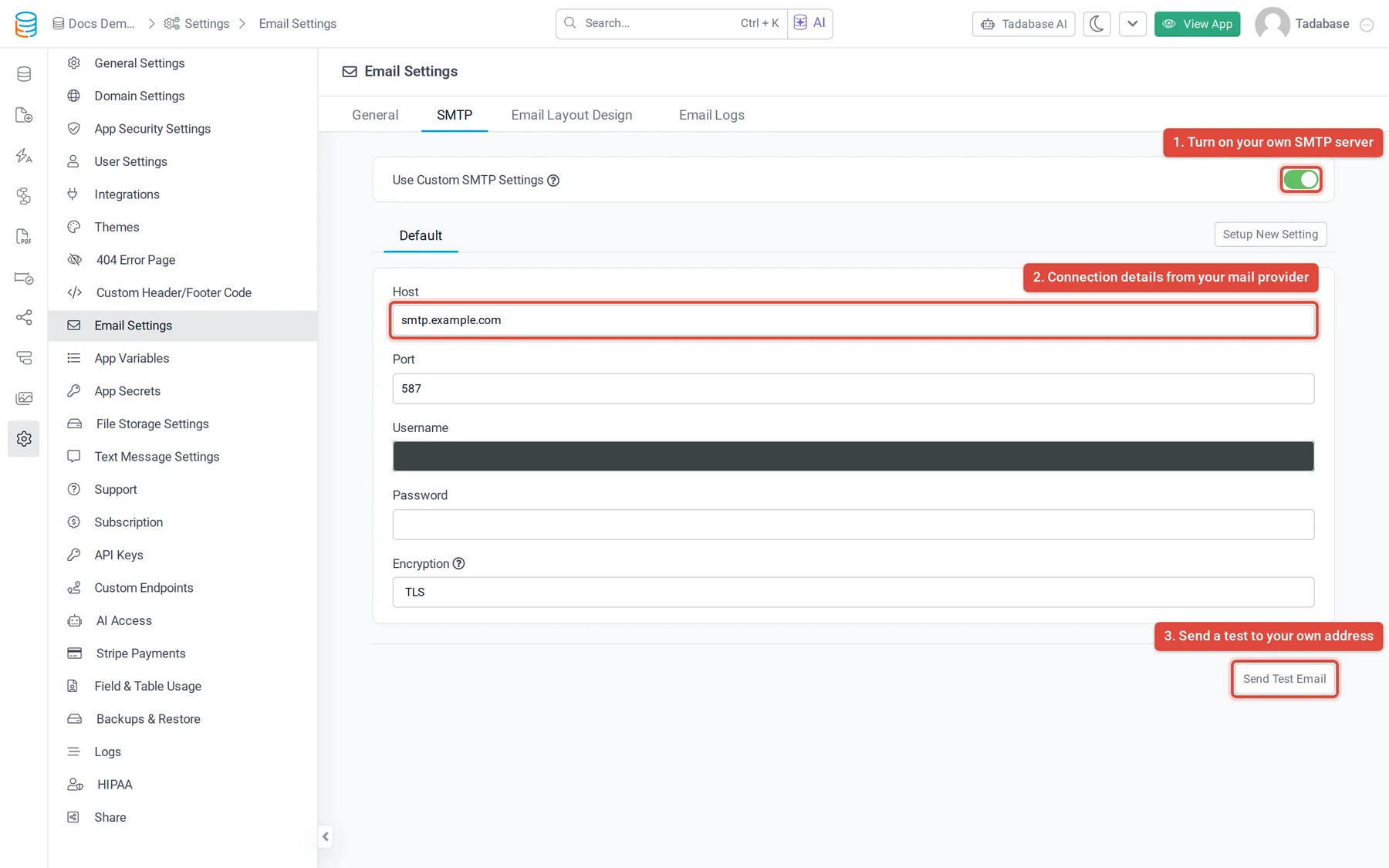
The connection fields #
| Field | What to enter |
|---|---|
| Host | Your provider's SMTP server name, for example smtp.sendgrid.net. |
| Port | Usually 587 (with TLS) or 465 (with SSL). Use the port your provider lists. |
| Username | The SMTP user name from your provider. |
| Password | The SMTP password, API key or app password from your provider. After saving, the password is not shown again. Leave it empty to keep the saved one. |
| Encryption | None, SSL or TLS. Match it to the port: SSL for 465, TLS for 587. |
Your app uses your server only when Host, Port, Username and Password are all filled in. If one is missing, emails keep going out through Tadabase's mail server.
When your SMTP server rejects an email #
Your app does not fall back to Tadabase's mail server. If your server refuses the connection, the login or a recipient, that email is not sent. It is marked as failed in the email logs, with the error your server returned.
- Send Test Email says the SMTP server was not able to connect: check Host, Port and Encryption, and that your provider allows SMTP connections from outside its network.
- An authentication error: check Username and Password. Many providers need an API key or app password instead of your normal password.
- Emails arrive in spam or are rejected for the sender: make sure Default From Email, and any From Email set on an email, uses an address or domain your provider has verified.
Using your own SMTP server does not lift the sending limit on new apps. See Sending limits on new apps.
Example: SendGrid #
- Verify a sender in SendGrid In your SendGrid account, verify the domain or single address you will send from. SendGrid only sends from verified senders.
- Create an API key Create an API key that can send mail and copy it. SendGrid shows it only once.
- Fill in the SMTP tab Host
smtp.sendgrid.net, Port587, Usernameapikey(the word itself), Password the API key, Encryption TLS. - Match the sender Set Default From Email on the General tab to an address on the domain you verified, then send a test.
Example: Gmail or Google Workspace #
Google does not accept your normal password for SMTP. You need an app password, which requires 2-Step Verification on the Google account.
- Create an app password In your Google Account, turn on 2-Step Verification, then open App passwords, enter a name such as Tadabase, and create it. Copy the 16-character password.
- Fill in the SMTP tab Host
smtp.gmail.com, Port465, Username your full Gmail or Workspace address, Password the app password, Encryption SSL. - Send a test Click Send Test Email.
Plans #
Custom SMTP is included on the Business Starter, Business Growth, Business Pro and Business Elite plans. On a plan without it, Use Custom SMTP Settings shows an upgrade icon and the settings cannot be saved while it is enabled.
Was this page helpful?
Something wrong or missing on this page? Tell us.