
Set your app's default sender name and email
Set the default From name and From email for your app's emails in Email Settings, and hold test emails in the Temp Mail Box while you build.
- Verified Nov 17, 2026
- Classic builder
On this page
The General tab of Email Settings sets the sender name and address your app's emails use when an email does not set its own. It also has Temp Mail Mode, which holds outgoing emails while you test.
Open Email Settings #
- Open Settings In the builder, open Settings and click Email Settings. The General tab opens.
- Change what you need Fill in the fields described below. An Unsaved Changes bar appears at the bottom of the screen.
- Save Click Save on that bar, or Discard to undo your changes.
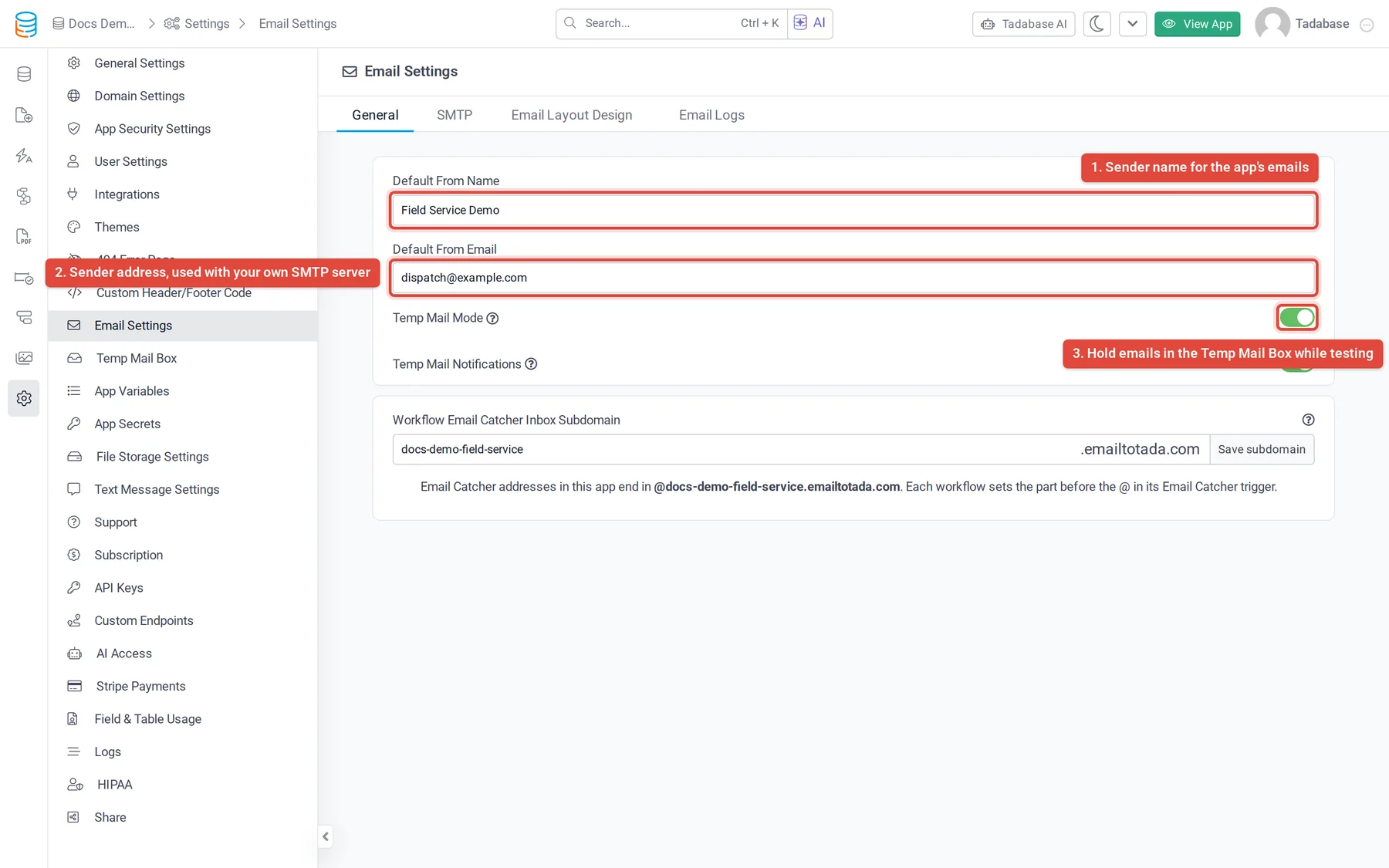
The other tabs on this screen have their own pages: SMTP (your own SMTP server), Email Layout Design (email layouts) and Email Logs (email logs).
Options on the General tab #
| Option | What it does |
|---|---|
| Default From Name | The sender name on emails that do not set their own From Name. |
| Default From Email | The sender address on emails that do not set their own From Email. It is used only when the app sends through your own SMTP server. Without one, emails are sent from the platform address and the screen shows a note saying so. |
| Temp Mail Mode | While Enabled, the app's outgoing emails are captured in the Temp Mail Box instead of being delivered. Use it to test forms, workflows and email templates with sample data. |
| Temp Mail Notifications | Shown while Temp Mail Mode is on. When Enabled, you get a notification, with a sound, each time an email is captured. |
| Workflow Email Catcher Inbox Subdomain | Shown when your app can use the workflow Email Catcher trigger. It sets the part after the @ in every Email Catcher address in the app. Changing it changes the address of every Email Catcher workflow. Click Save subdomain to apply it. See Email Catcher. |
What recipients see without your own SMTP server #
- The email comes from a Tadabase sending address, not your Default From Email.
- The sender name is your From Name, so recipients still see your app or company name.
- If the email sets a From Email, that address is added as the Reply-To, so replies go to it.
- To send from your own address, set up your own SMTP server.
Check captured emails in the Temp Mail Box #
With Temp Mail Mode on, open Settings > Temp Mail Box to read the emails your app would have sent. Turn Temp Mail Mode off and click Save when you are done testing, or real recipients will not get their emails.
Was this page helpful?
Something wrong or missing on this page? Tell us.