
Save uploaded files to your own Amazon S3 bucket
Set up an Amazon S3 bucket in your AWS account, connect it with the Account Method or the IAM Method, and add a secure bucket and direct uploads.
- Verified Nov 17, 2026
- Classic builder
On this page
Save new uploads from File and Attachments fields to an Amazon S3 bucket in your own AWS account instead of Tadabase storage. You can connect the bucket in two ways: the Account Method, where you give Tadabase's AWS account access to your bucket, or the IAM Method, where you create an access key for Tadabase to use.
Before you start #
- AWS S3 must be included in your plan. If it is not, the option is greyed out in File Storage Settings.
- You are responsible for the bucket and your AWS account. Tadabase support cannot troubleshoot settings inside your AWS account.
- Only new uploads go to your bucket. Files already uploaded stay where they are.
- Decide whether you need a second bucket for secure files (fields with Secured set to Yes). If you leave Secure Bucket empty, secure files go to the main bucket as private files.
Create the buckets in AWS #
Tadabase saves non-secure files with a public-read permission (ACL), so their links open in a browser, and saves secure files as private. Your bucket must accept these permissions. In the Amazon S3 console, create the bucket with these settings (AWS guide: Creating a bucket):
| Setting | Main bucket (non-secure files) | Secure bucket (optional) |
|---|---|---|
| Bucket name and region | Any name; note the region | Any name; same region as the main bucket |
| Object Ownership | ACLs enabled | ACLs enabled |
| Block Public Access | Turn off the two blocks for access granted through access control lists (ACLs). The two blocks for bucket policies can stay on. | Keep all four blocks on |
Then give Tadabase access with one of the two methods below. The Account Method needs no access key in your settings.
Connect with the Account Method #
With the Account Method, Tadabase writes to your bucket with its own AWS account, so each bucket must grant that account access.
- Get Tadabase's canonical user ID Ask Tadabase support for the canonical user ID of Tadabase's AWS account.
- Grant access on each bucket In the S3 console, open the bucket, go to Permissions, and under Access control list (ACL) click Edit. Click Add grantee, paste the canonical user ID, tick List and Write for objects and Read and Write for the bucket ACL, and save. Repeat for the secure bucket if you have one.
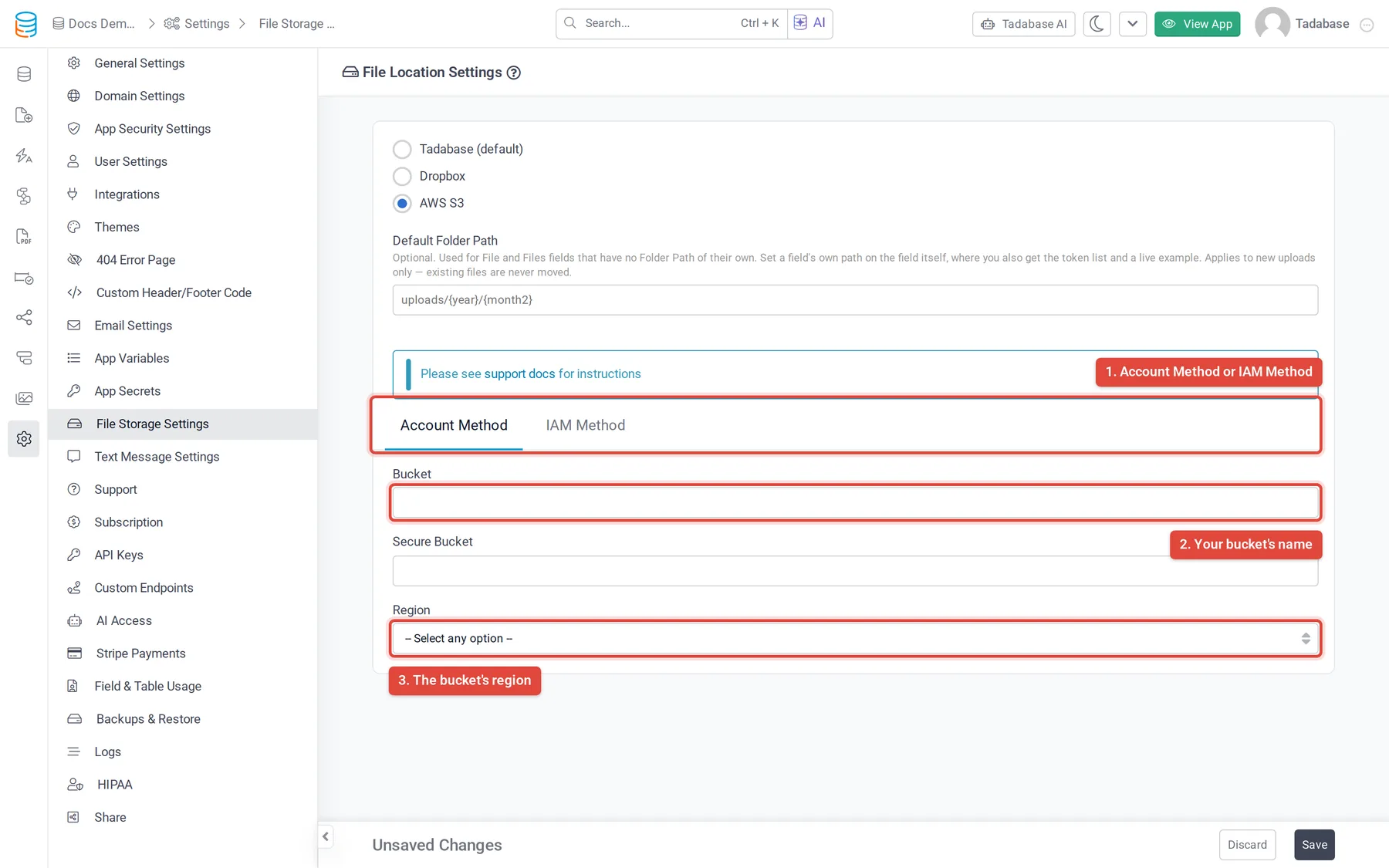
- Open File Storage Settings In the builder, click Settings, then File Storage Settings, and select AWS S3.
- Choose the Account Method Click the Account Method tab.
- Enter the buckets Enter the main bucket's name in Bucket and, if you made one, the secure bucket's name in Secure Bucket.
- Choose the region Pick the bucket's region in Region.
- Save Click Save in the Unsaved Changes bar. Bucket and Region are required; without them you see "Please enter all input for S3 API Access."
Connect with the IAM Method #
With the IAM Method, Tadabase uses an access key from an IAM user in your AWS account. Create the user with programmatic access and attach a policy that only allows your buckets (AWS guide: Managing access keys for IAM users). Replace the bucket names in this example with yours, and leave out the secure bucket lines if you do not have one:
{
  "Version": "2012-10-17",
  "Statement": [
    {
      "Effect": "Allow",
      "Action": "s3:*",
      "Resource": [
        "arn:aws:s3:::my-app-files",
        "arn:aws:s3:::my-app-files/*",
        "arn:aws:s3:::my-app-secure-files",
        "arn:aws:s3:::my-app-secure-files/*"
      ]
    }
  ]
}- Copy the access key In IAM, create an access key for the user and copy the Access key ID and Secret access key.
- Open File Storage Settings In the builder, click Settings, then File Storage Settings, and select AWS S3.
- Choose the IAM Method Click the IAM Method tab.
- Enter the details Fill in Bucket, Secure Bucket (optional), Key (the access key ID), Secret (the secret access key) and Region.
- Save Click Save in the Unsaved Changes bar.
Secure files in your bucket #
Whether a file is secure depends on the field: files uploaded to a field with Secured set to Yes are saved as private files in Secure Bucket (or in Bucket if you left Secure Bucket empty). When someone opens a secure file in your app, Tadabase creates a signed link that expires after 10 minutes. Non-secure files are saved with public-read access in Bucket. See Choose where uploaded files are stored.
Upload large files straight to S3 #
Normally a file goes through Tadabase on its way to your bucket. With Direct S3 Upload, the browser sends Attachments uploads from a form straight to your bucket, which helps with large files. The option only appears when AWS S3 is your storage location.
- Turn it on in the form In the Page Builder, open the form, click the Attachments field to edit it, and turn on Direct S3 Upload.
- Raise the size limit In the same panel, set Maximum File Size(MB) to the largest file you want to allow.
- Add a CORS policy to the bucket In the S3 console, open each bucket the field uploads to, go to Permissions, and under Cross-origin resource sharing (CORS) click Edit. Paste the policy below, with your app's address in
AllowedOrigins, and save.
[
  {
    "AllowedHeaders": ["*"],
    "AllowedMethods": ["GET", "PUT"],
    "AllowedOrigins": ["https://yourcompany.tadabase.io", "https://app.example.com"],
    "ExposeHeaders": ["ETag"],
    "MaxAgeSeconds": 3000
  }
]
List every address your app is opened from, including a custom domain. Without the CORS policy, the browser blocks the upload.
Check that it worked #
- Upload a test file Upload a file to a File or Attachments field in your app.
- Find it in S3 In the S3 console, open the bucket. Files are saved in a folder named after your app's ID, plus any folder path set on the field or in Default Folder Path.
- Open it from the app Open the file from the record. A non-secure file should open from its link; a secure file opens through a signed link.
If the file is not in your bucket, check that Bucket and Region match the bucket exactly and, with the IAM Method, that Key and Secret are filled in. If the upload fails, check the bucket's Object Ownership and Block Public Access settings above.
Was this page helpful?
Something wrong or missing on this page? Tell us.