
Create, update and copy records in a workflow
Use workflow actions to update records, create new or connected records, and duplicate or copy records, and set the values they get.
- Verified Nov 17, 2026
- Classic builder
On this page
Six workflow actions change your data: Update Record, Update Connected Records, Create Record, Create Connected Record, Duplicate Record and Copy Record. Use them to keep records in step with each other, for example to set a job's status when its invoice is paid.
Pick the right action #
| You want to | Use |
|---|---|
| Change fields on the workflow's record, on a record an earlier step found, or on a record in another table | Update Record |
| Change fields on the records connected to the workflow's record | Update Connected Records |
| Add a record to any table, with no link back | Create Record |
| Add a record to a connected table, linked to the workflow's record | Create Connected Record |
| Copy a record within its own table | Duplicate Record |
| Copy a record into a different table | Copy Record |
To find records by filters first, add a Find Records step before these. See Find records and use them in later steps.
Set field values #
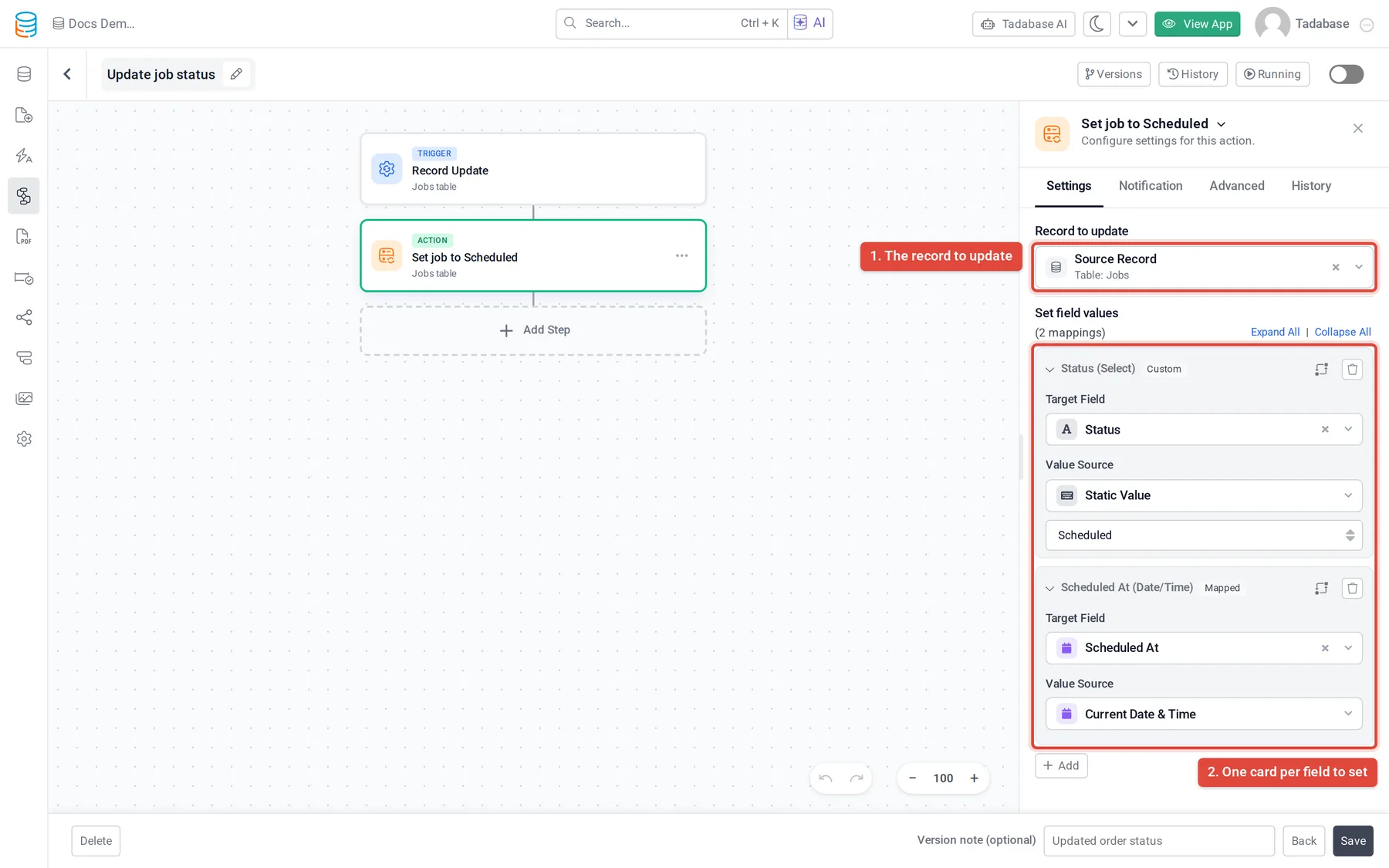
Every action on this page that writes values has a list of mappings, one per field. Once the action knows its table, the list appears under Set field values (or Override field values for Duplicate Record and Copy Record).
- Add a mapping Click Add. A new card appears.
- Choose the field Under Target Field, pick the field to write.
- Choose where the value comes from Under Value Source, pick a source, for example Custom Value for a fixed value, a field of the workflow's record, the current date, or the result of an earlier step under Step Data. See Using workflow data.
- For lists, choose how to write On fields that hold several values, such as connection fields, choose Replace to overwrite what the field holds, Append Value to add to it, or, where offered, Remove Value to take the value out.
When you write to a connection field with a value from elsewhere, Match by asks which field of the connected table identifies the record. Choose Record ID when the value is already a record ID. Values separated by commas are all looked up, and up to 100 matching records are linked, newest first.
Update Record #
Under Record to update, choose the record:
| Option | Which record |
|---|---|
| Source Record | The record the workflow is running on. Not offered inside a loop. |
| Loop Item | Inside a loop: the record the loop is on now. |
| Step Data | The record matched by an earlier Find Records step. |
| Other Tables | A record in any table, found with Filters and Sort order you set in the step. The first match is updated. |
With Other Tables, a Batch Update section appears. Turn on Update all records to update every record that matches the filters instead of only the first. The next step then gets only the first updated record.
Update Connected Records #
- Choose the connected table Under Connected table, pick the connection to follow from the workflow's table.
- Narrow it down (optional) Under Filters, set which connected records to update. Leave it empty to update all of them.
- Set the values Add mappings under Set field values.
Create Record #
Choose the Target table, then add mappings under Set field values. The new record is not linked to the workflow's record unless you set a connection field yourself.
Create Connected Record #
Choose the Connected table, then add mappings under Set field values. The new record is linked to the workflow's record through that connection.
Some connections show Remove existing connections. Set it to Yes to unlink the records that were connected before, so only the new record stays connected.
Duplicate Record #
Duplicate Record creates a new record in the same table, with the values of the record you choose under Record source (the source record, the loop item, a record from an earlier step, or a connected record). For a connected record, only the first one is duplicated.
- Override field values: add a mapping only for each field that should differ on the copy, for example a status that should start as Draft. Fields you leave out keep the original values.
- Copy Child Records: when the table has child tables, this section lists them. Tick a child table to duplicate its records along with the parent, and set override values for them too. This section is not shown when the record source is a connected record.
Copy Record #
- Choose what to copy Under Record source, pick the source record, the loop item, a record from an earlier step or a connected record, or open Copy From Another Table and pick a table. For another table, set Filters and Sort order to find the records to copy.
- Choose where it goes Under Target table, pick the table to copy into.
- Check the matched fields Auto-map same name + type (on by default) copies every field that has the same name and field type in both tables. Auto-map preview lists the pairs.
- Override values (optional) Under Set field values (overrides), add mappings for fields that do not auto-map or that should get a different value.
Use the new or changed record later #
The record a step creates or changes is available to the steps after it. In a later step's Value Source, open Step Data and pick the step. A Loop / Bulk Action step can also loop over the records a Copy Record or Update Connected Records step produced.
Was this page helpful?
Something wrong or missing on this page? Tell us.