
Create, Update, Upsert
Let's look at the steps that write data: create, update, and upsert, which updates a record if it's already there and creates it if it isn't.
On this page
Chapters
Read the docs
Transcript
Show the full transcript
0:00 Intro
Let's look at the steps that write data: create, update, and upsert, which updates a record if it's already there and creates it if it isn't.
0:10 Ana's visit
Ana Ruiz walks up to the front desk at Brookside Family Clinic for her appointment. The receptionist has to look her up, and since Ana mentions she has a new phone number, update that too. If the receptionist can't find her, she adds Ana as a new patient, and if she adds her without looking carefully, Ana ends up in the system twice. Then, when the visit's over, the receptionist marks it as completed, makes the invoice, updates the date of Ana's last visit, and goes through Ana's reminders closing the ones that are done. And the whole time, the next patient is waiting. That's a lot of running around for one visit, and the front desk does it for every patient, all day long. Every one of those steps takes time, it's easy to forget one, and it's easy to create a second record for someone who's already there. A workflow takes all of that off the front desk. Ana doesn't do anything differently. She walks in and walks out, the same as always. But the moment she's checked in, the workflow finds her record, or creates one if she's new. And the moment the front desk clicks Check out, it makes every one of those changes at once, the same way every time. That's what create, update and upsert are for. They're the steps that change your records, so nobody has to do it by hand.
1:24 Check-in
Let's start at check-in. When the receptionist checks a patient in, the workflow uses Create Record, which adds a new record to any table. On its own, it adds a new patient for every single check-in. Lena Park is new, so for her that's right. But Ana has been here before, so it would create a second record for her. That's what upsert fixes. Turn on Match on a field, and Create Record looks first. Match on Email, and Ana's email is found, so her existing record is updated with her new phone number instead of being copied. Lena's isn't found, so she's created again. Check either of them in again, and nobody is ever added twice.
2:04 Check-out
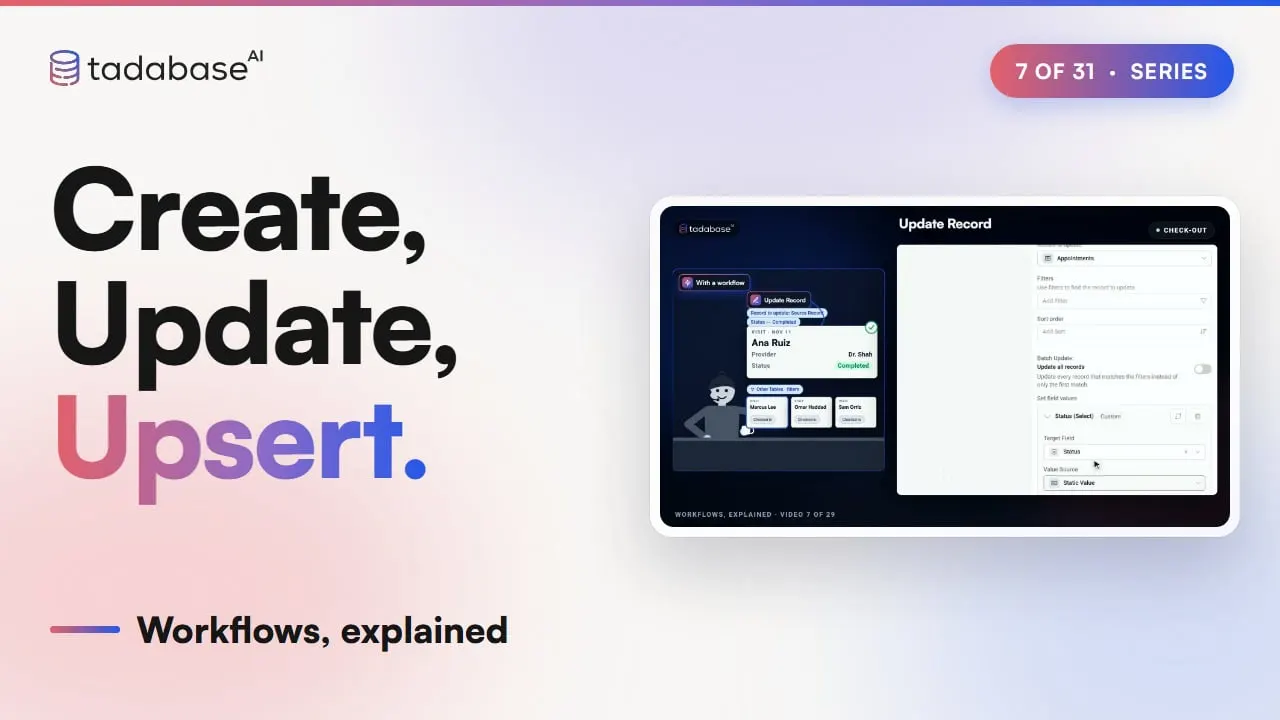
Now Ana's visit is over, and the front desk clicks Check out. Remember the four things that the receptionist had to do by hand. The workflow does all four from that one click. Marking the visit as completed is Update Record, which changes one record. The record to update is the Source Record, which is the visit that started the workflow, and it sets Status to Completed. You can also pick Other Tables, find a record with filters, and switch on Update all records to change every match. Making the invoice is Create Connected Record. It adds a new record and links it to the one that started the workflow. Pick Invoices, set the amount from the visit's copay, and the invoice is already connected to Ana's visit. Updating the date of her last visit is Update Connected Records, which reaches through a connection. The visit is connected to Ana's patient record, so her Last visit is set to the Current Date. And closing the reminders that are done uses Update Connected Records too, but this is where you have to be careful. It changes every connected record, unless you add a filter. Ana's visit has three reminders, and one of them was already cancelled. Without a filter, all three would close. Add the filter Status is Open, and only the two open ones close.
3:19 Duplicate and copy
Ana also needs a follow-up visit. Instead of the receptionist typing it in again, Duplicate Record makes a twin of today's visit in the same table, with its status set back to Scheduled, and it could bring the records attached to it along too. And if you ever need a record in a different table, Copy Record copies it there, and Auto-map fills in the fields that have the same name and type.
3:43 Setting it up
Here's the whole check-out workflow. It uses a Manual trigger on Appointments, which puts the Check out button on the visit. Add Update Record, pick the Source Record, and set Status to Completed. Add Create Connected Record, pick Invoices, and map the amount to the copay. Add Update Connected Records, pick Patients, and set Last visit to the Current Date. Add another one for Reminders, filter on Status is Open, and set Status to Closed. The Advanced tab can stop the run if a step fails. Save, and the button is live. And here's the check-in workflow. It uses Create Record on Patients, with Match on a field turned on. Match on Email, equal to the email from the check-in. If a match is found, you can update it, leave it alone, or stop with an error. Then set the field values.
4:52 Ana's visit, done
So here's Ana's visit now. She walked in, and her record was found and updated instead of copied. She walked out, and with one click her visit was completed, her invoice was made, her last visit was updated, her open reminders were closed, and her follow-up was booked. Ana didn't notice a thing, and the front desk didn't have to run around for any of it.
5:13 Rules
There are three rules to keep track of. Rule one: at check-in, match on something no two patients share. If check-in matches on insurance instead of email, Priya's check-in finds Ana, the first patient on Harbor Health, and overwrites Ana's record. Only the first match gets updated, so use a field like Email. Rule two: Trigger other workflows is on by default. When check-out updates Ana's patient record, a workflow that runs on Record Updated in Patients runs too, and emails her. If you don't want that, turn the switch off on that step. A workflow never runs twice for the same change. Rule three: blank means empty, not zero. Ana's follow-up visit sets the copay to Blank Value, so it's saved as empty, not zero dollars. And any field you leave out keeps its value, like her provider.
6:01 Recap
That's how workflows write your data. Create adds a record, Update changes one, and the Connected steps reach through to the records linked to it, with a filter when you need one. And Match on a field turns Create into an upsert, so every patient has one record, no matter how many times they check in. In the next video, we'll look at Find Records, which looks up records so later steps can use them. You can learn more at tadabase.com.
Also on Vimeo · the whole series on Vimeo