
Passing Values Between Steps
Picture a referral landing at a busy clinic. Someone has to look up which patient it's for, book her in with her own doctor, and then email her to let her know it's all taken care of. That's three separate jobs, and each one needs something the one before it figured out. In Tadabase AI, a workflow can do all three on its own, handing what it learns from one step to the next. In this video, you'll see exactly how that handoff works, how you choose what each step uses, and what to do when a field turns out to be blank.
On this page
Chapters
Read the docs
Transcript
Show the full transcript
0:00 Intro
Picture a referral landing at a busy clinic. Someone has to look up which patient it's for, book her in with her own doctor, and then email her to let her know it's all taken care of. That's three separate jobs, and each one needs something the one before it figured out. In Tadabase AI, a workflow can do all three on its own, handing what it learns from one step to the next. In this video, you'll see exactly how that handoff works, how you choose what each step uses, and what to do when a field turns out to be blank.
0:32 The idea
Think of a relay race. The first runner sets off with the baton. At every handoff, each runner adds something to it, a note the next runner is going to need. By the last leg, the baton is carrying everything the team picked up along the way.
0:48 In your app
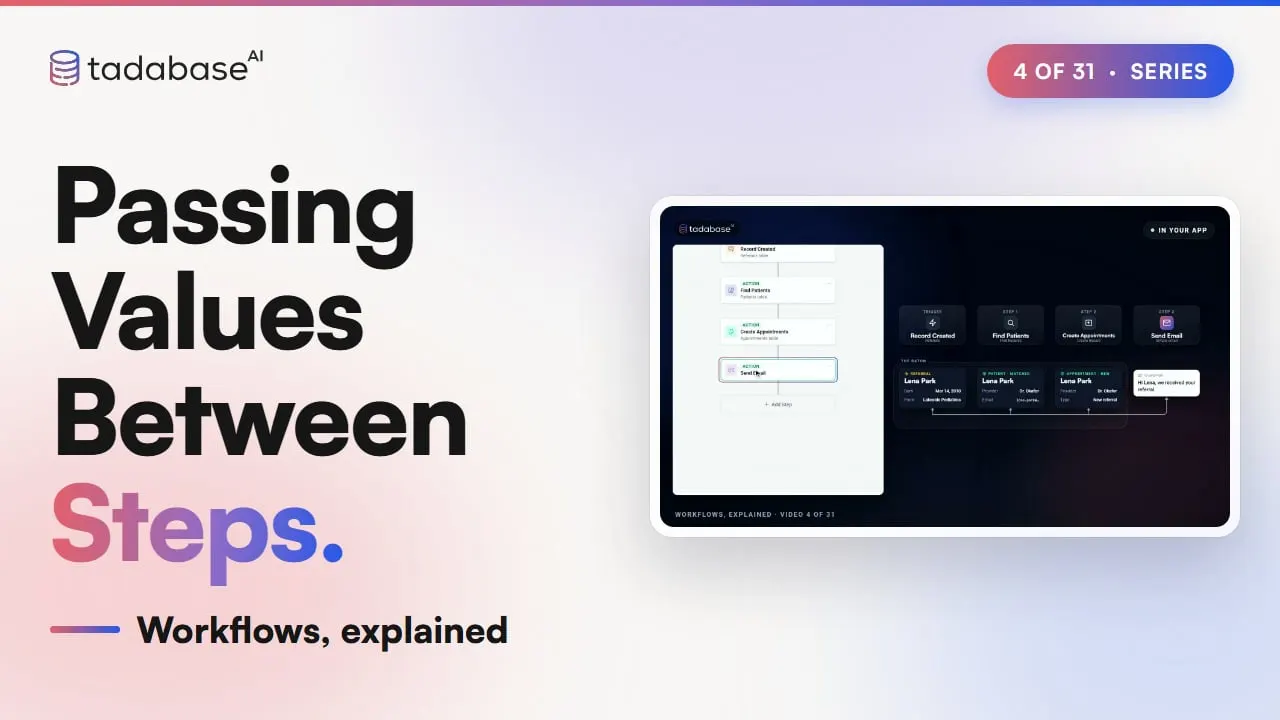
A workflow passes information along in exactly the same way. Here's one at Brookside Family Clinic. A referral comes in for Lena Park. A Find Records step searches the Patients list for the same date of birth and last name, and now it finds her. A Create Record step books her a referral appointment with her own provider, Dr. Okafor. And a Send Email step writes to her, saying "Hi Lena, we received your referral." Each step leaves something on the baton. The trigger brings in the referral. The Find Patients step adds the patient it matched. The Create Appointments step adds the appointment it made. And by the time the email step runs, it can read all three.
1:28 Choosing a value
Every value you set in a step has a little pill that says Choose a value. When you click it, the picker asks where the value should come from. Source Record is the record that started the workflow, which here is the referral. Step Data holds whatever the earlier steps found or made, like the patient Find Patients matched. Logged-in User is whoever is signed in when the workflow runs. And Static and Generated is where you type in a fixed value, like a "New referral", or pick something like today's date.
1:59 Which record
Inside the appointment step, there are two records you can read from. On the left is the referral that started the workflow. On the right is Lena's patient file, the one Find Patients matched. The provider comes from the right side, from her primary provider, Dr. Okafor. And the Patient field takes her Record ID, which is what connects the new appointment to Lena. The pill always tells you which side it's reading from. If it says Record Value, Referrals, it's reading the record that started the workflow. If it says Step Record Data, it's reading the record from one of the steps. And if more than one patient matches, Step Data reads the first one, in whatever order that step sorts them.
2:41 Values in text
In an email, the values sit right inside the text. Type "Hi", then press the slash key, and the same picker opens up. Pick Step Data, Find Records, and then First name. It drops into the message as a placeholder, and when the email goes out, that placeholder turns into "Lena". If a field is blank, its placeholder prints nothing at all. Say a patient was saved with only a last name, Haddad. His email would open with "Hi" and then a comma. So click on the first name in the email, and fill in Fallback when blank with the word "there". Now it reads "Hi there, we received your referral." You set a fallback like this on any placeholder inside a message.
3:23 Setting it up
Setting this up takes four choices. Click New workflow, and the trigger is already set to Record Created. Pick the Referrals table. Add a Find Records step on Patients, with two filters, one for date of birth and one for last name. Click the little bolt on each filter and pick Source Data, so each filter uses the value from the referral itself. Then add a Create Record step in Appointments. The Patient field gets the Record ID from Find Patients, the Provider field gets her primary provider, and the Type field gets the fixed value "New referral". Finally, add a Send Email step to the email address from Find Patients, starting with "Hi", her first name, and the fallback for when it's blank. Save it, and the workflow is live. The same shape works for any business. At a school, a note about a student comes in. The workflow finds that student, looks up their homeroom teacher, and emails that teacher by name.
4:42 Rules
There are two rules worth keeping in mind. The first is to always know which record you're reading from. In this example, the referral and the patient both have an Email field. On the referral, that email belongs to the office that sent it. So if you pick Source Record, Lena's note goes to that office. If you pick Step Data, Find Records, it goes to Lena. The second rule is that a blank value stays blank. A placeholder with nothing in its field prints nothing. And if Find Records doesn't match anybody, that step is skipped, and every value that would have come from it is blank too. So give your greetings a fallback, and in the next video, you'll see how a condition can stop the workflow when nobody was found. So that's how values move between steps. The trigger brings in the first record, and each step adds what it found or made. The pill decides which one you're reading, and a fallback covers anything that's blank. In the next video, we'll look at conditions, and the Yes and No paths they create. You can learn more about Tadabase AI on our website.
Also on Vimeo · the whole series on Vimeo