
Record Triggers
Your front desk marks a patient as a no-show, and a task pops up to call her and rebook. That's exactly what you wanted. Then someone fixes a typo in her appointment notes, and a second task shows up for the same missed visit. In Tadabase AI, the fix is all in how record triggers work, so in this video we'll go through all three of them, the one condition that stops duplicate tasks for good, and what actually happens inside a save.
On this page
Chapters
Read the docs
Transcript
Show the full transcript
0:00 Intro
Your front desk marks a patient as a no-show, and a task pops up to call her and rebook. That's exactly what you wanted. Then someone fixes a typo in her appointment notes, and a second task shows up for the same missed visit. In Tadabase AI, the fix is all in how record triggers work, so in this video we'll go through all three of them, the one condition that stops duplicate tasks for good, and what actually happens inside a save.
0:29 The idea
Think of a house with two alarms. The doorbell rings when someone new arrives, and a motion sensor goes off when something that's already inside of moves. Wire both of them to the same chime, and you'll hear either one. Record triggers work the same way. Here's one clinic appointment that gets saved three times. First, it's booked for Ana Ruiz. That's a brand new record, so Record Created fires, just like the doorbell. Then her time gets moved from nine thirty to eleven. That's an edit, so Record Updated fires, like the motion sensor. Then the appointment gets marked as a No-show, which is another edit, so Record Updated fires again. And Record Created or Updated fires on all three.
1:11 In your app
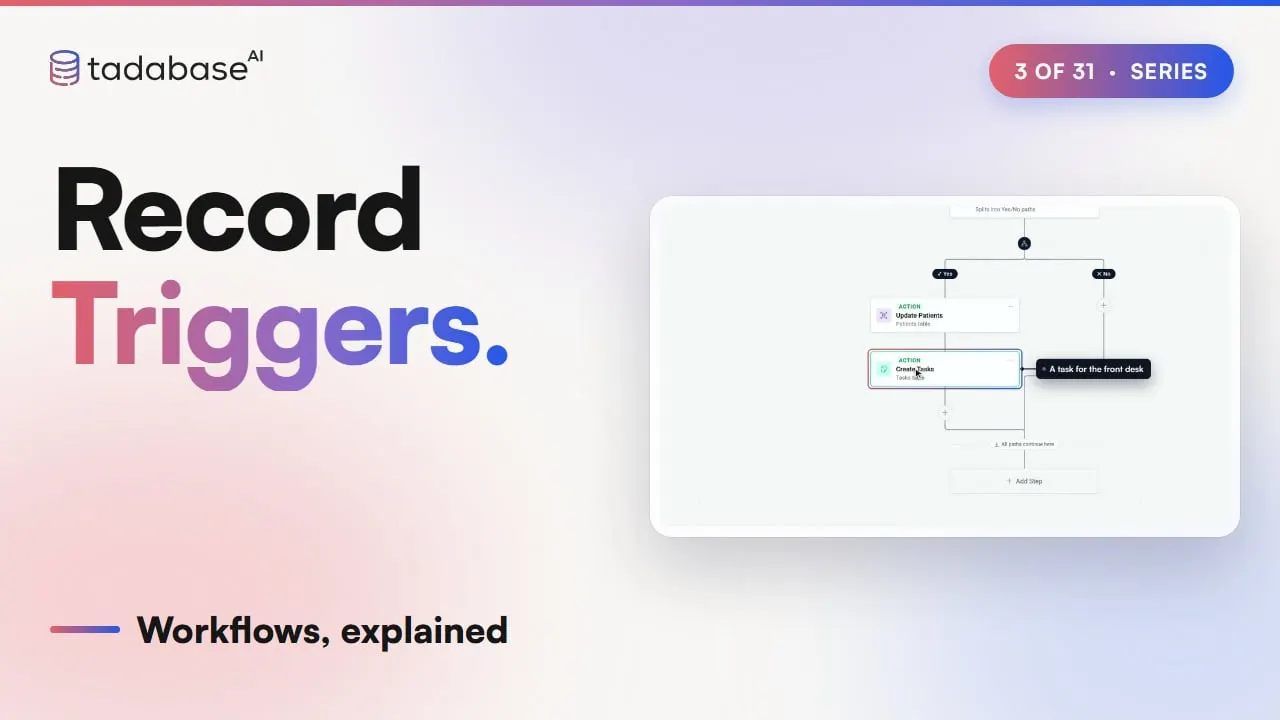
Here's the workflow we're going to build. When an appointment is updated, a condition checks whether its status just changed to No-show. If it did, the patient's file gets the date of the visit she missed, and the front desk gets a task to call her and rebook. The same idea works in any business. At a warehouse, when an order's status changes to Returned, the customer's file gets flagged and a follow-up task is created.
1:36 Is changed from
The condition we'll use reads "Status is changed from Any Value to No-show", and it compares the record from before the save with the record after it. The status was Booked before and No-show after, so it passes. Now say someone fixes a typo in the notes later on. The status was No-show and it's still No-show, so the condition does not pass. If you'd used a plain "Status is No-show" instead, it would pass here too, and the front desk would get a second task for the same missed visit. Because "is changed from" needs a before to compare with, it only exists on the triggers that fire on edits. On Record Updated, and on Record Created or Updated, you'll find it at the end of the list of options. On Record Created there's no before yet, so it isn't there. You'll use it on a field like Status, which is a Select field. Date, time and yes-or-no fields don't offer it.
2:36 Which saves
Almost every kind of save counts. That includes a form in your app, an edit made right in a table, and an import, which runs the workflows behind the scenes once the rows are in. It also includes a save that comes in from another system, a batch update when you turn on Run table rules, workflows and webhooks, and a change made by another workflow, as long as that step leaves Trigger other workflows switched on. If a table is kept in sync with a board in another tool, like monday, the trigger gets one more setting for when a sync makes the change. You can choose to run the workflow, skip it, or only run it for changes that come from the sync.
3:14 Who made the change
Right below that, every record trigger has one more choice, called "When the change is made by". A change can come from a person, like a front desk moving an appointment, or from an AI assistant connected to your app, moving it on a patient's behalf. If you pick Anyone, the workflow runs for both. If you pick An AI assistant only, it runs just for the assistant's changes, which is handy if you want the front desk to get a task to double-check every move the assistant makes. And if you pick Anyone except an AI assistant, it does the opposite. So if the assistant already confirms the new time in its chat, the confirmation email only goes out when a person makes the change. A workflow's own changes never count as the assistant's.
3:55 Inside the save
Now let's look at one save from the inside. The appointment gets written, its formulas get calculated, and then the workflow runs, right there, inside that same save. The person who clicked Save only sees it as saved once the workflow's last step has finished. One save starts each workflow once. If the workflow's own steps go on to change that same appointment, that change won't start the workflow a second time.
4:21 Setting it up
Setting this up only takes a few choices. Click New workflow, open the trigger, and change it to Record Updated, on the Appointments table. Add a Condition, pick Status, choose "is changed from", and set it to go from Any Value to No-show. On the Yes path, add Update Connected Records, pick Patients, and set Last no-show to the appointment's date. Then add Create Record in Tasks, with a task to call the patient and rebook, assigned to the front desk. Save it, and the workflow is live.
5:10 Rules
There are three rules worth keeping in mind. The first is that heavy steps slow down the save. Since the workflow runs inside the save, a long step, like a slow call to another service, keeps the person waiting after they click Save. So keep your record workflows light. The second rule is that there's no trigger for deleting a record. The Records group only has three triggers, Created, Updated, and Created or Updated, so deleting a record doesn't start anything. If removing something needs a follow-up, mark the record instead, say with a status of Cancelled, and let Record Updated catch that change. The third rule is that formulas are calculated before the workflow starts. So if an appointment moves from Monday to Tuesday, the Weekday formula updates first, and every step in the workflow sees Tuesday, never the old day. So that's how record triggers work. Record Created fires when something new is added. Record Updated fires on an edit, and "is changed from" catches the one change you care about. Created or Updated fires on both, and all of it happens inside the save. In the next video, we'll pass values from one step to another, like the appointment date that ended up in Ana's file. And you can see what each plan includes on the Tadabase AI pricing page.
Also on Vimeo · the whole series on Vimeo