
Buttons, Forms, Apps and the API
Some workflows wait for someone to start them. This video shows the ways to start one on purpose: a button in your app, a page that calls it with values, and another system, through the API.
On this page
Chapters
Read the docs
- Run a workflow from a button on a page Use the Manual trigger and a Trigger Workflow button so users run a workflow on a record when they click, with optional messages while it runs.
- Call a workflow from your app Set up a workflow that your app calls with its own values, then call it from a button in a classic app, from a Vibe app or through the API.
Transcript
Show the full transcript
0:00 Intro
Some workflows wait for someone to start them. This video shows the ways to start one on purpose: a button in your app, a page that calls it with values, and another system, through the API.
0:13 The idea
Think of a light switch. The wiring is ready, but nothing happens on its own. Someone flips the switch, and the light comes on. Flip it again later, and it comes on again. One flip, one go. Workflows have three kinds of switch. A button in your app, for a person. Called from an App, for a page that sends values and wants an answer. And the API, for another system.
0:38 Buttons
A button starts a Manual workflow. Here's Send intake packet in the AI Builder. Its trigger is Manual, on the Appointments table. One step emails the patient a link to the intake forms. And Manual runs only when something starts it. In the app, the front desk sees today's appointments. Each row has a Send intake packet button. Click it on Ana Ruiz's appointment, and the workflow runs once, with that appointment as its record. Ana gets the email. A button can also run on several records. Tick three appointments, and click the button above the table. It asks what to run on: the selected records, the loaded records, or records that match a filter. Pick Run on the Selected Records, and the workflow runs for all three. What about forms? A form doesn't need a button. When the new patient form is submitted, it saves a record, and that starts any Record Created workflow on that table. Video three covers those.
1:39 Called from an App
Called from an App works differently. There's no record to start from. A booking page sends values: the patient's email, a provider, and a time. The workflow books the visit, and sends an answer back, so the page can say Booked. Its settings live on the trigger. With Called from an App as the trigger type, turn on Allow apps to call this workflow. Under Inputs the app sends, add Patient email, Provider and Start time. Under Who may call, keep Only signed-in users, and tick the Front Desk role. Under Reply to the app, choose Wait for it and return values, and send back the new appointment's ID. Run test call shows what the app would get.
2:22 The API
Other systems start workflows through the API. The booking site sends one request with the workflow's ID and the appointment's ID, using an API key that's allowed to run workflows. Tadabase answers right away: the run is queued, with its run ID. Later, the site uses that ID to see how the run went.
2:43 Setting it up
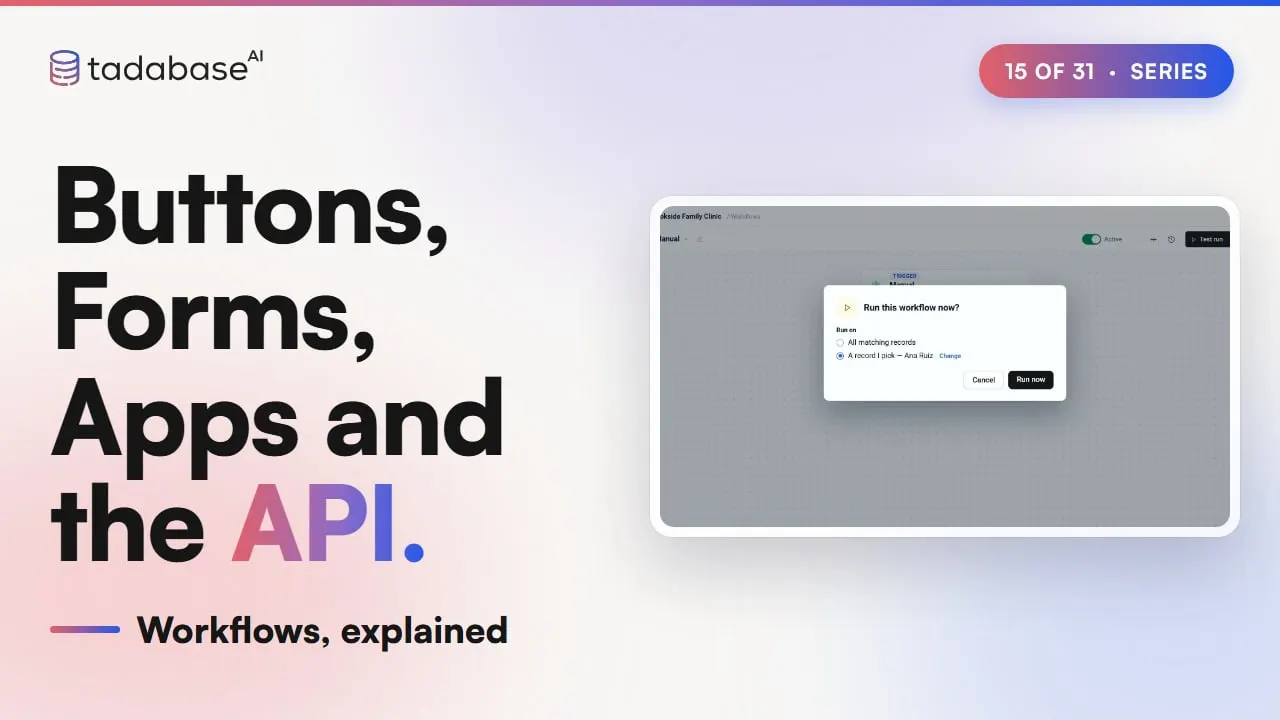
Here's a Manual workflow from the start. In Workflows, click New workflow, then click the trigger. Open Trigger Type, and click Manual. Choose the Appointments table. Add a step: Action, then Send Email, with the Intake packet email. Save. To try it, open the run options and choose Run now. Under Run on, choose A record I pick, and pick Ana Ruiz. Run now, and the run shows up in run history. Every business has buttons like this. A sales team clicks Send proposal on a deal, and the workflow emails the proposal to the client.
3:20 Rules
Three rules to keep track of. Rule one: a run started by a button or the API is queued. The click puts the run in line and gets its run ID at once. The steps run a moment later. Only Called from an App can wait for the answer, when you choose Wait for it and return values. Rule two: the workflow has to be on. When it's off, the request is refused, and nothing runs. Turn it on, and the same request runs it. And the API only starts Manual workflows. Record and schedule workflows run from their own trigger. Rule three: decide who may run it. Called from an App has Who may call: signed-in users, or only some roles. For buttons, a Row Level Security policy can list the workflows each role may trigger. And an API key can start any Manual workflow, so keep it secret. That's how to start a workflow on purpose. A button, on one record or many. A page that calls it with values and gets an answer. And another system, through the API. What each plan includes is on the pricing page at tadabase.com. In the next video, we look at user events.
Also on Vimeo · the whole series on Vimeo