
Loops over Records
Sometimes the same job needs doing for every record on a list, like every appointment on today's schedule, and doing it one by one gets old fast. This video is all about loops over records, which do that job for every single record, one at a time, all on their own.
On this page
Chapters
Read the docs
Transcript
Show the full transcript
0:00 Intro
Sometimes the same job needs doing for every record on a list, like every appointment on today's schedule, and doing it one by one gets old fast. This video is all about loops over records, which do that job for every single record, one at a time, all on their own.
0:17 The front desk
Every morning at the clinic, before the doors open, the receptionist goes through each doctor's schedule for the day. Dr. Okafor has four patients today. For the first one, she marks the appointment as reminded, writes an email with the time of the visit and where to park, and sends it. Then she does the same for the second patient, and the third, and the fourth. Then she moves on to Dr. Bell's schedule and starts all over again. Somewhere in the middle, the phone rings, and she loses track of who she's already emailed. And by the time she's done, the first patients are walking in. That's the same two jobs, done again and again, every single morning, for every single doctor. It's slow, it's easy to skip a patient, and the patients don't do anything differently; they just expect their reminder. A loop takes all of that off the front desk. One click on Dr. Okafor's record, and the loop goes through every one of her appointments today, doing the same two jobs for each one, without missing anyone. Tomorrow morning, it's the same click.
1:15 Building the loop
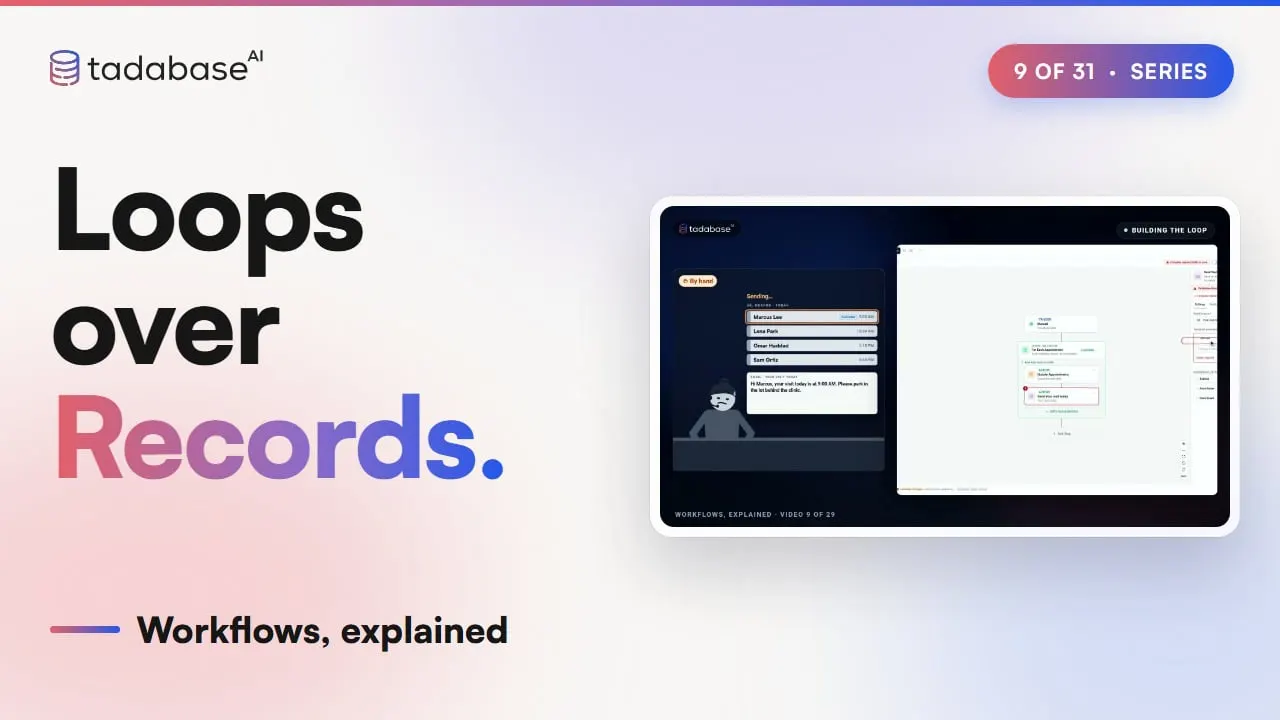
That click on Dr. Okafor's record is where it starts. This workflow has a Manual trigger on Providers, which puts a Send today's reminders button on every provider's record. Under the trigger, click Add First Step, and choose Loop / Bulk Action. Then tell the loop which records to go through. In Records from, pick Appointments, under All Tables, and add two filters: the provider is the Source Record, which is Dr. Okafor, and the date is today. That finds her four appointments. Now the two jobs the receptionist was doing for each patient. Click Add action inside loop, and choose Update Record. It already points at the appointment the loop is on, so set the status to Reminded. Then add another action, Send Email, with the Your visit today template. Save, and the loop is ready.
2:03 How a loop runs
When the front desk presses the button, that's still one run, because the trigger fired once, for Dr. Okafor. Inside that run, the loop goes round four times, once for each appointment, and each time round is called an item. Inside the loop, two records are within reach. The Source Record is the one that started the workflow, Dr. Okafor, and it stays the same every time round. The Loop Item is the appointment for this pass, and it changes every time round. Steps you add inside the loop work on the Loop Item automatically, which is why each patient gets their own email with their own time.
2:38 Record sources
Appointments from a table are only one place a loop can get its records. It can also go through Connected Data, which means the records connected to the one that started the workflow, or Step Data, the records an earlier step returned, like Find Records from the last video. Step Data takes those records exactly as they are, so do any filtering in that earlier step.
3:00 Loop behavior
Under Loop behavior, there are three more choices. On iteration error, you can continue with the next appointment, or stop the whole workflow. When no records are found, like on a day Dr. Okafor has no patients, you can skip the loop and carry on, or fail the workflow. And if the loop doesn't need freshly calculated equation values, Don't run Equations keeps a big loop fast.
3:23 The morning, now
So here's the morning now. The front desk presses Send today's reminders on Dr. Okafor's record, and in one run, all four appointments are marked as reminded, and all four patients get their email. Then one more click for Dr. Bell.
3:36 Run history
Open Run history, and the loop shows four items, all succeeded, with the filter it used and how many appointments matched. Each square is one appointment, in order, and clicking one shows the steps that ran for it. The receptionist didn't have to keep track of anyone, and she's done before the doors open.
3:55 Rules
There are three rules to keep track of. Rule one: inside the loop, use the Loop Item. If a step points at the Source Record instead, it changes Dr. Okafor's record four times, and none of the appointments. Point it at the Loop Item, and each appointment gets its own change. Rule two: there's no loop inside a loop. Inside a loop, Add Step offers Action, Condition and Branches, but not another Loop. Rule three: if something fails, Run history keeps the details. Say the email to Omar Haddad fails. That square turns red because the loop is set to continue. The next appointment still runs. Show only failed items lists just the ones to fix. On a long loop, Run history keeps the step details of every failed item, but only of the first successful ones, although the totals still count every item.
4:44 Recap
That's a loop over records. It finds the records, runs the same steps on each one as the Loop Item, and logs every item, all in one run. You can see what each plan includes on the pricing page at tadabase.com. In the next video, we'll loop over lists: the items that arrive inside a single message.
Also on Vimeo · the whole series on Vimeo