
Schedules
Some work starts with the clock, not with a change. Every weekday at seven, Brookside sends an intake link to the patients coming in today who haven't filled theirs in. This video shows how a Schedule does that.
On this page
Chapters
Read the docs
Transcript
Show the full transcript
0:00 Intro
Some work starts with the clock, not with a change. Every weekday at seven, Brookside sends an intake link to the patients coming in today who haven't filled theirs in. This video shows how a Schedule does that.
0:15 The idea
Think of an alarm clock with a to-do list. At seven, the alarm rings. You pick up the list, skip what's already done, and work through the rest, one item at a time. Tomorrow at seven, it rings again. A schedule has the same three parts. The alarm is when it runs. The list is a table. And skipping what's done is the filter, which decides the records each run works through.
0:40 In your app
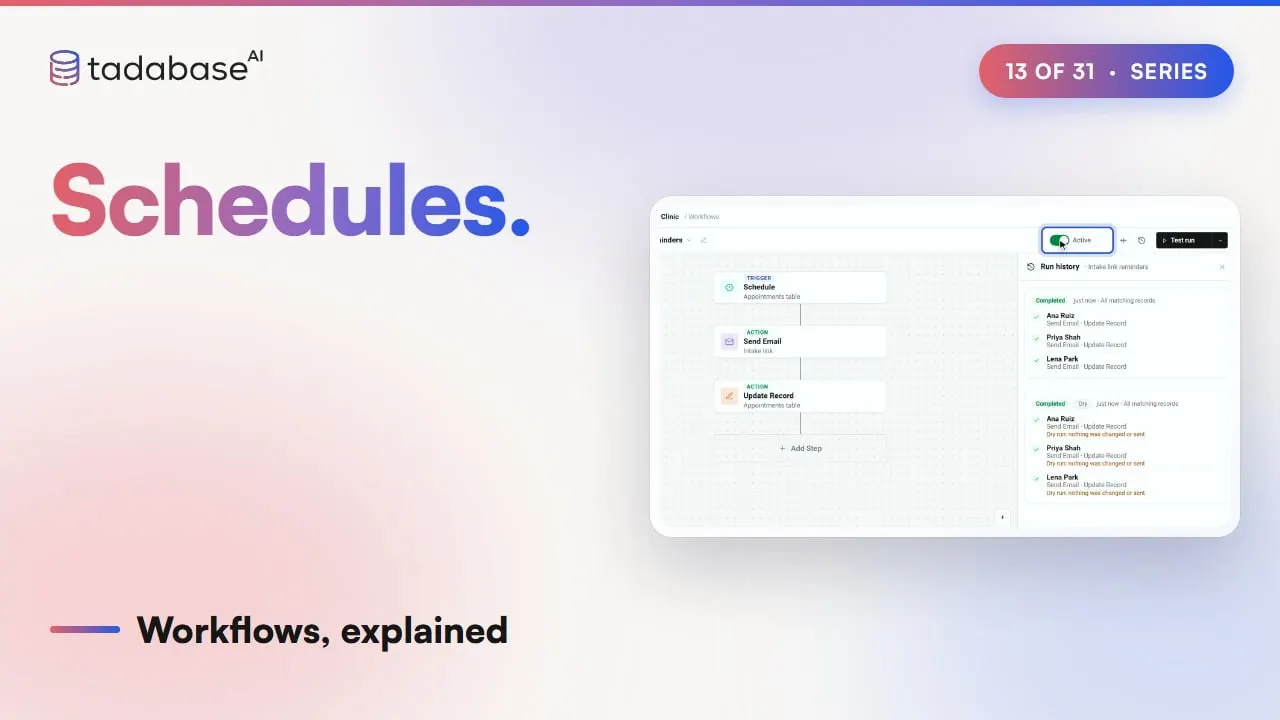
Here it is with the clinic's data. At seven on Monday morning, the schedule wakes up and reads the Appointments table. The filter keeps today's appointments where Intake done is No. That's three of the six. For each one, the steps run: an email with the intake link, and Intake requested is set to Yes.
0:59 The editor
Here's that workflow in the AI Builder. The trigger is Schedule, on the Appointments table. Send Email sends each patient the intake link. And Update Record marks the appointment. Click the trigger, and the schedule's source has three tabs. Data Table goes through records in your app, like this one. AI Agent gives one of your agents instructions, and the steps below get its answer. External Source view goes through every row of a saved view from another system, once per row.
1:31 Setting it up
Now the timing. Under Schedule Settings, a sentence reads: run how often, at what time, starting from which day. Pick Daily. Every Minute and Hourly are there too. Set seven AM, and start on Monday, November ninth. Daily includes the weekend, when the clinic is closed. Click Advanced. Set Frequency to Weekly, and under By Weekday, pick Monday to Friday. Next Occurrences lists the coming runs, so you can check them before you save. Save Schedule, and the panel shows the rule in words. Then choose the records. Under Record Selection, click Add Filter. Date is today, and Intake done is No. Apply. Leave Limit blank to process every matching record. Then save.
2:21 Testing
You don't have to wait for seven to see it work. Click Test run, on all matching records. A test run walks every step on your real records, without changing or sending anything. When it looks right, open the menu and choose Run now. It runs once, right away, and the schedule keeps its usual time. A live run needs the workflow turned on. A test run works while it's off. The same pattern fits any business. A gym runs a schedule every morning over its Members table, and emails each member whose membership expires today.
2:54 Rules
Four rules to keep track of. Rule one: filter, or it runs for every record. Without Record Selection, the run goes through the whole table, so Marcus, who already finished his intake, and tomorrow's patients get the same email too. Rule two: one run at a time. If a run is still going when the next time comes, that turn is skipped, and run history says the previous scheduled run was still running. The run after that goes ahead as normal. Rule three: missed runs are not replayed. If a run is held up for a few minutes, it still goes out. A run missed by longer is skipped, and the schedule picks up at its next time. Nothing piles up. Rule four: check the timezone. Schedule times use the app's Timezone, under Settings, General. Seven AM means seven AM there, wherever you are when you set it up. That's a schedule. The clock decides when. The filter decides which records. And the steps run once for each of them. What each plan includes is on the pricing page at tadabase.com. In the next video, we look at reminders before and after a date.
Also on Vimeo · the whole series on Vimeo