
Loops over Lists
Some things show up as a whole list at once, like a full day of online bookings packed into a single message. This video shows how a loop takes a list like that apart, one item at a time, and turns every item into its own record.
On this page
Chapters
Read the docs
Transcript
Show the full transcript
0:00 Intro
Some things show up as a whole list at once, like a full day of online bookings packed into a single message. This video shows how a loop takes a list like that apart, one item at a time, and turns every item into its own record.
0:17 The front desk
Every evening, the clinic's online booking service sends over one message with all of the day's new appointment requests, six of them tonight. The receptionist opens it, reads the first request, Ana Ruiz, and types it into the app as a new appointment request: the patient's name, the provider, and the start time. Then she goes back to the message for the second time, and types that in, and the third, and so on. One of tonight's requests is actually a cancellation, so she has to spot it and skip it. And it's past closing time. That's the same typing, six times over, every single evening, and it's easy to mistype a time or miss the cancellation. The booking service doesn't do anything differently; it sends its list the way it always has. A loop over a list takes that typing off front desk. The moment the message arrives, the loop goes through every request in it and turns each one into its own record, automatically.
1:17 A list, not records
This is a little different from the last video. There, the loop went through records that were already in a table. Here, the requests are only information inside the message, until a step creates a record from each one.
1:31 Building the loop
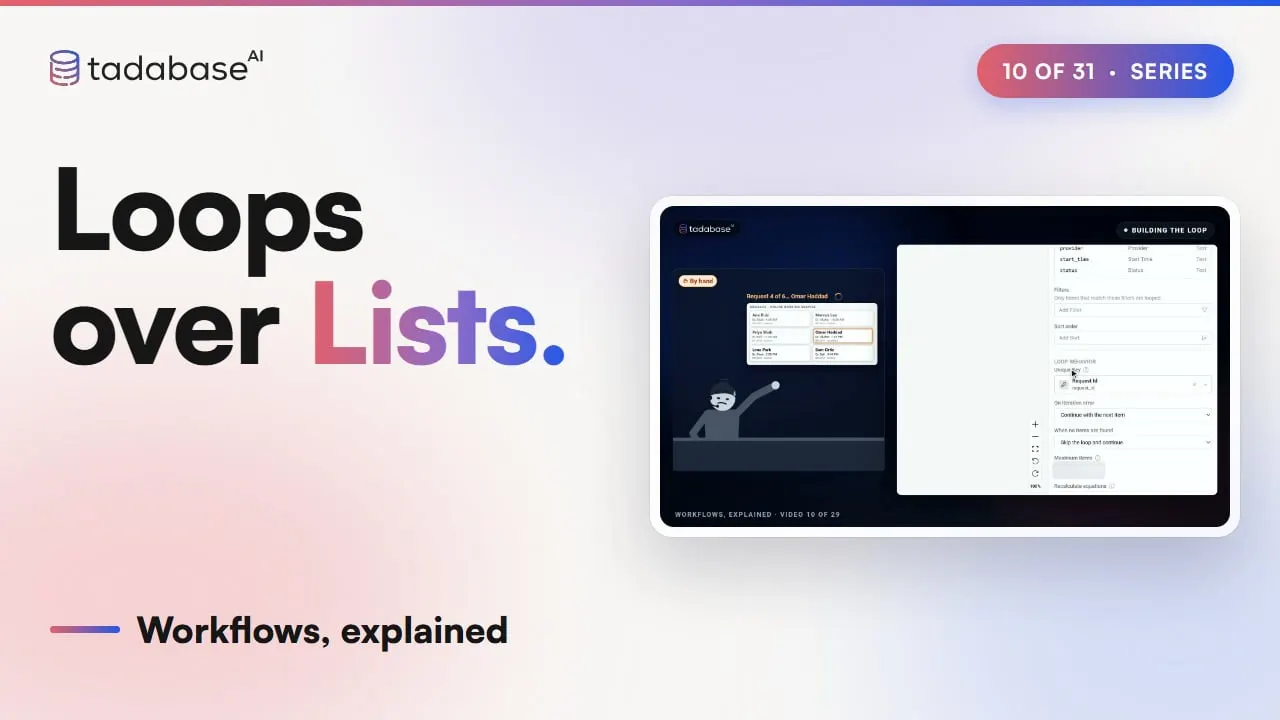
The message arriving is where it starts, so the trigger is Incoming Webhook, which receives the message from the booking service. Send it a test request first, so the workflow has a sample of what the list looks like. Then add a step and choose Loop / Bulk Action. Under Items from, open Trigger Array Data and pick Whole payload, which shows the six requests in the sample. Extracted Values lists the fields of one request, and Unique Key fills itself in with the request ID, so Run history can name each request. Now the typing the receptionist was doing for each request. Click Add action inside loop, choose Action, then Create Record, and pick Appointment Requests. Set the field values from the Loop Item: the patient's name, the provider, and the start time. Save, and the workflow waits for tonight's message.
2:28 Only booked requests
Then there's the cancellation she had to spot by hand. On the loop, add a filter: Loop Item, Status is booked. Now the cancelled request is left out, and the run log says only items where Status is booked, five of six matched. The trigger can also check the list before anything runs at all. Add a condition on a field inside the list, like Status is booked, and choose whether any record, every record, or no record has to match. A message that doesn't match is skipped, and Run history shows why.
3:00 Other lists
A booking service's message is only one kind of list. A loop can also go through the attachments of an email that comes in through an Email Catcher, the rows that Get Records from an External Source reads, or the response from an Integration step, and the steps work in the same way.
3:18 The evening, now
So here's that evening now. The booking service sends its list, and the workflow runs once. Run history shows the loop with five items, all succeeded, each named by its request ID, the cancellation left out, and five new appointment requests sitting in the table. Nobody stayed late typing them in.
3:38 Rules
There are three rules to keep track of. Rule one: inside the loop, read values from the Loop Item. The Loop Item is the request the loop is on, so each record gets its own patient. Source Data is the whole message that started the workflow, not the request you're on, so if you read from it, every record gets the same values. Rule two: a request in the list isn't a record yet. Create Record works with it directly, but steps that change a record that already exists, like Update Record, can't point at it. Rule three: the loop finds the list from a sample. Without one, Trigger Array Data doesn't appear at all. So send a test request, or paste in the message you expect, and the list shows up under Items from.
4:27 Recap
That's a loop over a list. A list arrives in one message, the loop takes each item in turn, and each item becomes its own record. You can see what each plan includes on the pricing page at tadabase.com. In the next video, we'll look at transforming values.
Also on Vimeo · the whole series on Vimeo