
CSV, JSON and HTML Tables
Every Monday morning, Brookside's practice manager wants last week's no-shows. This video turns that list into a table inside an email, a CSV file, and a JSON file.
On this page
Chapters
Read the docs
- Export records to a CSV or JSON file Use Export to CSV or Export to JSON in a workflow to turn records into a file, save it to a file field, email it or send it on.
- Put a table of records in an email with Generate HTML Table The Generate HTML Table action builds a styled table of records that you can place in an email or a rich text field, with a live preview.
Transcript
Show the full transcript
0:00 Intro
Every Monday morning, Brookside's practice manager wants last week's no-shows. This video turns that list into a table inside an email, a CSV file, and a JSON file.
0:13 The idea
Think of one list, written out three ways. A printed receipt is for reading. You glance down it, and you're done. A spreadsheet is for working. You sort it, filter it, and add a column. And a data file is for another program, which reads every value exactly.
0:30 In your app
Here's the clinic's version. At seven on Monday, a schedule starts the workflow. It looks at last week's appointments, and keeps the four no-shows. Generate HTML Table turns them into a table. Export to CSV makes the same rows into a file. And Send Email delivers both: the table in the message, and the CSV attached.
0:51 The editor
All three are in the Documents group when you add an action. Generate HTML Table builds a table for emails and rich text fields. Export to CSV makes a CSV file from table records. And Export to JSON makes a JSON file, from records or from a list.
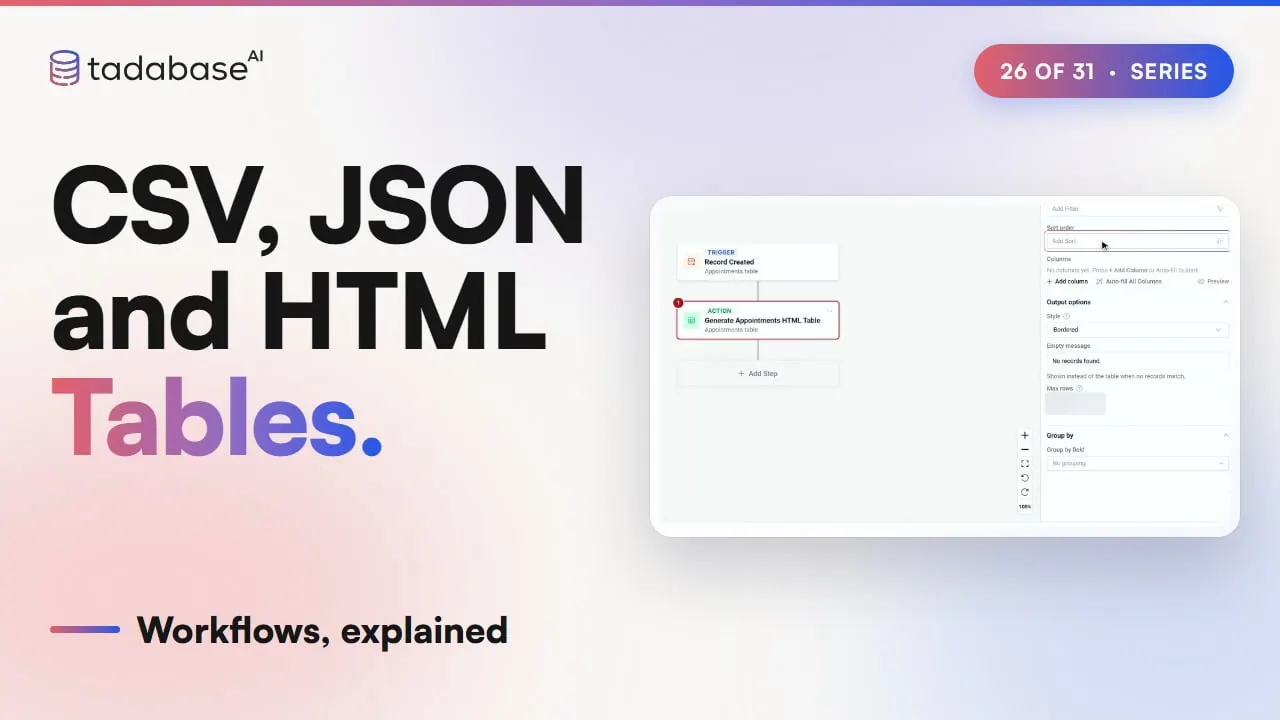
1:11 Setting it up
The trigger is a Schedule, Mondays at seven, from video thirteen. A schedule runs once for every record it selects. On the Appointments table, that's an email per appointment. So this one runs on a small Reports table, with a single record: Weekly no-shows. One record, one run, one email. Now add Generate HTML Table. Under Records from, open Other Tables, and pick Appointments. Add a filter: Status is No-show, and Appointment date is last week. Then sort by Appointment date, oldest first. Next, add the columns: Patient, Appointment date, and Provider. Only the columns you pick go into the table, so nothing about the visit leaves the app. The column header is what the reader sees. And Preview shows the table with sample rows. Output options shape the table. Style picks Bordered, Striped, Minimal, or None. Empty message is what shows when nothing matches. Max rows sets how many rows go in. And Group by Provider puts each provider's no-shows under a heading, with Show group count. Now the email, from video twenty-two. In Send Email's Content, insert a value, open Step Data, and pick Generate HTML Table. The table drops in as one piece. And on Monday morning, it arrives filled in.
2:36 CSV
For working with the list, add Export to CSV, before Send Email. Export from table: Appointments, with the same filters. Each column gets a field, and a column title. Under CSV Options, the file name can carry the date. Delimiter, Line ending, the header row, and UTF-8 BOM decide how a spreadsheet opens it. Then, in Send Email, Add attachment, and pick Export to CSV. She opens the file in her spreadsheet. She sorts it by provider, and adds a column for follow-up calls. That's the job a CSV does.
3:10 JSON
For another system, add Export to JSON. It takes the same records and columns, and each column gets a JSON key. Pretty print indents it for people. Turn it off for the smallest file. Later steps get its JSON Text, its records, and a File URL, ready to send to another system with the API steps from video twenty-three. The same pattern fits any business. A shop's weekly sales report: a table in the owner's inbox, and a CSV for the accountant.
3:38 Rules
Three rules to keep track of. Rule one: pick the format for the reader. HTML for reading, CSV for working, and JSON for machines. Rule two: there's a row limit per export. So filter to the rows you need, like last week's no-shows. Past the limit, the rest are left out, and run history says so. Rule three: plan for an empty week. With no no-shows, the table shows your Empty message, and no CSV file is made, so nothing is attached. To skip the email instead, add a Condition on the table's Has Data, from video five. That's CSV, JSON and HTML tables. One list of records. A table to read, and a file to work with. And data for another system. Next, custom code. What each plan includes is on the pricing page at tadabase.com.
Also on Vimeo · the whole series on Vimeo