
Reminders Before and After a Date
A dentist reminds you two days before a cleaning, and checks in a month after. A workflow can do the same with any date in your app. This video shows how.
On this page
Chapters
Read the docs
Transcript
Show the full transcript
0:00 Intro
A dentist reminds you two days before a cleaning, and checks in a month after. A workflow can do the same with any date in your app. This video shows how.
0:11 The idea
Think of the dentist's postcard. Your cleaning is on Thursday. On Tuesday, a postcard arrives to remind you. A month later, another one asks how it went. Nobody waited two days by the mailbox. Someone checked the calendar every morning. A workflow works the same way. None of its steps wait two days. You add actions, conditions, branches and loops, and each one runs right away. Instead, a schedule runs every morning, and its filters pick the records that are due.
0:41 In your app
Here is the clinic's Appointments table, with a Yes or No field called Reminder sent. On Monday at eight, the schedule runs. Its filter keeps the visits from today through Wednesday, the next two days. Two of them already had a reminder, so they are left out. Priya Shah and Omar Haddad get theirs, and the workflow marks each one sent. On Tuesday, the window moves one day. Priya and Omar are still inside it, but they are marked sent, so nothing goes out twice. Lena Park's Thursday visit comes in, and she gets hers. The window comes from a date filter. Is during the next two days takes today and the two days after it. Is before the previous thirty days takes every date older than thirty days ago. Both are ranges, so a record stays inside for more than one morning, and the sent flag decides if it still needs a message.
1:35 Setting it up
Setting it up starts with a Schedule trigger on Appointments, like in the last video. Set it to run Daily, at eight in the morning. Under Record Selection, add a filter: Date, is during the next, two days. Then a second condition: Reminder sent is unchecked. Apply, and the trigger shows two conditions. Add the first step, Send Email, with the Appointment reminder template. A text message through a connector works too, covered in video twenty-four. Then add Update Record. Record to update is the Source Record, the appointment itself. Set Reminder sent to Yes. Save, and it runs every morning at eight. Pick the run time with care. Times use the app's time zone, so set the app to the clinic's zone. Then pick an hour when people are awake, like eight in the morning, not midnight, when a text can wake someone up.
2:28 Before and after
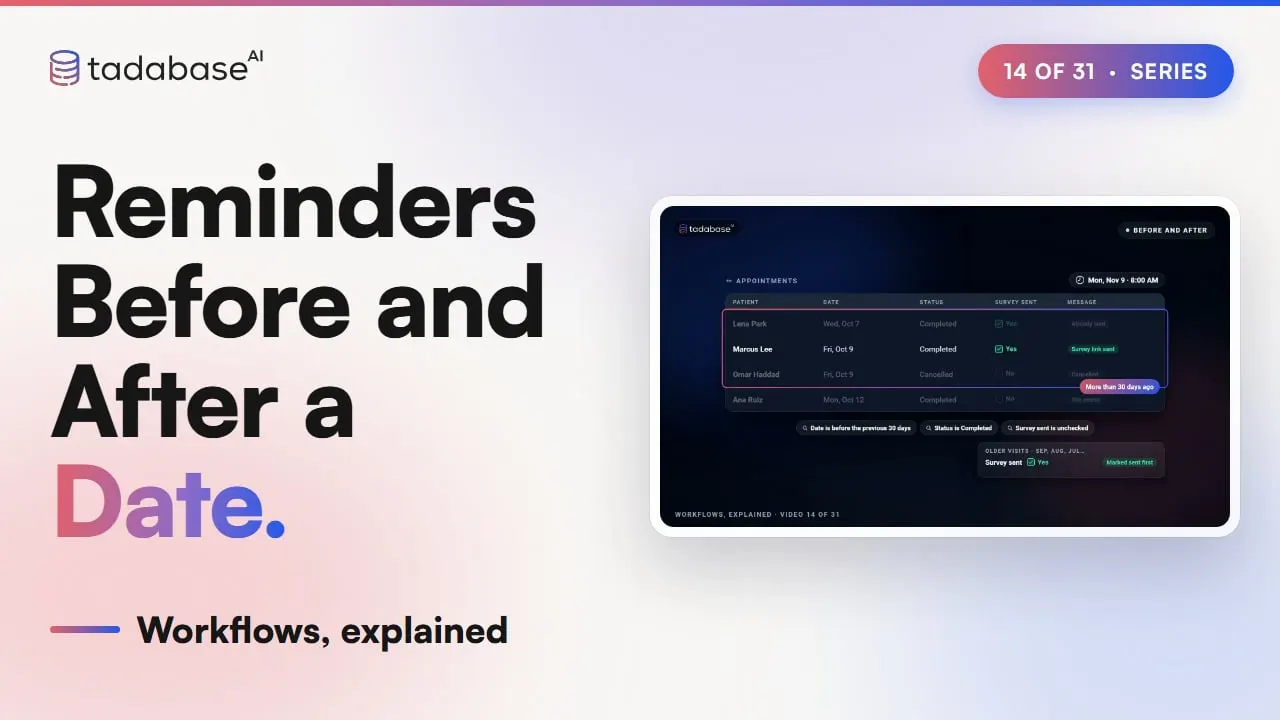
Reminders after a date work the same way. This schedule has three filters: Date is before the previous thirty days, Status is Completed, and Survey sent is unchecked. Marcus Lee's visit was more than thirty days ago, so he gets the survey link today. Ana's visit was too recent, and Omar's was cancelled. Before you switch one on, mark older visits as sent, or every past visit gets a survey on the first morning. Yearly checkups repeat the pattern on the patient. Last checkup is before the previous three hundred sixty five days, and Checkup reminder sent is unchecked. When the next checkup happens, another workflow updates Last checkup and sets the flag back to No, so next year's reminder can go out. The same pattern fits any business. A landlord's daily schedule finds rent due in the next three days, emails each tenant, and marks the reminder sent.
3:27 Rules
Three rules to keep track of. Rule one: use a daily schedule and a date window. If one morning's run is skipped, the window still holds the visit the next morning, so the next run catches it. Rule two: always set a sent flag. Without it, Priya is inside the window on Monday, Tuesday and Wednesday, and she gets three reminders. With it, she gets one. Rule three: a reminder carries a date, a time and a link. Never results or visit details, because anyone holding the phone can read it. The link opens your app, where the rest stays behind the sign in. That's a reminder. A schedule runs every morning, a date window picks who is due, and a sent flag makes sure each person hears from you once. What each plan includes is on the pricing page at tadabase.com. In the next video, we start workflows from buttons, forms, apps and the API.
Also on Vimeo · the whole series on Vimeo