
Incoming Webhooks
Some data doesn't start in your app. A booking site, a payment service or a form tool can send it the moment something happens. This video shows how an incoming webhook turns that message into a record.
On this page
Chapters
Read the docs
- Start a workflow from an incoming webhook Give a workflow its own URL so another system can start it by sending data, capture a sample payload, use its values in steps and secure the URL.
- Receive data from another service with an incoming webhook Give another service a URL to call so its data starts a workflow in your app, and find the older incoming webhooks under Automation.
Transcript
Show the full transcript
0:00 Intro
Some data doesn't start in your app. A booking site, a payment service or a form tool can send it the moment something happens. This video shows how an incoming webhook turns that message into a record.
0:14 The idea
Think of the mail slot in a front door. The door has an address, so anyone who knows it can drop a letter in. A letter comes through the slot. You open it, read what's inside, and act on it. Then the next letter, one at a time.
0:29 In your app
In your app it works the same way. Brookside's online booking site knows the workflow's webhook URL. When Ana Ruiz books a visit, the site posts a message to that URL. The workflow reads the fields inside, and a new appointment appears in the table. The message is written in JSON, a list of names and values. Some values sit at the top, like the booking ID and the status. Others are grouped, like the patient's name and email, and the appointment's provider and start time. In the AI Builder, a grouped field reads with an arrow: Patient, then Email.
1:07 The editor
Here's that workflow in the AI Builder. The trigger is Incoming Webhook. Find Records looks up the patient by email. And Create Record adds the appointment.
1:18 Setting it up
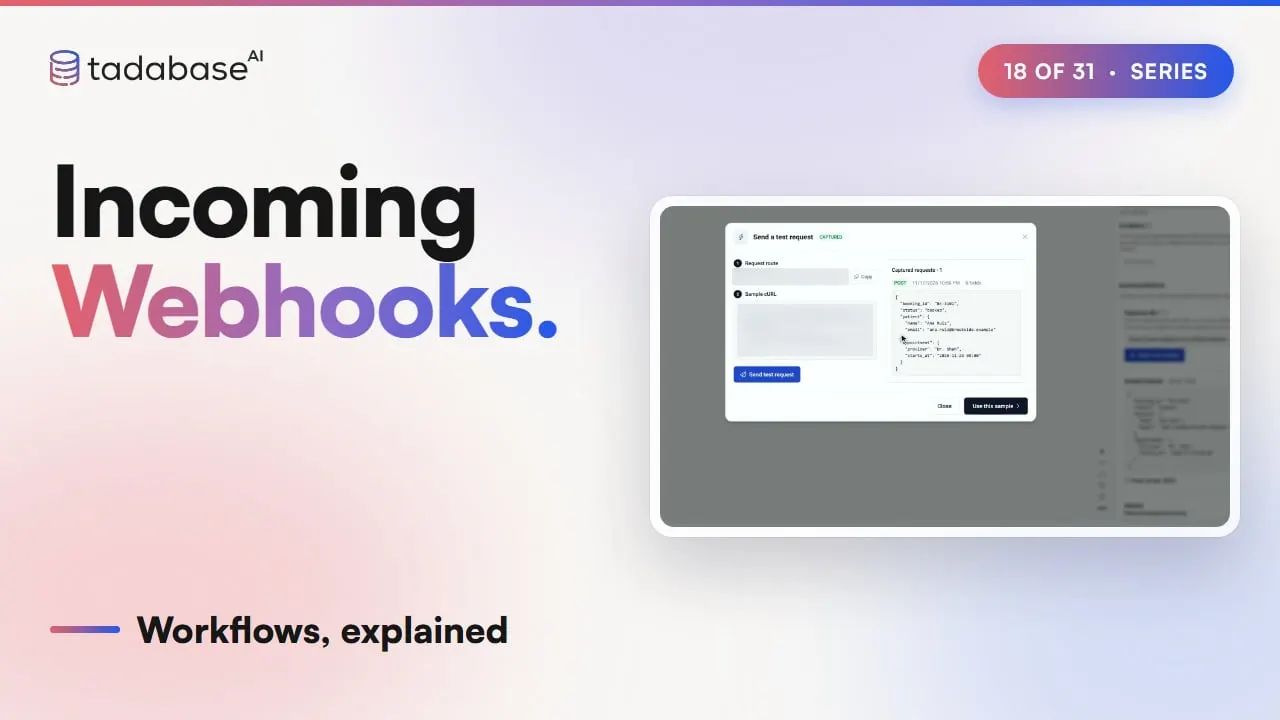
Setting it up starts with the trigger. Choose Incoming Webhook, and the panel shows the Webhook URL. Copy it into the booking site's settings. Then click Send a test request. The test address ends in test equals true. Anything posted there is captured as a sample, and the workflow doesn't run. Book a test visit on the site, and the request is captured. Click Use this sample, and the Sample Payload shows its six fields. Now add Find Records on Patients, with a filter. Email is, then the bolt, Source Data, Patient, Email. Then add Create Record in Appointments, and set the field values. Patient gets Find Patients, Record ID. Provider and Starts At come from Source Data, out of the appointment group. Save, and the workflow waits for the next booking. When Marcus Lee books, the site posts his booking, and the workflow runs once. Open the run in run history. Under Run details, What came in shows the message, when it was received, and that it was sent as JSON. And his appointment is in the table, with Doctor Okafor at ten fifteen.
2:38 Lists
Some sites send a batch instead, a list of bookings in one message. Fields inside the list show a star in brackets in their path. Add a trigger condition on one, like Status is booked, and choose which bookings must match: any record, every record, or no record. A list inside each booking, like its forms, is named Forms in each Item. And to create an appointment for every booking, put the steps in a loop. Video ten shows how. The same pattern fits any business. An online store posts each new order to an inventory app, and the workflow adds a line for every product that was sold.
3:17 Rules
Three rules to keep track of. Rule one: send JSON or a form. A JSON body is accepted, and so is a form post, with or without files. Run history says which, under Sent as. XML isn't accepted. The sender gets an error back, and nothing runs. Rule two: one delivery is one run. Each message starts the workflow once, with only that message's data. If the site sends the same booking twice, the workflow runs twice. The next video shows how to stop duplicates. Rule three: the sample decides what you can pick. Pickers and conditions only list the fields that were in the sample. If the site adds a field later, like a phone number, send a new test request, and the new field shows up. That's an incoming webhook. A message comes in through the URL. The workflow reads its fields, even the grouped ones. And every delivery is one run. In this case, one new appointment. Who may send to that URL, and what the sender gets back, are next, in securing and answering webhooks. What each plan includes is on the pricing page at tadabase.com.
Also on Vimeo · the whole series on Vimeo