
Transforming Values
A raw value doesn't always read well, and nothing makes an email feel more robotic than a date written as a long string of numbers. This video shows how to transform a value on its way into a step, so every message your app sends reads like a person who wrote it.
On this page
Chapters
Read the docs
- Reshape JSON with Transform JSON Rename, remove, keep, reformat, filter and sort the keys and lists in a webhook payload, a step's response or a JSON field, with a live preview of the result.
- Use values from records, earlier steps and app variables Every place a workflow step needs a value, Select value source lets you take it from the record, a connected record, an earlier step, the user or an app variable.
Transcript
Show the full transcript
0:00 Intro
A raw value doesn't always read well, and nothing makes an email feel more robotic than a date written as a long string of numbers. This video shows how to transform a value on its way into a step, so every message your app sends reads like a person who wrote it.
0:19 The front desk
Ana Ruiz's appointment is booked, and the front desk sends her a confirmation email. Straight from the app, the start time comes out as a long timestamp, the copay reads forty five with no dollar sign, her phone number shows every digit, and her first name was typed in with stray spaces and a caps lock on. So before every confirmation goes out, the receptionist rewrites the date so it reads like a person wrote it, adds the dollar sign, blanks out most of the phone number, fixes Ana's name, and pastes in a check-in link. Then she does it all again for the next patient, and the next. That's the same cleanup on every single email, and it's easy to miss one and send Ana a timestamp. Ana doesn't do anything differently; she gets her confirmation the same way. A transform does that cleanup for you. It changes a value on its way into the email, so the appointment record stays exactly as it is, and only the email reads better.
1:16 Fixing the date
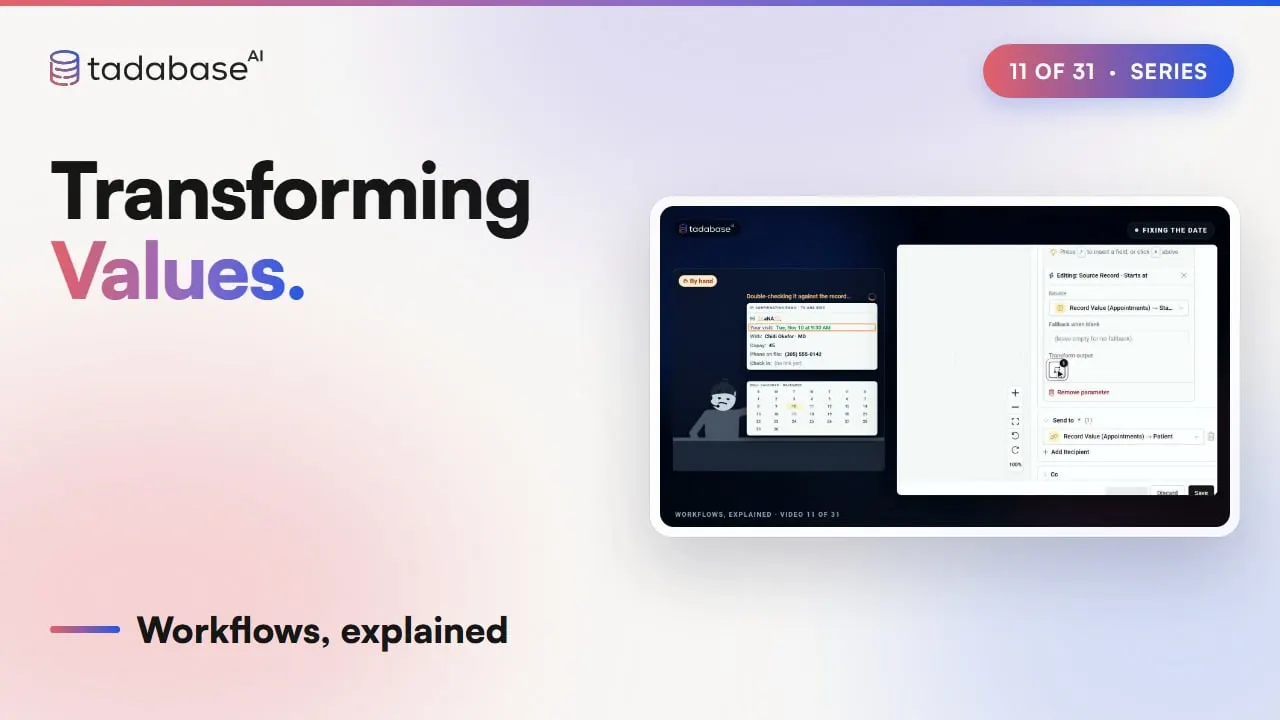
Fixing the date is where most people start. Open the Send Email step, and click the start time in the message. Click Transform output, search for Format Date, and click Configure and add. Type the pattern you want, with the weekday and the time, and click Add. Type a sample date into Test input text, and check the Output. Now Ana's email says Tuesday, November tenth at nine thirty AM. Close the window, and the button shows one transform applied.
1:46 The window
That window is called Value Transformation. At the top is Test input text and Output, a live preview. In the middle is the Transformation pipeline. And below is the catalog, with Text, Numbers, Date and Time, Files, Advanced and Privacy, where every card shows an example of what goes in and what comes out.
2:07 The transforms
Fixing Ana's name shows how transforms chain. Click her first name in the message, open Transform output, and add Trim Spaces, so the spaces are gone. Then add Title Case, and it reads Ana. Each step takes the output of the one before it. The rest of the cleanup uses three more transforms you'll use a lot. Format as Currency turns forty five into forty five dollars. Mask Phone hides all but the last four digits, so the front desk only sees oh one four two. And Generate QR Code turns the check-in link into an image right in the email. Some emails need a different value depending on who they're about, like how the provider's name is written. For that, use Conditional Value, in the value picker. On Providers, Name for patients gets a case: when the credential is NP, return the first name, and otherwise return Doctor and the last name. Cases are checked from the top down, and the first match wins. So Dr. Okafor and Dr. Bell get Doctor, and Jamie Cruz, a nurse practitioner, is Jamie.
3:14 Beyond emails
Transforms aren't only for emails. On a Set field values row, each row has a transform button next to Remove, and the window also asks what to Apply to. Just this field is the default, so the transform runs for that field only, and other steps still see the original value. Share with later steps reuses the result, so heavy work, like saving a file, only happens once. And if a value turns out to be blank, the editor also has Fallback when blank, right above Transform output. The transform runs first, so if a first name was nothing but spaces, Trim Spaces leaves it blank, and then the fallback fills in. The email reads, Hi there. Save, and every confirmation goes out cleaned up.
3:58 The confirmation, now
So here's Ana's confirmation now. It says Tuesday, November tenth at nine thirty AM, her copay is forty five dollars, her phone ends in oh one four two, her name is spelled properly, her provider is Dr. Okafor, and there's a QR code for check-in. Nobody at the front desk even touched it.
4:17 Rules
There are three rules to keep track of. Rule one: transforms run in order, from the top down. Mask Phone and then Keep Digits Only leaves just oh one four two. Swap them, and the mask runs on a plain number. Rule two: check the live preview before you save. In a date pattern, a small m means minutes, so a small m m, slash, d d gives thirty, slash, ten. A capital M is the month, and the preview shows eleven, ten, twenty twenty six. Rule three: not every value can be transformed. Text, numbers, dates, phones, emails and links get the transform button. Connections, names, addresses, record IDs and formula fields don't. And a value a transform can't read passes through unchanged.
5:08 Recap
That's transforming values. A value comes in raw, a pipeline of small steps cleans it, formats it or masks it, and the message reads like a person wrote it. In the next video, we'll look at workflows and formulas. You can learn more at tadabase.com.
Also on Vimeo · the whole series on Vimeo