
Reshape JSON with Transform JSON
Rename, remove, keep, reformat, filter and sort the keys and lists in a webhook payload, a step's response or a JSON field, with a live preview of the result.
- Verified Nov 17, 2026
- Classic builder
On this page
The Transform JSON action changes the shape of JSON data so the next steps can use it: rename keys, drop the ones you do not need, swap codes for words, keep only some items of a list, and more. Use it when an incoming webhook, a pipe or another step gives you data in a shape that does not match your table or the API you send it to.
Set it up #
- Add the action In the workflow editor, click Add Step, then Add Action, and choose Transform JSON.
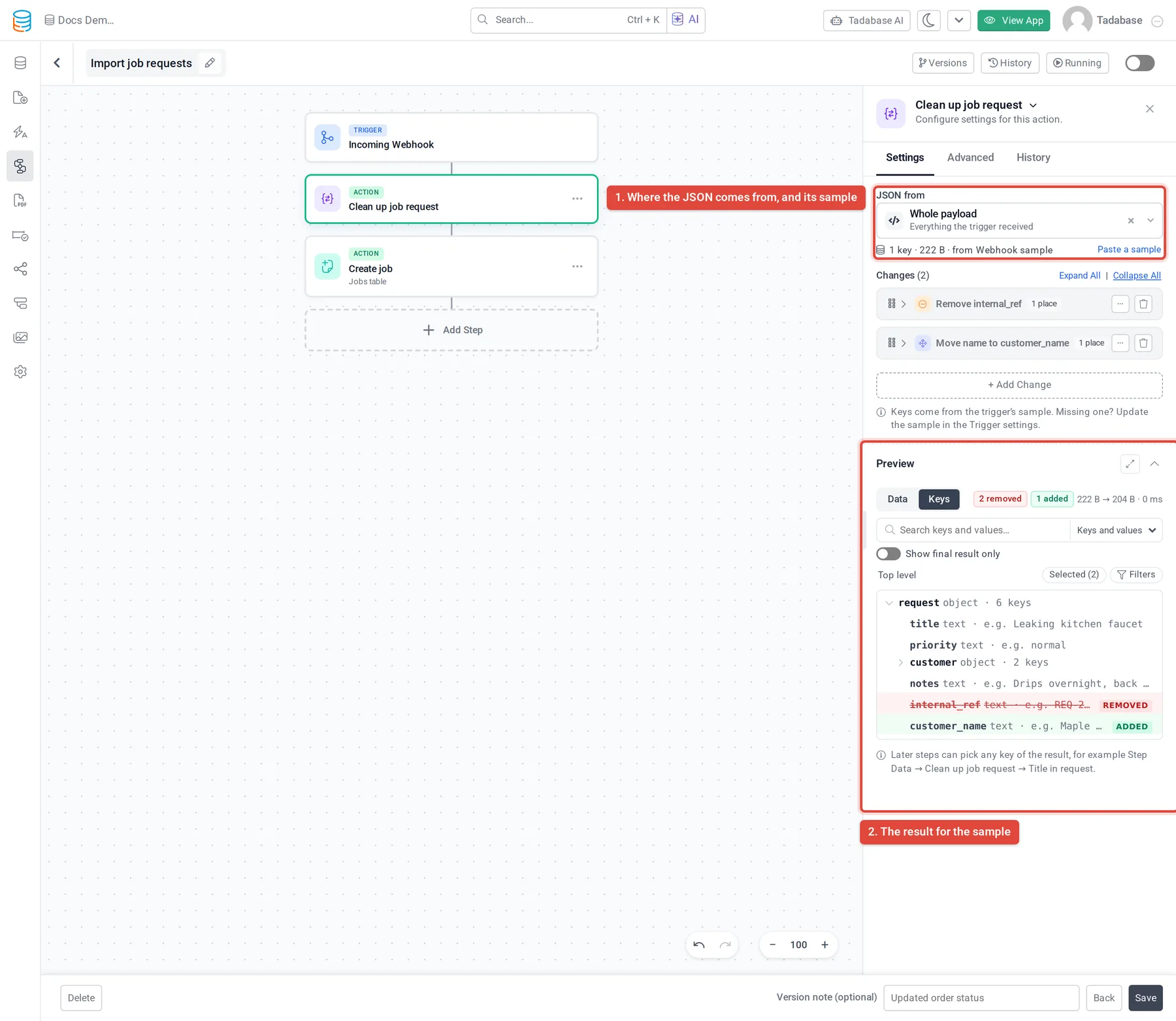
- Choose the data Under JSON from, pick where the JSON comes from (see the list below).
- Get a sample The preview needs sample data. Click Load a record to use a real record of the source's table, or Paste a sample to paste JSON (under 1 MB). Paste one object for a single record, or a list for a list source.
- Add changes Click + Add Change and pick an operation, or hover a key in the Preview and pick Remove, Rename, Keep only or Hide. Changes run from top to bottom.
- Check the preview The Preview shows the result for the sample. Use Compare before and after to see both side by side.
Where the JSON can come from #
- Trigger Data: for an Incoming Webhook or Email Catcher trigger, the Whole payload. For a record trigger, the Source Record as JSON, or one of its JSON, Long Text or Text fields that holds JSON.
- Connected Data: records connected to the source record.
- Step Data: records from an earlier step, such as Find Records, and the JSON result of an earlier Run Custom Code, AI Prompt or Transform JSON step.
- Trigger Array Data and Step Array Data: a list inside the trigger's data or inside an earlier step's response, for example a list a pipe returns or the records of an Export to JSON step.
Changes you can make #
| Group | Change | What it does |
|---|---|---|
| Keys | Rename keys | Match the names your table or API expects, for example q4_email to email. |
| Keys | Remove keys | Drop keys you do not need or must not send. |
| Keys | Keep only some keys | Tick the keys to keep; everything else goes. |
| Keys | Move or copy a value | Put a value under another key or place. |
| Keys | Change key style | Rewrite every key name as camelCase, snake_case, kebab-case or PascalCase. |
| Values | Set values | Add keys, or fill blanks, with a fixed value, today's date or a value from an earlier step. |
| Values | Swap values | Swap codes for words, for example 2 to Pending. |
| Values | Format values | Trim, change case, format dates, turn cents into dollars. |
| Values | Change value type | Turn values into Number, Text, Yes/ |
| Values | Remove empty values | Drop blanks so they do not overwrite your data. |
| Values | Hide values | Show •••• instead of secrets and private data, or keep the last 4 characters. |
| Lists | Keep or remove items | Keep or remove the items of a list that match your conditions. |
| Lists | Turn items into one value each | Make a list of ids, emails or files, or one text joined with a separator. |
| Lists | Remove duplicate items | Drop repeats and keep the first or the last. |
| Lists | Sort items | Sort by one or more keys: A to Z, highest first, newest first. |
| Whole JSON | Flatten nested keys | One level of keys, for example address.city. |
| Whole JSON | Nest flat keys | Turn address.city back into nested JSON. |
A step can hold up to 50 changes. A change that is switched off is skipped when the workflow runs. Hidden values are hidden for later steps, emails and the run history too.
Use the result in later steps #
In a later step, choose Step Data, then the Transform JSON step. You can pick Transformed JSON (the whole result) or any key of the result. The step also gives Status, Item Count and Changes.
When the result holds a list, a loop can go through its items, for example to create one record per item.
Plans #
Transform JSON is available wherever workflows are, with no extra plan limit.
Was this page helpful?
Something wrong or missing on this page? Tell us.