
Stop a form from saving with validation rules
Add validation rules that stop a form from saving and show your message when values are wrong, duplicated or clash with other fields or records.
- Verified Nov 17, 2026
- Classic builder
On this page
A validation rule stops a form from saving and shows your message when the values entered match its conditions, for example an end date before the start date or a location that is already booked. Write the conditions to describe the input you want to refuse.
Add a validation rule #
- Open the form In the Page Builder, hover over the form and click the pencil (Edit).
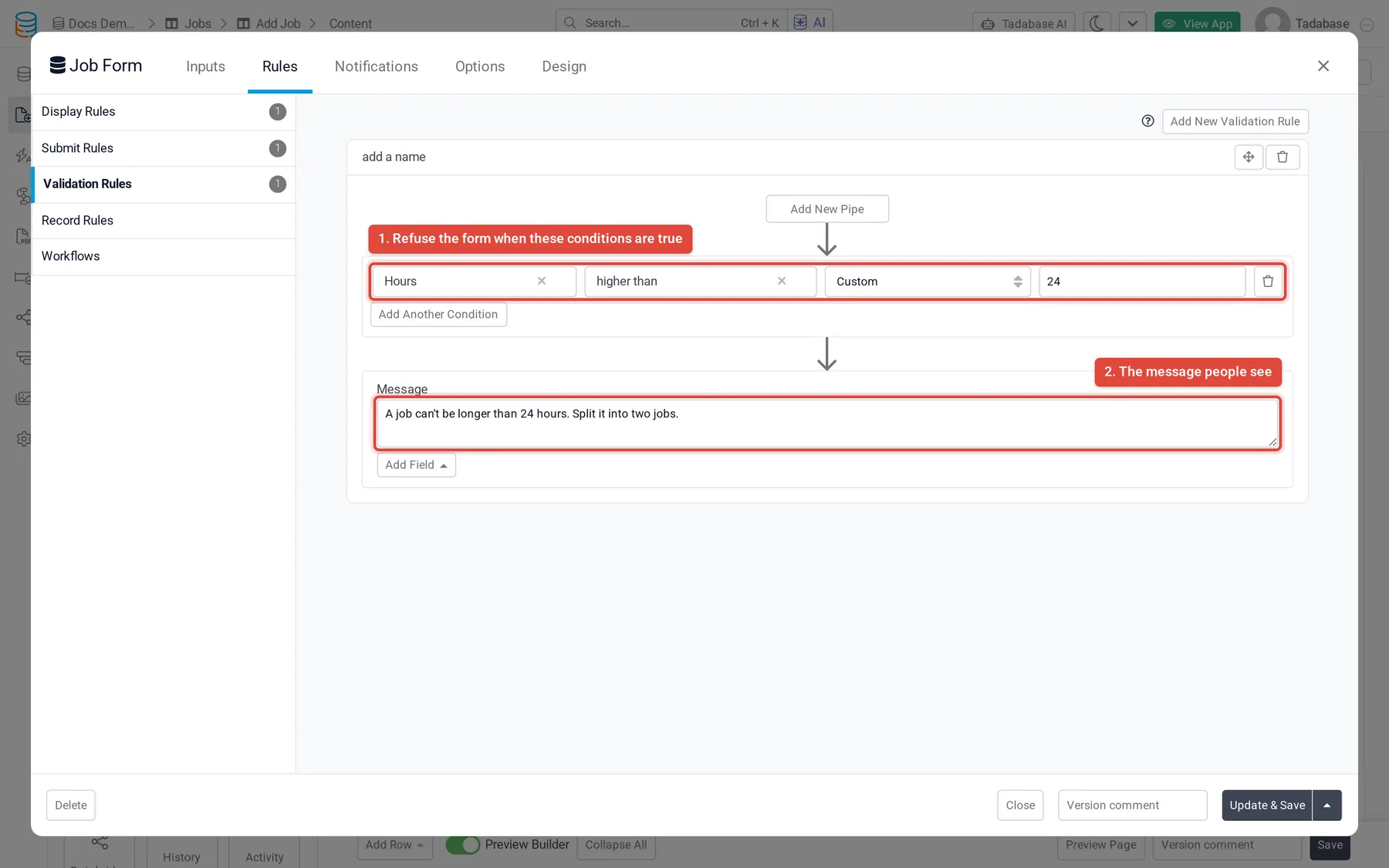
- Open Validation Rules Click Rules, then Validation Rules on the left, then Add New Validation Rule.
- Set the conditions Pick a field, an operator and what to compare it with (see below). Click Add Another Condition for more. With two or more conditions, choose Match All or Match Any.
- Write the message Type the error under Message. Click Add Field to put a value from the form in the message; it is added as
{Field Name}and replaced with what the person entered. - Save Click Update & Save.
What a condition can compare with #
After the operator, a list sets where the comparison value comes from:
| Choice | Compares the field with |
|---|---|
| Custom | A value you type or pick. Date operators such as is before the previous take a number and a unit instead, for example 14 days. |
| From Field Value | Another field on the form, for example End Date is before the Start Date field. |
| Record Value | A field of the record the page shows. Offered only when the form is on a page that shows a record, such as a details page. |
| Connected Value | A field of a connected record. Offered when the form's table has connection fields. |
Connection fields to the users table also have is logged in user and is not logged in user, so you can refuse a record that is not assigned to the person filling in the form.
Duplicates and other special checks #
| Operator | Stops the form when |
|---|---|
| is not unique | Another record in the table already has the same value, for example a location that is already booked. |
| all values are not unique, any value is not unique | For connection fields that hold several records: all of the chosen records, or any one of them, are already used by another record. |
| character length is greater than, character length is less than | A text, long text, rich text, email or phone value is longer or shorter than the number you enter. |
| conflicts with existing records, doesn't overlaps with existing records | For date range fields: compares the range with the ranges already saved in the table. |
With is not unique, the two not-unique operators and the logged-in user operators, tick Check Additional Fields and pick more fields to narrow the check. A record then counts as a duplicate only when those fields match too: for example, the same voter and the same feature, so each person can vote once per feature.
Check a value with a pipe #
If your app has pipes, a validation rule shows Add New Pipe. The pipe runs first, and its response fields appear under Pipe Response in the condition's field list, so you can test what an outside service returns. For a worked example, see Validate against a connected field using a pipe.
When rules are checked and in what order #
Validation rules are checked on the server when someone clicks submit, not while they type. Every rule is checked. If more than one matches, the form shows the message of the lowest matching rule in the list. Drag a rule by its header to change the order.
To change the form while people type, for example to make a field required only for some answers, use display rules.
Check it works #
In your live app, submit the form once with values that should be refused and once with values that should pass. The first should show your message and save nothing; the second should save.
Was this page helpful?
Something wrong or missing on this page? Tell us.