
Repeat steps for each item with a loop
Add a Loop / Bulk Action step to run the same steps once for each record or list item, such as each open job of a customer or each line of a webhook.
- Verified Nov 17, 2026
- Classic builder
On this page
A loop runs the steps inside it once for each record or item in a set. Use it when one run of a workflow has to act on many things, for example to email a customer about each of their open jobs, or to create one record for each line of an incoming webhook.
Add a loop #
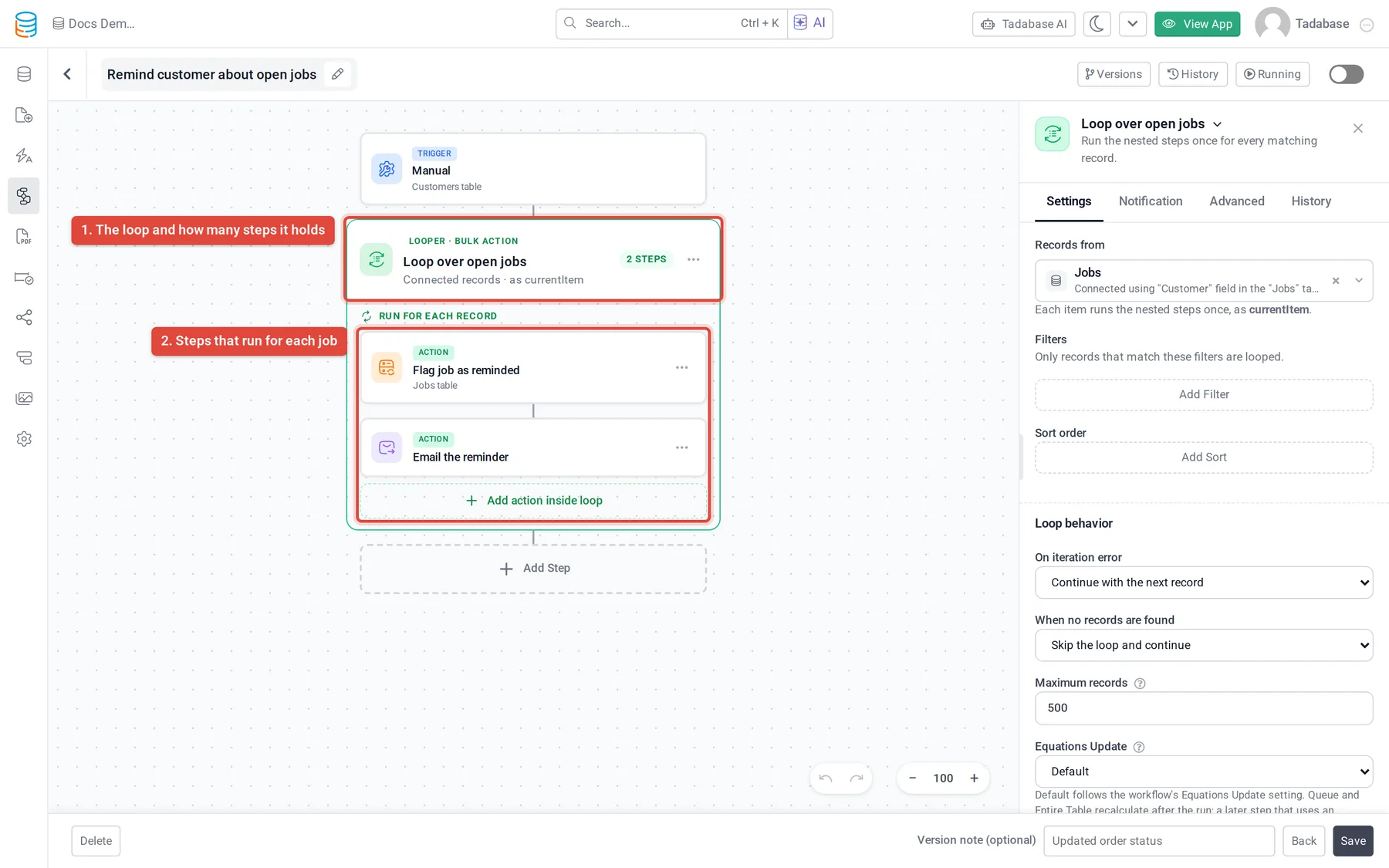
- Add the step In the workflow editor, click Add Step, then Loop / Bulk Action. The canvas shows a Looper · Bulk Action card titled For Each Record.
- Choose what to loop over In the side panel, under Records from (or Items from for a list), pick the source. The options are described below.
- Narrow the records (optional) For a table or a one-to-many connection, set Filters (only records that match are looped) and a Sort order.
- Add the steps to repeat On the canvas, click Add action inside loop and add the steps. Each runs once per record or item.
- Check the settings Under Loop behavior, check the maximum and what happens on errors or when nothing is found.
What a loop can go through #
| Group in the list | What it loops over |
|---|---|
| All Tables | Records of any table, narrowed with Filters and a Sort order. |
| Connected Data | Records connected to the workflow's record, such as a customer's jobs. |
| Step Data | Records from an earlier Find Records, Copy Record, Copy Record and Child Records or Update Connected Records step. |
| Trigger Array Data | A list inside the data an Incoming Webhook, Email Catcher or External Data Source trigger received, such as the line items of an order. |
| Step Array Data | A list inside an earlier step's response: Run Custom Code, Trigger Pipe, AI Prompt, Export to JSON, Transform JSON or Aggregate. |
The list groups are only offered when there is something to pick: for example, a list from a step appears once that step has a sample response with a list in it. Click the eye icon next to Items from to preview the source data.
Use the current item inside the loop #
Inside the loop, each run works on one record or item, called the current loop item (currentItem).
- To read its values, open Select value source and choose Loop Item. The fields of the workflow's own record stay available under Source Record.
- To act on the looped record itself, for example in an Update Record step, choose Loop Item as the record to update. When the loop goes through a list rather than records, steps that need a Tadabase record cannot use the loop item as their record; use its values instead.
- In a condition inside the loop, pick the field to check under Loop Item.
For a list, you can pick a Unique Key under Loop behavior, such as a customer ID or order number. It lets you see which items finished and which had problems.
Loop settings #
| Setting | Options |
|---|---|
| On iteration error | Continue with the next record (or item), or Stop the workflow. |
| When no records are found | Skip the loop and continue, or Fail the workflow. |
| Maximum records (or items) | How many the loop processes. The default is 500. A loop over records goes up to 500; a loop over a list goes up to 10,000. |
| Equations Update | When Equation fields recalculate for records the loop writes: Default (follows the workflow's own setting), Send Equations to the Queue, Run Entire Table Equations or Don't run Equations. Recalculating on every pass is the slowest part of a large loop. |
Use the results after the loop #
Steps after the loop can read its totals under Step Data: Status, Total Records, Succeeded, Failed, Skipped, Has Failures, First Error, All Record IDs, Processed Record IDs and Failed Record IDs. For example, add a Condition on Has Failures to email an admin when something went wrong.
Turn a loop off #
On the loop's Advanced tab, turn off Enabled. The loop stays in the builder with a Disabled badge and Skipped during workflow runs: the loop and every step inside it are skipped, and they do not appear in logs or notifications. The steps inside keep their own enabled setting for when you turn the loop back on. To delete the loop, open its ... menu and click Remove Loop.
Limits #
- A loop cannot go inside another loop. You can add Condition and Branches steps inside a loop.
- A Show Message step inside a loop cannot wait for an answer.
- Loops have no plan limit of their own, but the workflow's own limits, such as its run time, still apply; see Workflow limits and troubleshooting.
Was this page helpful?
Something wrong or missing on this page? Tell us.