
Run a pipe from a workflow
Use the Trigger Pipe action to call one of your app's pipes from a workflow, fill its parameters from the record, and use its response in later steps.
- Verified Nov 17, 2026
- Classic builder
The Trigger Pipe action runs a method of one of your app's pipes and hands the response to the steps after it. Use it to call an outside API through a pipe, or a built-in pipe that does a job for you, such as formatting text or a date, and then save or use the result.
Before you start #
A pipe connects your app to an outside API or to a ready-made Tadabase function. Each pipe has one or more methods, the calls it can make, and each method has parameters to fill in and response values it returns. Add the pipe to your app first; see Adding pipes. Only pipes installed in the app appear in the workflow.
Set it up #
- Add the action In the workflow editor, click Add Step, then Add Action, and choose Trigger Pipe. You can type its name in Search actions... to find it.
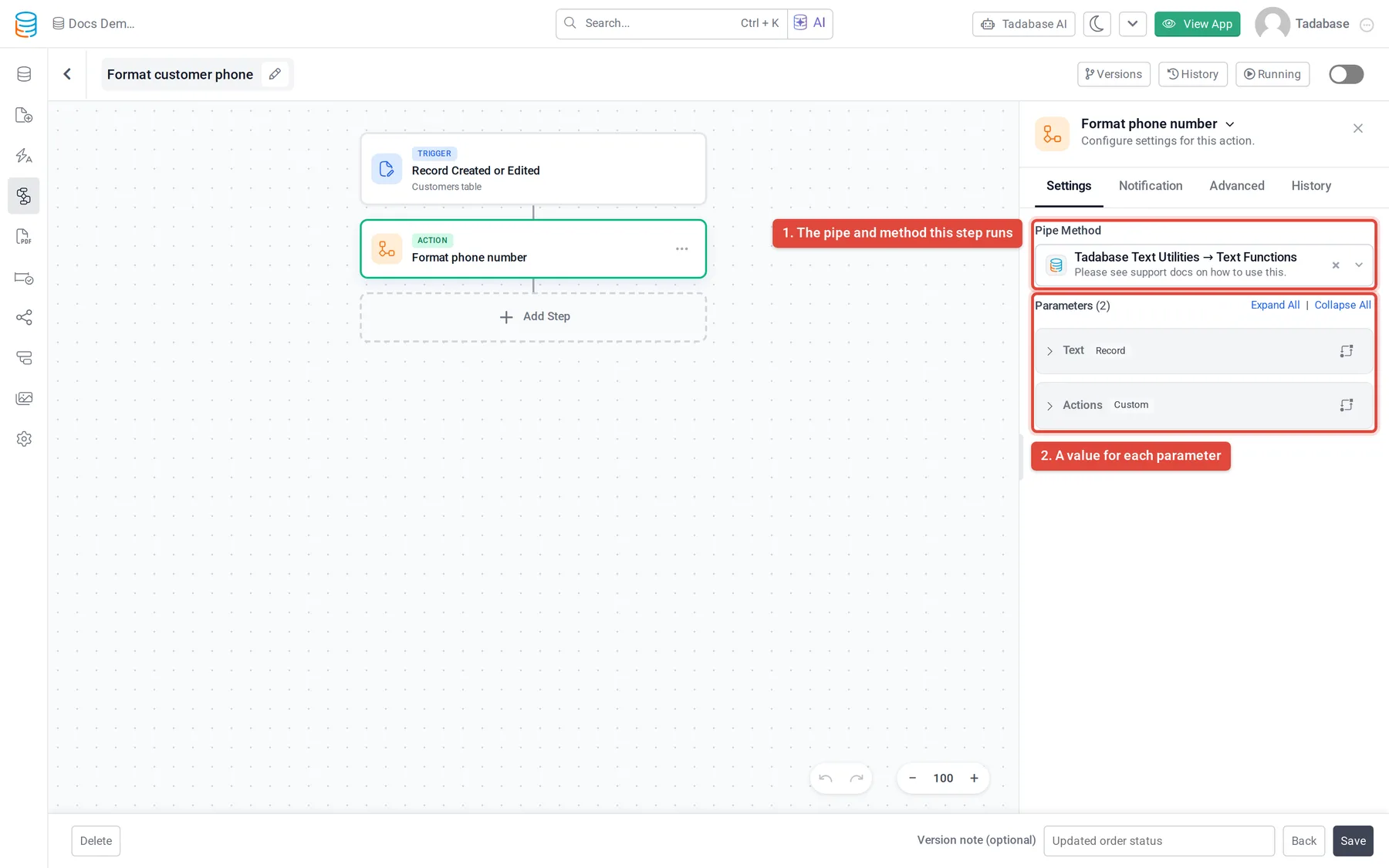
- Choose the pipe method Under Pipe Method, open the list. Your pipes are listed by name; open a pipe to see its methods, then pick one. If the list is empty, it says No pipe methods available: add a pipe to the app first.
- Fill in the parameters Under Parameters, each row is one of the method's parameters. Required ones are marked with *. For each row, open Select value source and choose where the value comes from: a field of the record, a value from an earlier step, the logged-in user, or a static value you type. If the method takes nothing, the panel says This method requires no parameters.
- Add optional parameters Click Add Parameter to fill another parameter the method accepts, then pick it under Select parameter....
- Save and test Save the workflow and run it on a record, then check the step in the run history.
Each parameter row also has a transformations button, so you can change the value before it is sent, for example trim spaces or change its case.
Use the response in later steps #
In any step after the Trigger Pipe step, open Select value source, choose Step Data, then the Trigger Pipe step. The list shows the response values the pipe method returns. Pick one to use it, for example to save it in a field with an Update Record step.
The step also has a Status value, which you can check with a Condition step to handle a failed call.
When a response holds a list, a loop can go through it, and Transform JSON or Aggregate can reshape or total it.
Example #
- Trigger: Record Created on Customers.
- Trigger Pipe: a method of a pipe you added that formats phone numbers, with its parameter set to the customer's Phone field.
- Update Record: the Source Record, with Phone set from Step Data, the Trigger Pipe step, and the response value that holds the formatted number.
Common problems #
- A required parameter shows an error. Every parameter marked * needs a value source.
- The response values are missing in a later step. The later step must come after the Trigger Pipe step in the same path, and the method must have response values set up in the pipe.
- The call failed. Open the run history and expand the step to see the error the pipe returned. See Workflow history and logs.
Was this page helpful?
Something wrong or missing on this page? Tell us.