
Start a workflow when an email arrives
Give a workflow its own email address, capture a test email, use the sender, subject, body and attachments in steps, and limit who can send to it.
- Verified Nov 17, 2026
- Classic builder
On this page
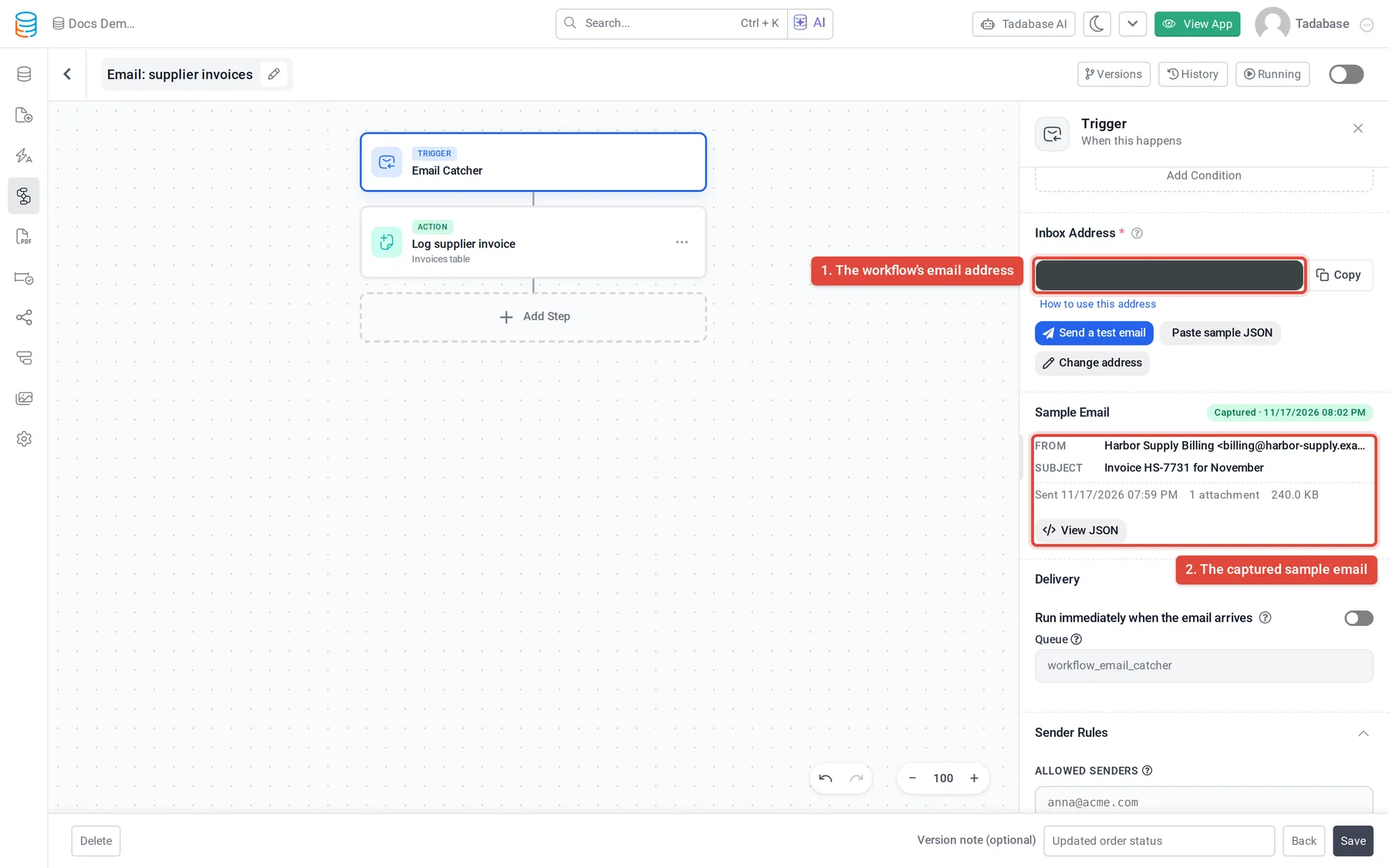
The Email Catcher trigger gives a workflow its own email address. Every email sent to it runs the workflow, and the steps can use the sender, subject, text and attachments: for example, create an Invoices record from each supplier email and save the attached PDF.
Set it up #
- Choose the trigger Click the Trigger card and choose Email Catcher in the Integrations group. This trigger has no table. Tadabase saves the workflow so it can get an address.
- Pick the address Under Inbox Address, type a name such as
invoicesand click Save address. Names are 3 to 64 characters: lowercase letters, numbers, dots, dashes and underscores. Each name can be used by one workflow in the app; if it is taken, Tadabase suggests free names. - Copy it Click Copy to copy the full address, which ends in your app's inbox subdomain.
- Capture a sample email Click Send a test email. Send an email to the address from your own mail app, or click Send me a test email. When it arrives, click Use this sample.
- Build the steps Map the email values into your steps (see below).
- Switch on and save Switch the workflow to Active and click Save. From now on every email to the address runs it.
Add + and a tag before the @, for example invoices+acme@…. The email reaches the same workflow, and the tag is available as Recipient › Mailbox Hash so you can branch on it.
Use the email in your steps #
After you capture a sample, every part of the email appears in the field pickers under the trigger:
- From: the sender's email, name and domain.
- Subject.
- Body: the plain text, the HTML, and the reply text without the quoted older email.
- To, Cc and Reply To.
- Attachments: all of them, or one by number with its name, type, size and file link, plus the number of attachments.
To save an attachment on a record, map it into a File, Files or Image field. To handle each attachment separately, add a Loop / Bulk Action step over the attachments.
Use Conditions on the trigger to run only for some emails, for example when the subject contains "Invoice". Emails that do not match are skipped and shown in run history with the reason.
Limit who can send to it #
Anyone who knows the address can run the workflow. Under Sender Rules:
| Setting | What it does |
|---|---|
| Allowed senders | Addresses or domains, one per line: anna@acme.com, @acme.com, or @.acme.com to include subdomains. |
| Only allow senders on the list | Rejects every email from anyone not listed. With an empty list, nothing gets through. The builder reminds you to turn this on for easy-to-guess names. |
| Blocked senders | Never run for these addresses or domains. |
| Spam threshold | Rejects emails whose spam score is at or above this value. Leave it blank to accept all. |
| Ignore auto-replies | Skips out-of-office replies, bounce reports and bulk mail. |
| Keep attachments | Stores attachments so steps can use them. Off drops every attachment; the email still runs. |
| Blocked file types | File types that are dropped from attachments. Program and script files are always blocked. |
Emails the workflow sends to its own address are ignored, so it cannot run forever.
Limits #
| Limit | Value |
|---|---|
| All attachments in one email | 35 MB in total |
| Text or HTML body | 10 MB each |
| The same email received twice | Runs once |
| Test emails sent by Tadabase | 5 every 10 minutes |
Check that it worked #
- Activity on the trigger shows how many emails arrived and were accepted, rejected or duplicated in the last hours, with the latest rejected emails and the reason.
- History shows each run with the email it received and what every step did.
- Delivery › Run immediately when the email arrives starts short workflows sooner instead of queueing them.
- Failure Notification › Email on failure emails the workflow owner, the app owner or other addresses when a run fails.
Plans #
The Email Catcher trigger depends on your plan. If your plan does not include it, it shows a lock in the trigger list.
Was this page helpful?
Something wrong or missing on this page? Tell us.