
Run a workflow from a button on a page
Use the Manual trigger and a Trigger Workflow button so users run a workflow on a record when they click, with optional messages while it runs.
- Verified Nov 17, 2026
- Classic builder
On this page
A workflow with the Manual trigger runs only when something starts it: a button in your app, or the API. Pair it with a Trigger Workflow button on a table, list or details component, and users can run it on a record when they choose: resend an invoice, approve a request, recalculate totals.
1. Create a Manual workflow #
- Choose the trigger Create a workflow, click the Trigger card and choose Manual in the People group.
- Pick the table Under Data Source, choose the table the button's records come from, for example Jobs. The record the user clicks becomes the run's Source Record.
- Add steps and switch it on Add your steps, switch the workflow to Active and click Save. Only active Manual workflows on the same table can be chosen for a button.
2. Add a Trigger Workflow button #
In a Table component:
- Open the component Open the page in the Page Builder, hover the table and click its edit icon.
- Add the action On the Columns tab, open the Actions list and click Trigger Workflow. It is greyed out until the table has at least one active Manual workflow.
- Choose the workflow In the new column's settings, choose the workflow under Select Workflow. Click the refresh icon next to it if a workflow you just created is missing.
- Save the page Save the component and the page.
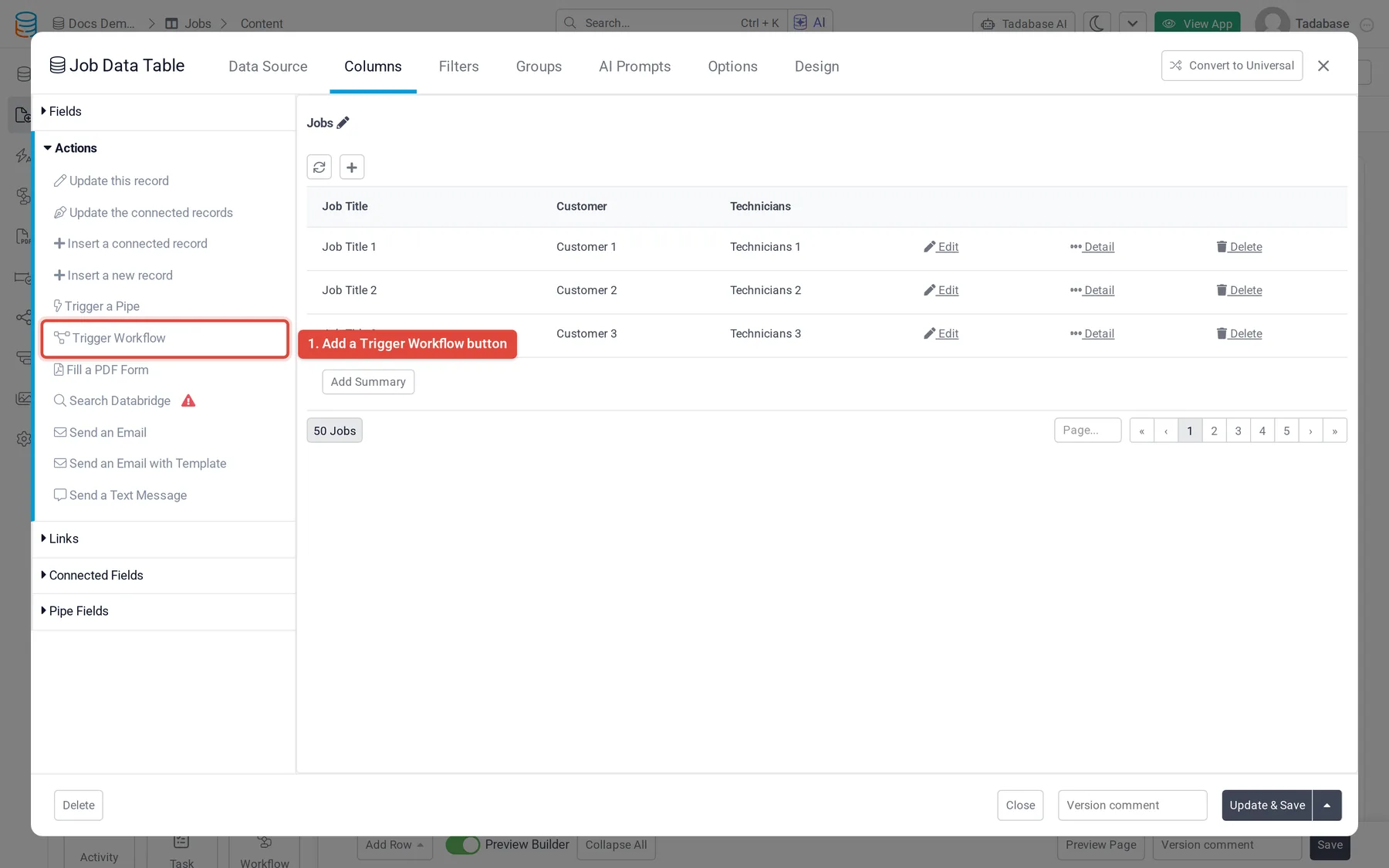
List, Details and Kanban components have the same Trigger Workflow action in their actions list. In the newer universal components, add a Trigger Workflow button and set it up under Workflow Run Settings › Select Workflow.
What the user sees while it runs #
By default, the page waits while the workflow runs, and the user sees its messages. You control those messages in two places:
- The trigger's Notification tab: the title and description shown When Workflow is in Queue, When Workflow Starts, When Workflow Ends and When Workflow Ends With Errors.
- A Show Message step: a toast, banner or pop-up at any point in the workflow. See Utility actions.
In the universal components, Workflow Run Settings has two more switches:
- Run Behind the Scenes: the workflow runs in the background so the user can keep working.
- Show Progress Notifications (when Run Behind the Scenes is on): turn it off to run the workflow silently.
Every component button also has Show Loading Indicator, which shows the full-page loading indicator while the button is working.
Workflow and Workflow Manager components #
Two page components work with workflows too: the Workflow component, and the Workflow Manager component. See Workflow component and Workflow Manager component.
Tips #
- Give the button a clear label, such as "Resend invoice" rather than "Run".
- For anything that changes many records or sends emails, add a condition as the first step so the workflow checks the record before it acts.
- Test on a real page as a real user: a workflow started by a button runs with that user logged in, so steps that use the logged-in user see them.
Was this page helpful?
Something wrong or missing on this page? Tell us.