
Let users run and monitor workflows from a page
Add the Workflow Manager component so app users can see chosen workflows, run Schedule workflows on demand and check each run's history and logs.
- Verified Nov 17, 2026
- Classic builder
On this page
The Workflow Manager component shows a list of workflows you choose on a page of your app. App users can see whether each one is active, when it runs next and how its last run went, start Schedule workflows right away, and open the history of past runs.
Before you start #
- Workflows must be on for the app, and your plan must include workflows. Otherwise Workflow Manager is not listed in the Page Builder.
- Only the workflows you select in the component are shown. App users never see the rest of your workflows.
- Users can only run workflows that are active and have a Schedule trigger. A Manual workflow needs a record, so use a Workflow component or Trigger Workflow button for those.
Add the Workflow Manager #
- Open the page In the Page Builder, open the page and select the Components tab.
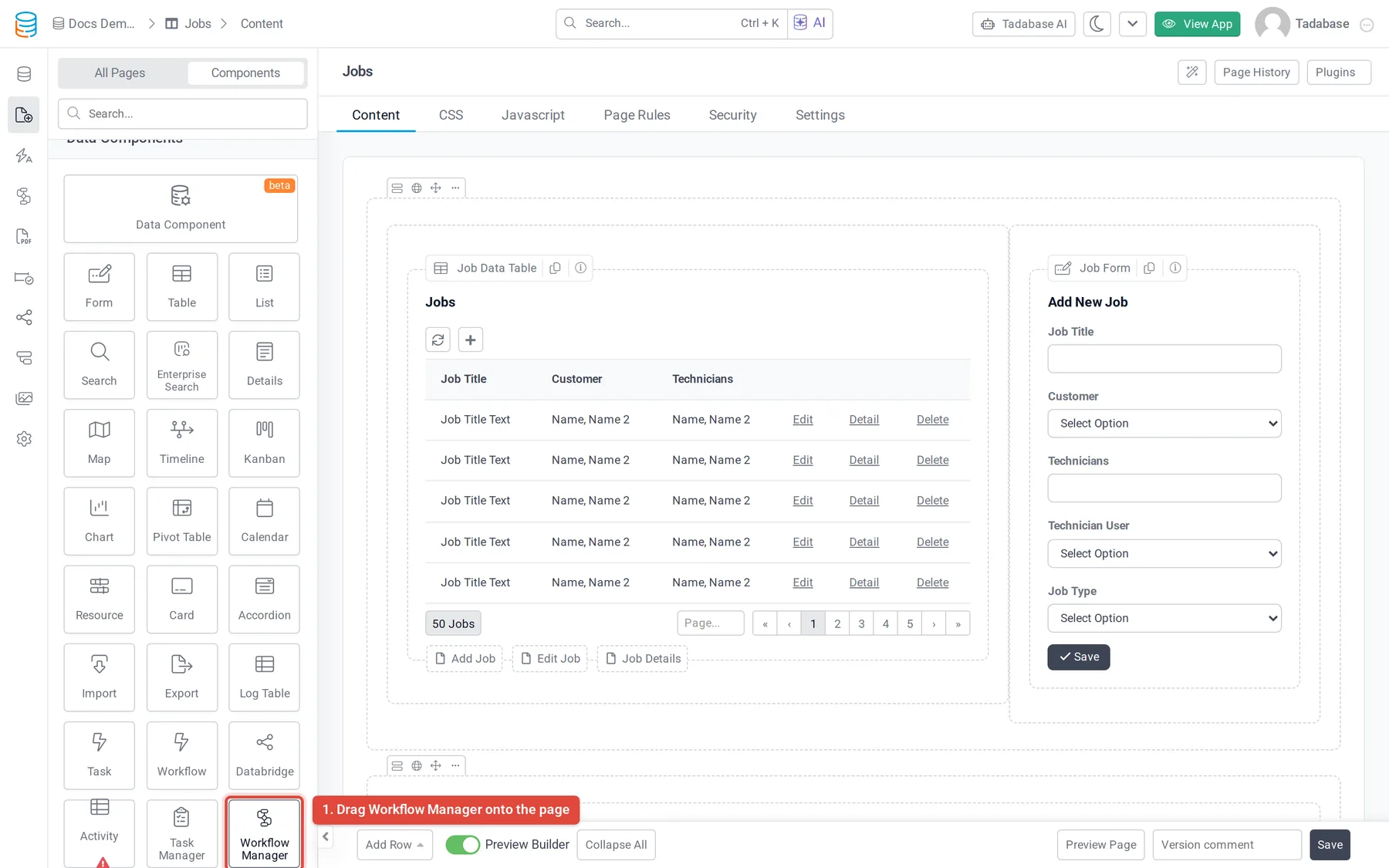
- Add the component Under Data Components, drag Workflow Manager into the page. A Data Component window opens showing the Workflow Manager designs from the component library.
- Pick a design Choose the Workflow Manager design and continue to its settings.
- Choose the workflows Select the workflows the component should list.
- Choose the buttons Keep or remove the Run and History buttons, then save the component and the page.
What app users see #
Each selected workflow is a row with:
- its name and table
- its status, Active or Inactive
- its trigger, such as Schedule or Manual
- for Schedule workflows, the schedule and the next run
- the status of the last run, with a progress count while it runs
- how many times it ran today
Users can search by name and filter the list by status (active, inactive, running, failed in the last 24 hours or ran today), by trigger and by table.
Run and History #
| Button | What it does |
|---|---|
| Run | Starts an active Schedule workflow now, with the same actions its schedule runs. The run is recorded as started from a component, along with the user who started it. |
| History | Opens Workflow History: the workflow's runs, newest first, with status, start and end times and who started each one. Users can filter by status and date and open a run to see its action logs. |
A button you remove is also refused by the server, so users cannot run a workflow or read its history through a removed button. Action logs shown here leave out internal details, and a step's input data is hidden unless you turn it on in the component's settings.
Common problems #
| Message or symptom | Cause and fix |
|---|---|
| Workflow Manager is not in the Components list | Workflows are off for the app, or your plan does not include them. |
| The list is empty | No workflows are selected in the component. Edit it and select them. |
This workflow is inactive. Activate it in Workflows before running it. | Activate the workflow in Workflows. |
This Manual workflow requires a record. Only Schedule workflows can be run from here. | Manual workflows run on a record. Use a Workflow component or Trigger Workflow button instead. |
Not Allowed | The Run or History button is removed from the component. |
Was this page helpful?
Something wrong or missing on this page? Tell us.