
Add an image to a page
Add a picture such as a logo or banner with the Image component, then set its caption, alt text, size, popup, link and CSS class.
- Verified Nov 17, 2026
- Classic builder
On this page
The Image component shows one picture that you upload, such as a logo, a banner or a diagram. It is the same picture for every visitor; to show a picture stored in a record, add the record's image field to a data component instead. You can use the Image component on regular pages, layouts and PDF pages.
Add an image #
- Open the page In the Page Builder, open the page, layout or PDF page. Its Content tab opens.
- Pick a spot In an empty column, click Add Component, or drag the component from the left panel into a column.
- Choose Image On the Components tab of the left panel, under System Components, click Image. The Image window opens on the Browse tab.
- Pick the picture Click Upload to add a file from your computer, Use URL to use a picture that is already online, or My Images to reuse a picture you uploaded before. Click Remove to clear it.
- Set the options Open the Options tab to add a caption and alternative text and to set the size, popup and link (see the table).
- Save Click Update & Save.
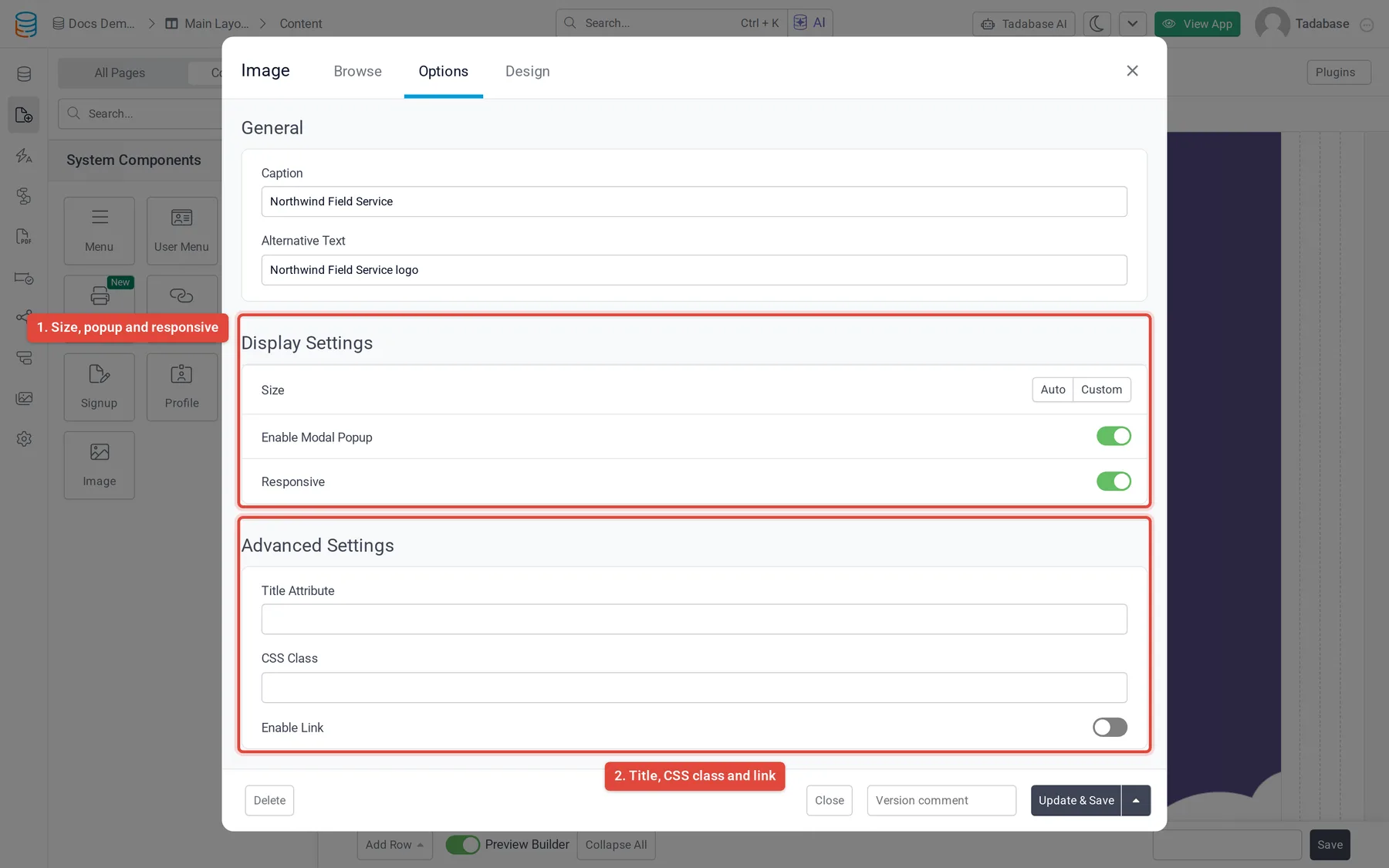
Options #
| Option | What it does | Default |
|---|---|---|
| Caption | Text shown under the picture. | Empty |
| Alternative Text | Describes the picture for screen readers, and shows if the picture cannot load. | Empty |
| Size | Auto keeps the picture's own size. Custom shows Width and Height boxes in pixels. Fill only one of them to keep the picture's proportions. | Auto |
| Enable Modal Popup | Clicking the picture opens it large in a popup. | Yes |
| Responsive | The picture shrinks to fit narrow columns and small screens, but never grows past its size. | Yes |
| Title Attribute | Text shown when someone hovers over the picture. | Empty |
| CSS Class | One or more class names added to the picture, for your own CSS. | Empty |
| Enable Link | Makes the picture a link. Shows Link (the web address), Link CSS Class (classes for the link) and Open Link in a New Window/ | No |
On PDF pages #
On a PDF page the Options tab has Caption, Alternative Text, Size, Responsive and CSS Class. Enable Modal Popup, Title Attribute and Enable Link are not offered there. See PDF pages.
Change how it looks #
The Design tab has Fonts, Background, Border, Spacing and CSS settings for the component around the picture. To remove the image, click Delete at the bottom left of the window.
To put a logo in your navigation bar instead, use an Image item in a Menu.
Was this page helpful?
Something wrong or missing on this page? Tell us.