
Show one record with the Details component
Add a Details component to a record's page to show its fields, connected values and links in rows and columns, on screen or in a PDF.
- Verified Nov 17, 2026
- Classic builder
On this page
The Details component shows the fields of a single record, for example everything about one job. Add it to the page that opens when someone clicks a record's details link.
Where you can add it #
Details shows one record, so it belongs on a page that shows a record: the child page that a Record Details Page or Edit Link in a table or list opens. Adding a details link with Quick Add creates such a page with a Details component already on it. See Links.
Details can also be added to a PDF page that prints one record.
Add a Details component #
- Open the record's page In the Page Builder, open the child page and click Add Component in an empty column, then choose Details under Data Components.
- Choose the record Answer Which record should this details component display? (see the table below).
- Quick Add or Customize Quick Add adds every field; Customize opens the settings so you place them.
- Save Click Update & Save or Update & Close.
| Option | What it shows |
|---|---|
| Select the data table | The page's own record. |
| Select Data Table that's connected with this page's record | The record that a connection field on the page's record points to, for example the customer of the job being viewed. Each connection is listed with the field it uses. |
| Records connected to the logged in user | The record that a connection field on the Users table points to for the signed-in user, for example the user's own company. |
Fields, links and layout #
The Fields tab works like a form: click an item on the left to add it, and arrange the fields in rows and columns on the right. Click Add Row for a new row and hover over a row to add a column. Click add a title to give the component a heading.
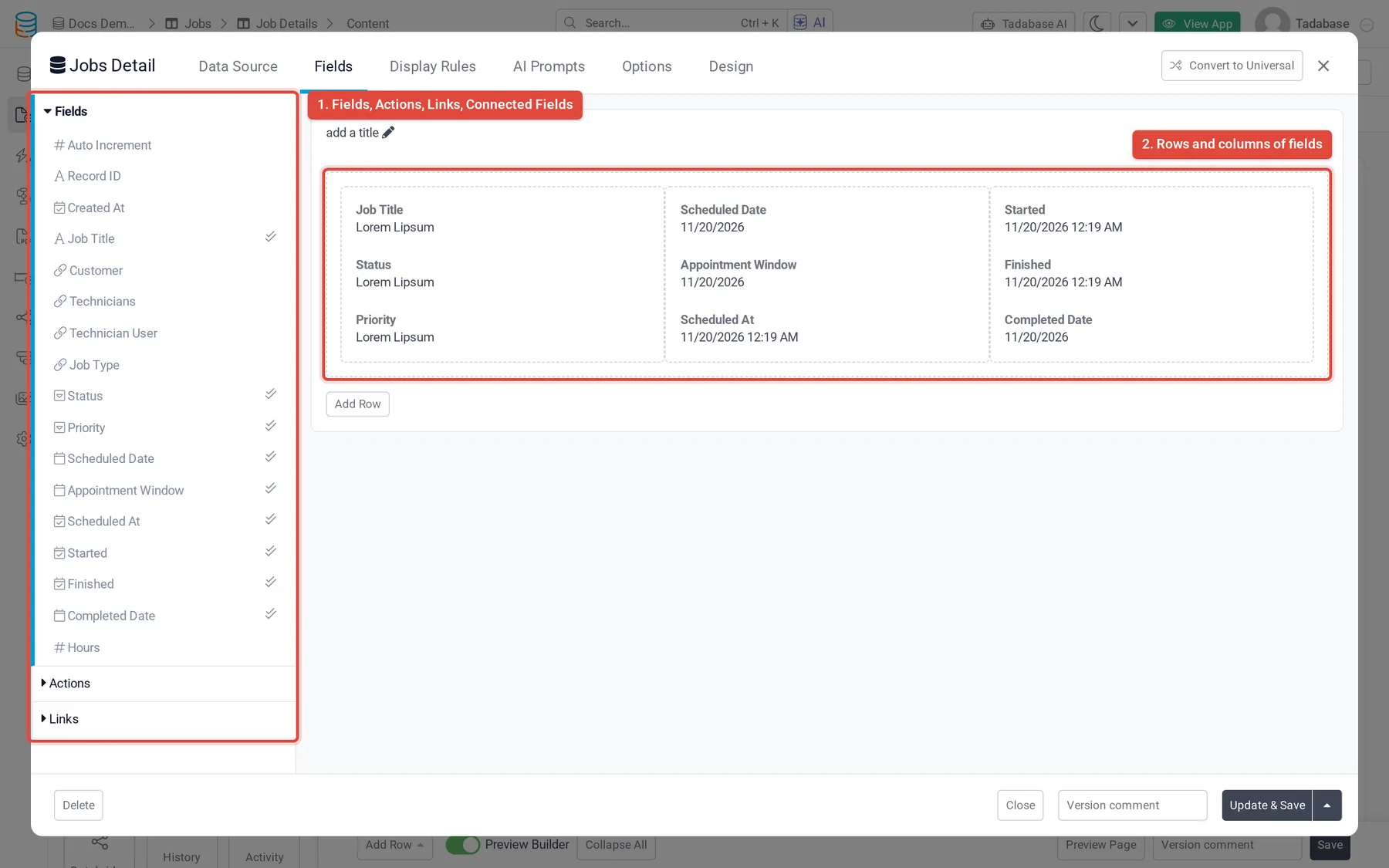
- Fields: the record's fields.
- Connected Fields: values from a connected record, such as the customer's phone number on a job.
- Links: Edit Link, Record Details Page, Connected Page and Connected PDF. See Links.
- Actions: buttons that act on the record, including Trigger Workflow. The other actions are the older action links that workflows replaced. See Table component.
- Pipe Fields: values from a pipe on the Data Source tab.
Click a field to change its title, format, or whether it can be edited in place (Allow Inline Editing).
Options and display rules #
- Options > General Options: Hide Empty Fields leaves out fields with no value, and Enable Inline Editing lets people edit values in place. See Inline editing.
- Options > Field Label Options: Label Position (Top, Right, Bottom or Left) and Label Column Size for labels beside the value.
- Display Rules: show, hide or change fields depending on the record's values, built the same way as form display rules.
On PDF pages and with maps #
On a PDF page, Details prints the record's fields; links, actions and display rules are not available there. See PDF pages.
To show the record's address on a map, add a Single Map next to it. Single Map is offered only on pages that show a record. See Map component.
Was this page helpful?
Something wrong or missing on this page? Tell us.