
Show records on a calendar
Add a Calendar that shows records by a date field in month, week, day or list view, and let people open, drag or add events.
- Verified Nov 17, 2026
- Classic builder
On this page
The Calendar component places records on a calendar by one of their date fields, for example jobs by their scheduled date. People can switch between month, week, day and list views, open an event's details, drag it to a new date, or click an empty spot to add a record.
To show the same records in rows per person or asset, such as one row per technician, use the Resource component instead.
Add a calendar #
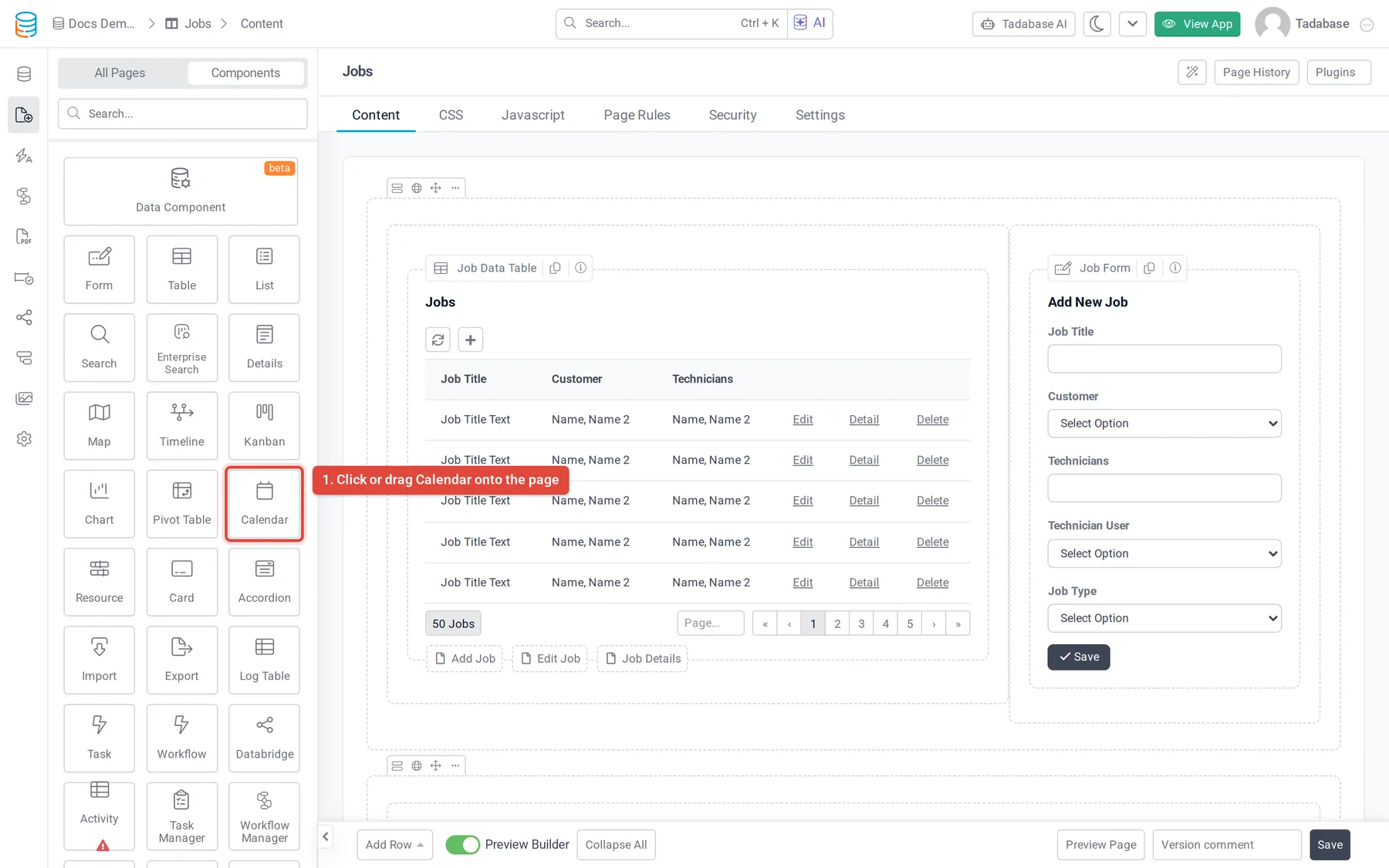
- Open the page In the Page Builder, open the page and its Content tab. Click the Components tab in the left panel.
- Add the Calendar Under Data Components, click Calendar or drag it into a column.
- Choose the records Answer Which records should this calendar display?. Only tables with a Date, Date/Time or Date Range field are listed. See Choose which table and records a component shows.
- Quick Add or Customize Click Quick Add to add the calendar with a date field picked for you, or Customize to set it up first.
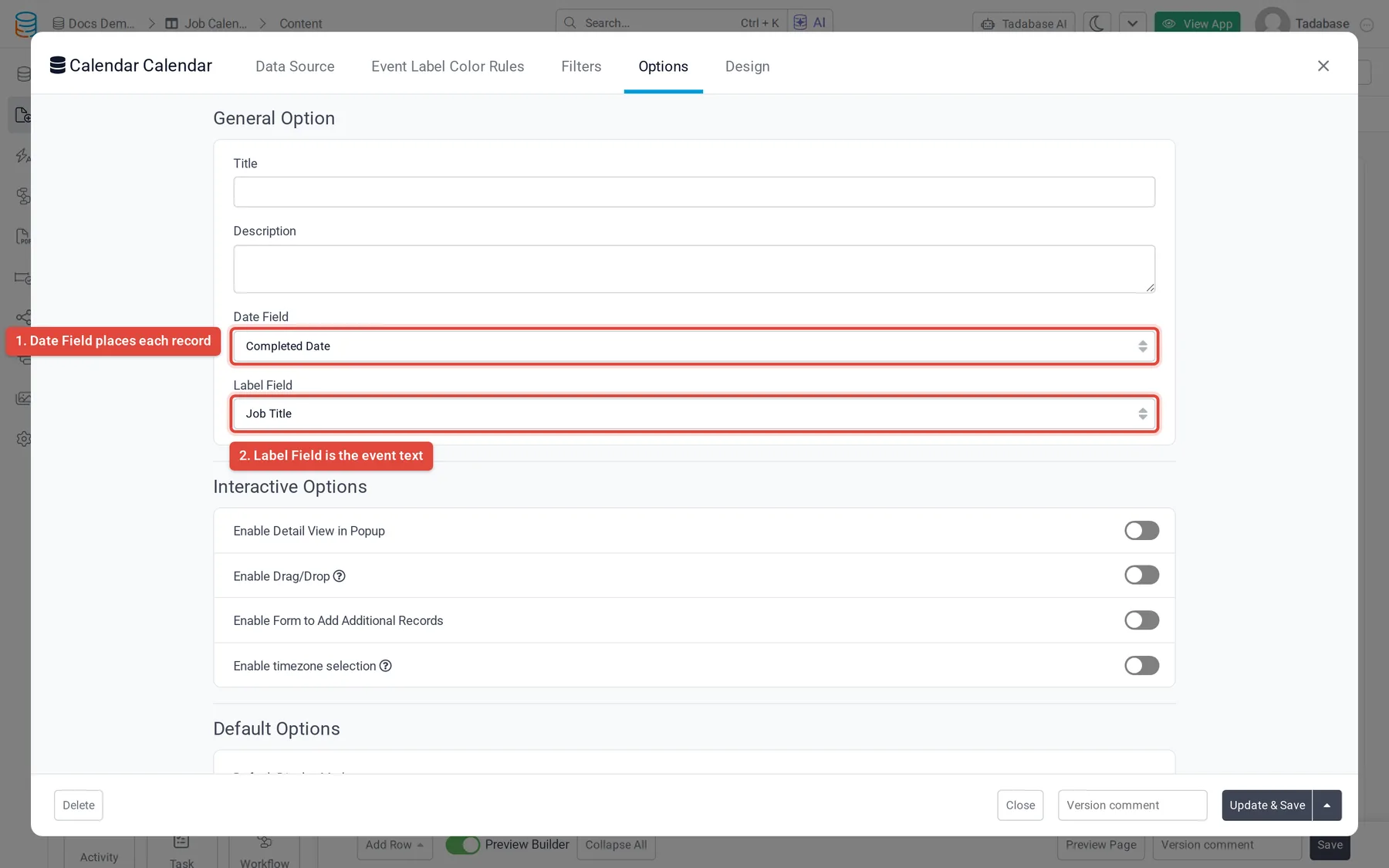
- Check the date and label On the Options tab, set Date Field and Label Field (described below).
- Save Click Update & Close.
The settings window has these tabs: Data Source, Detail View (when the detail popup is on), Form View (when the add form is on), Event Label Color Rules, Filters, Options and Design.
Choose the date and the label #
In General Option on the Options tab:
| Option | What it does |
|---|---|
| Title and Description | A name and a note for the calendar. |
| Date Field | The field that places each record on the calendar. A Date field shows all-day events. A Date/ |
| Label Field | The field shown as the event's text on the calendar, for example the job title or the customer name. File fields cannot be used. |
Let people open, move and add events #
| Option | What it does |
|---|---|
| Enable Detail View in Popup | Clicking an event opens the record's details in a popup. Choose the fields, links and Enable Inline Editing on the Detail View tab that appears. |
| Enable Drag/ | People can drag an event to another date or time. The record's date field is updated. Events cannot be stretched to change their length. |
| Enable Form to Add Additional Records | Clicking an empty day or time slot opens a form to add a record with that date. Choose the form's fields on the Form View tab that appears. Not offered when Date Field is the record's created date. |
| Enable timezone selection | Adds a time zone dropdown so people can see the events in another time zone. While it is on, drag and drop and the add form are turned off. |
Set how the calendar opens #
| Option | What it does |
|---|---|
| Default Display Mode | Calendar (a grid) or List (events listed by date). Calendar is the default. |
| Default Display Field | The period shown first: Month (the default), Week or Day. |
| Default Event Color | The color of events that no color rule matches. |
| Starting Day Of Week | The first day of each week, Sunday by default. |
In the live app, buttons above the calendar switch between Calendar and List and between Month, Week and Day. Refresh reloads the events, and clicking a day's number opens that day.
Color events with rules #
On the Event Label Color Rules tab, click Add New Color Rule, set the conditions a record must match and pick a color. For example, show jobs whose status is Completed in green. Add as many rules as you need.
Filter the events #
- Data Source > Filters: click Add New Filter Group to show only some records on the calendar, for example only upcoming jobs. See Choose which records a component shows.
- Filters: turn on Filter Tabs to show tabs above the calendar, each with its own conditions, that people click to filter the events. Hide Clear Filter Tab removes the tab that clears the filter.
The Design tab sets the component's fonts, background, border, spacing and CSS.
Check that it works #
Open the page in your live app and go to a period that has records. If an event is missing, check that its date field has a value, the data source filters and the selected filter tab. If dragging does nothing, check that Enable Drag/Drop is on and Enable timezone selection is off.
Was this page helpful?
Something wrong or missing on this page? Tell us.