
Let users edit values inline in a table
Turn on inline editing so users click a value in a table, list, details or other component, change it in a small pop-up and save without a form.
- Verified Nov 17, 2026
- Classic builder
On this page
With inline editing on, users click a value on the live page, change it in a small Edit pop-up and click Update. The record is saved straight away, without opening a form. It is off by default and is turned on per component.
Components that support it #
Not every data component has inline editing. These have an Enable Inline Editing switch:
| Component | Where the switch is |
|---|---|
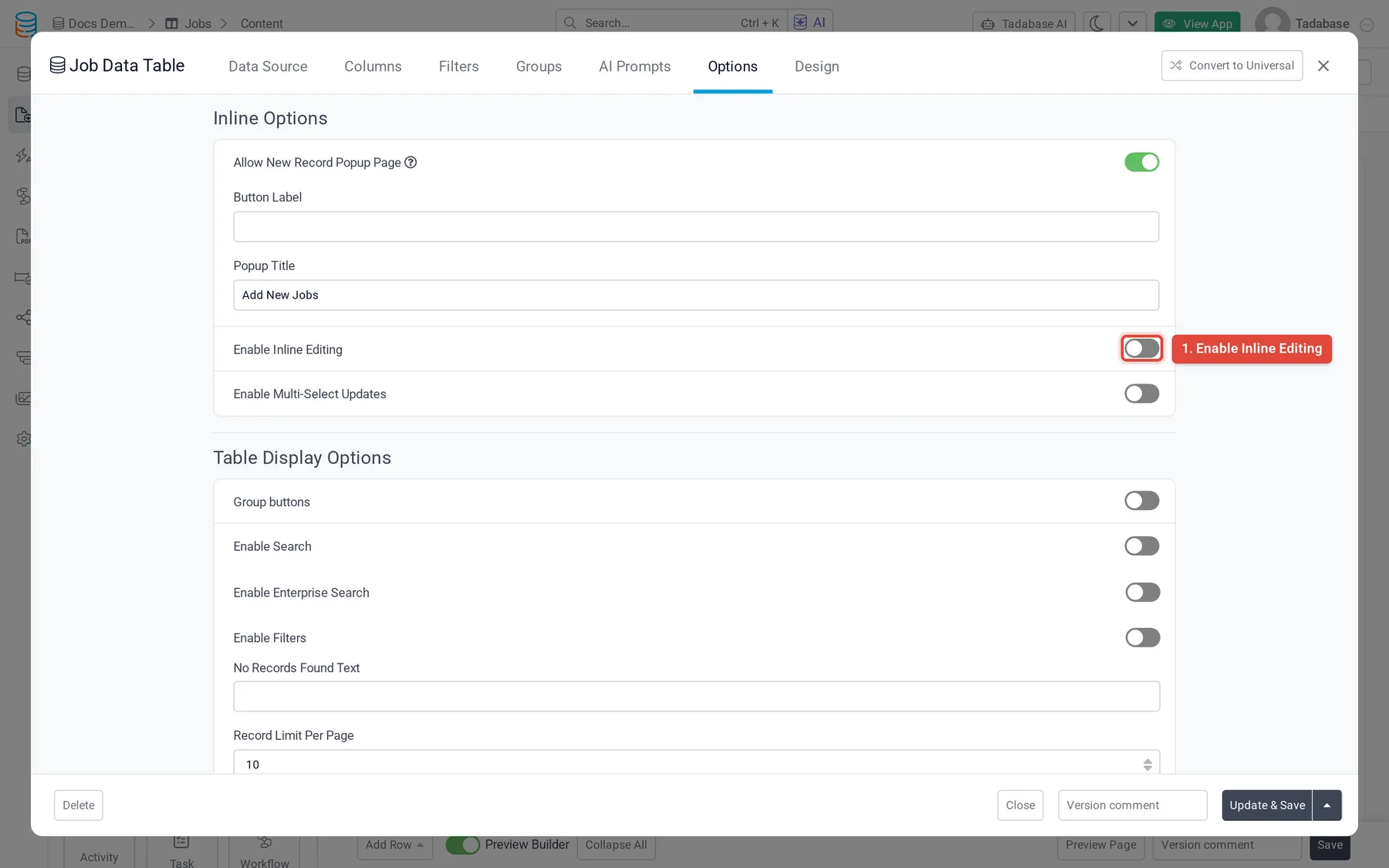
| Table | Options tab, under Inline Options |
| List, Details, Kanban, Accordion | Options tab |
| Calendar, Resource | Detail View tab, for the event details users open |
Cards, charts, maps, timelines and forms have no inline editing switch.
Turn it on #
- Edit the component In the Page Builder, hover over the component and click the pencil (Edit).
- Switch it on Open the tab from the table above and set Enable Inline Editing to on.
- Save Click Update & Save. On the live page, editable values now open the Edit pop-up when clicked.
On a table, turning it on also shows Update equations behind the scenes. Set it to on when equations take long to recalculate: the value saves first and the equations update afterwards.
Turn it off for single columns #
Once the component allows inline editing, every editable column can be edited. To lock one column, open its settings (on a table, click the column heading on the Columns tab) and set Allow Inline Editing to off on the General tab.
A table column has two more switches while Allow Inline Editing is on:
- Bypass Equations: an inline edit of this column does not recalculate equations.
- Bypass Table Rules: an inline edit of this column skips the table's older table rules (now replaced by workflows).
Which values can be edited #
Values that are calculated or added by the system cannot be edited inline, even with the switch on:
- Auto Increment, Text Formula, Date Formula, Basic Formula, Equation, Rollup and Dynamic Display fields, and older Complex Formula fields
- Built-in fields such as Record ID and Created At
- Link columns such as Edit or Record Details Page
- On a table, columns that show a field of a connected table rather than the table's own field
The pop-up uses an input that fits the field: a date picker for dates, the option list for choice fields, a slider for Slider fields, stars for Rating fields and a larger editor for Rich Text.
Who can edit #
Inline editing has no role setting of its own: anyone who can see the component can use it. To limit who can edit, put the component on a page that only those roles can open, or turn Allow Inline Editing off on the columns that should stay read-only.
If a save fails, an error message appears and the value on the page stays as it was.
Was this page helpful?
Something wrong or missing on this page? Tell us.