
Set form display, submit and validation rules
Show, hide or require form fields as people type, check values before a form saves, choose what happens after submit, and send emails or texts.
- Verified Nov 17, 2026
- Classic builder
On this page
Form rules change a form while people fill it in, stop it from saving bad values, and decide what people see after they submit. You set them on the form's Rules and Notifications tabs.
Find the rules #
- Open the form In the Page Builder, hover over the form and click the pencil (Edit).
- Open the Rules tab Click Rules. The tabs on the left are Display Rules, Submit Rules and Validation Rules, plus Workflows when your plan includes workflows. Each shows how many rules it has.
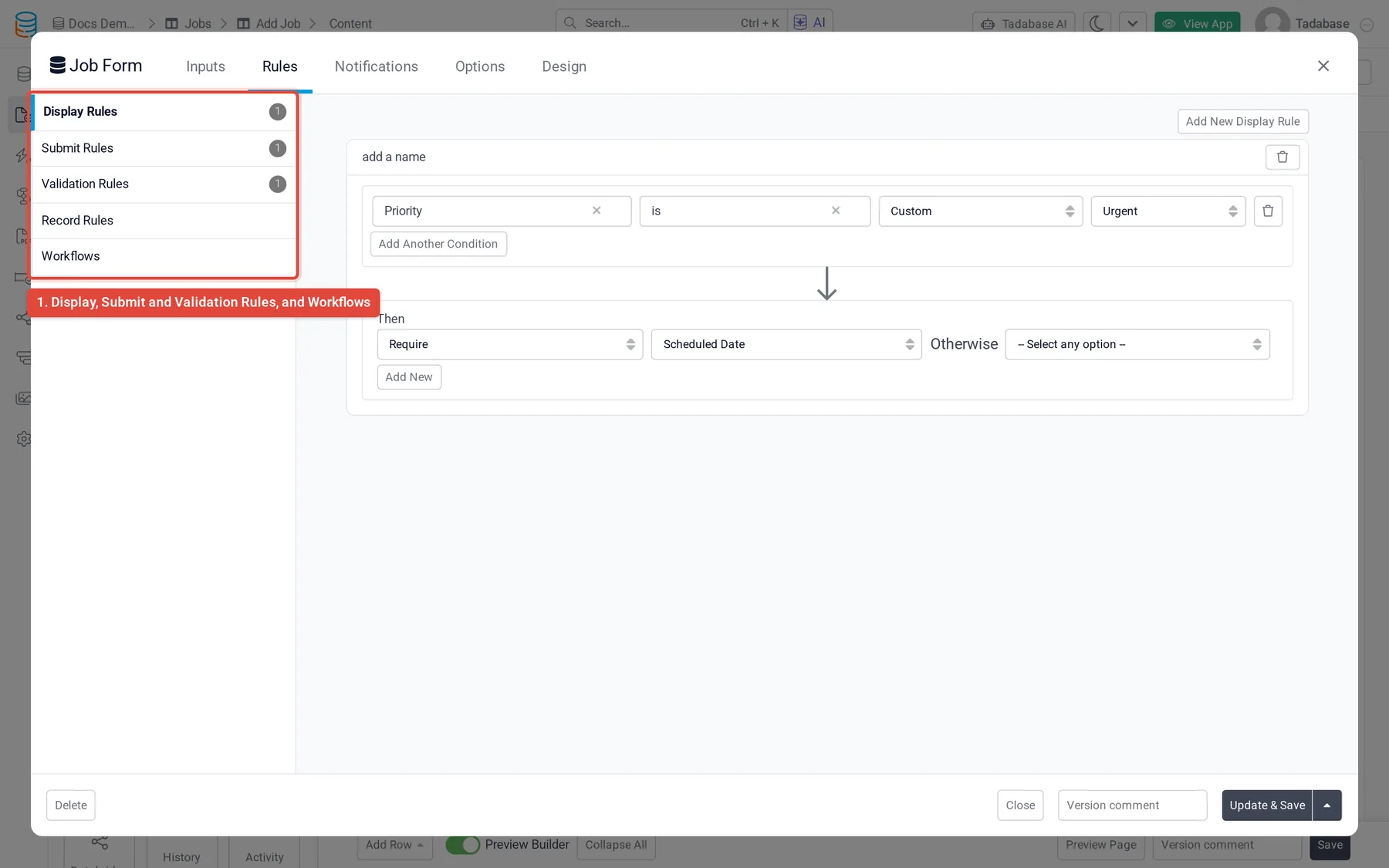
Every rule is built the same way: one or more conditions on the form's fields (Match All or Match Any), then what to do when they are true.
Display rules: change fields as people type #
Click Add New Display Rule, set the conditions, then choose what happens to which field under Then:
| Action | What it does |
|---|---|
| Show, Hide | Shows or hides a field. You can also pick (CSS Selector) to show or hide any element on the form. |
| Require, Do Not Require | Makes a field required or optional. |
| Enable, Disable | Lets people change the field, or makes it read-only. |
| Show Options, Hide Options | Shows or hides some of the choices of a drop-down, radio or checkbox field. |
| Rename Label | Changes the field's label to the text you enter under To. |
| Add CSS Classes, Remove CSS Classes | Adds or removes class names, for your own styling. |
For most actions you also choose what happens Otherwise, when the conditions are false: the opposite action or Do Nothing.
Validation rules: check values before saving #
A validation rule stops the form from saving and shows your message when its conditions are true. Click Add New Validation Rule, set the conditions, and write the Message. Use Add Field to put a value from the form into the message.
Conditions can compare a field with a value you type, with another field on the form, or (on a page that shows a record) with a value of that record. Uniqueness checks prevent duplicates:
- is not unique stops the form when another record already has the same value, for example a location that is already booked.
- For connection fields that hold several records: all values are not unique and any value is not unique.
- Tick Check Additional Fields to count a record as a duplicate only when other fields match too, for example the same voter and the same feature.
Submit rules: what happens after submit #
Every form starts with a default submit rule that shows a confirmation message. Edit its message, or click Add New Submit Rule to add rules with conditions. Rules with conditions are checked in order; the default rule applies when none of them match. Each rule has one Action:
| Action | What it does |
|---|---|
| Show a confirmation message | Shows your Message. Tick Auto hide notification to hide it after a moment. |
| Redirect to existing (record) Details page | Opens a page you pick from your app's pages. |
| Redirect to connected page | Opens a page for a record connected to the submitted one. Pick the Connection Field; if there are several connected records, the first is used. |
| Redirect to a parent page | On forms that edit a record, goes back to a page above this one. |
| Redirect to another website URL | Opens the URL you enter. Use Add Field to put form values in it, or Include custom URL parameters? to add parameters from custom values or form values. |
Emails and text messages #
The Notifications tab sends messages when the form is submitted. On Emails, click Add New Email and pick a Type:
- Basic Email sends to the addresses you type in Send To, separated by commas.
- Custom Email builds the recipients (To, Cc, Bcc and Reply-To) from typed addresses, fields on the form or the logged-in user's fields, and lets you set From Name and From Email.
- Email Template sends one of your saved email templates.
- Write the Subject and Message, using Add Field to insert form values. An email can also have a Condition, attach a file field (Attach a Field Value) or a details PDF page (Generate and Attach PDF), and, on plans with email layouts, be wrapped in an Email Layout.
On Text Messages, click Add New Text Message, choose Basic Text Message or Custom Text Message, set the number to send to and the Message. Text messages need text messaging turned on in your app settings; until then the button is disabled. See Emails and SMTP.
Change records on submit with workflows #
To create or update other records when a form is submitted, use a workflow. The Workflows tab under Rules lists the active workflows on the form's table that run when a record is created (on forms that add records) or updated (on forms that edit records), and Add Workflow attaches a manual workflow on that table. Run Behind the Scenes runs them without making people wait, and Show Progress Notifications shows their progress after submit. See Workflows overview.
Was this page helpful?
Something wrong or missing on this page? Tell us.