
Add a user menu with login and logout links
Add a User Menu that shows Login and Sign Up to visitors and the user's name, profile and logout links to logged-in users.
- Verified Nov 17, 2026
- Classic builder
On this page
The User Menu component gives people one place to log in and out. Visitors who are not logged in see Login; logged-in users see their name, with Profile and Logout links under it. Add it to a layout, usually next to your main menu.
Add a user menu #
- Open the layout or page In the Page Builder, open the layout (or page) where the user menu should appear. Its Content tab opens.
- Pick a spot In an empty column, click Add Component, or drag the component from the left panel into a column.
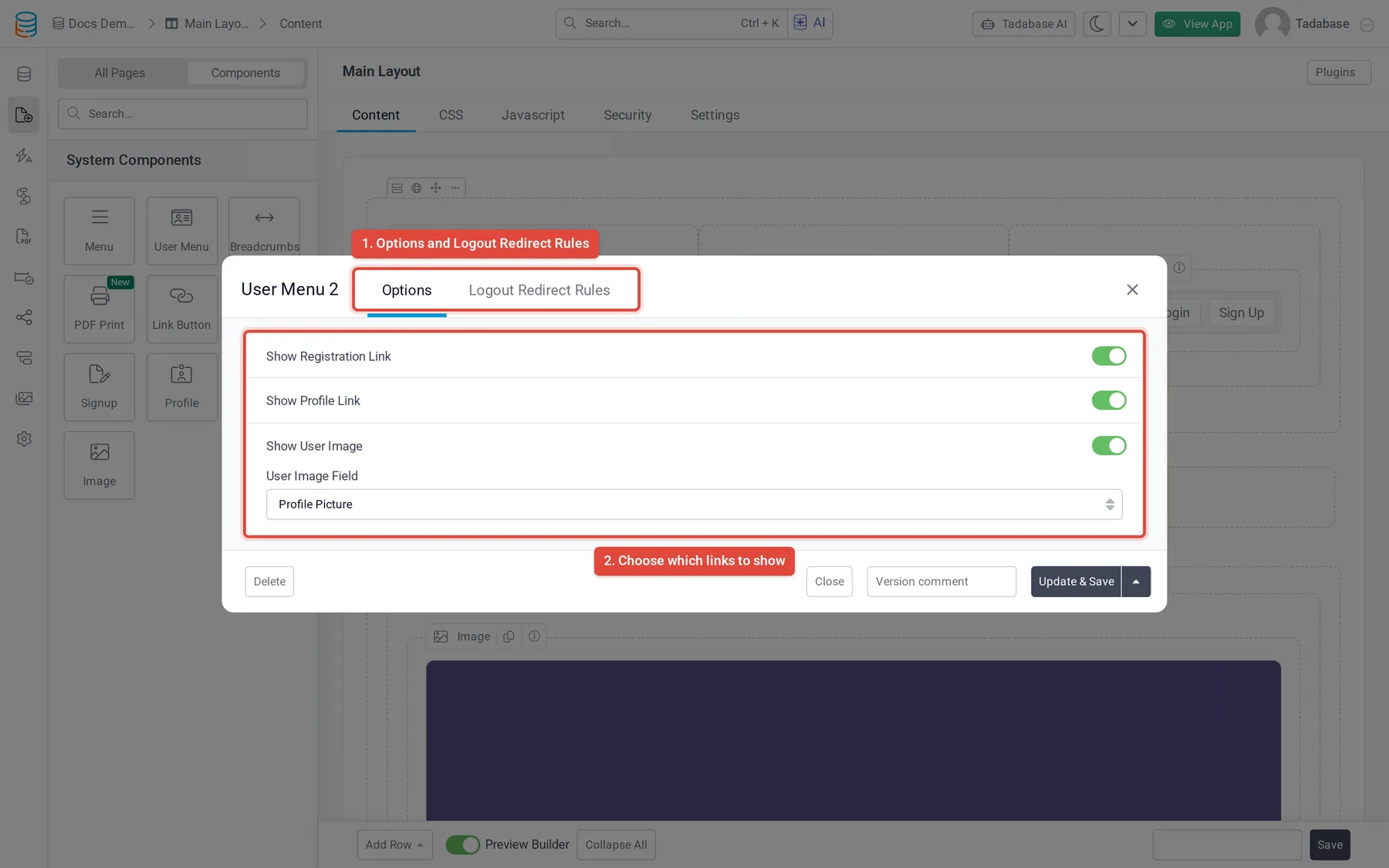
- Choose User Menu On the Components tab of the left panel, under System Components, click User Menu. Its settings window opens on the Options tab.
- Set the options Choose which links to show (see the table below).
- Set the logout rules Open the Logout Redirect Rules tab to choose where people go after they log out.
- Save Click Update & Save.
What people see #
| Who | The menu shows | Under it |
|---|---|---|
| Not logged in | Login | Login, which opens your login page, and Sign Up, which opens your sign-up page |
| Logged in | The user's name, with their picture when Show User Image is on | Profile, which opens your profile page, and Logout |
Options #
| Option | What it does | Default |
|---|---|---|
| Show Registration Link | Shows the Login and Sign Up links under Login for people who are not logged in. | Yes |
| Show Profile Link | Shows the Profile link to logged-in users. | Yes |
| Show User Image | Shows the user's picture next to their name. | Yes |
| User Image Field | The field of your Users table that holds the picture. Shown when Show User Image is Yes. | The first field the list offers |
Logout redirect rules #
A new user menu starts with one rule: All Users go to your login page after they log out. Add rules to send each role somewhere else.
- Open the tab In the user menu's settings window, open Logout Redirect Rules.
- Add a rule Click Add New Redirect Rule.
- Choose the role In If Role is, choose a role, or All Users.
- Choose the page In Then redirect to, choose a page, or App Home Page.
When a user logs out, a rule for one of their roles wins over the All Users rule. If no rule matches, they go to the login page. Click Remove to delete a rule. See User roles.
Change or remove a user menu #
Click the user menu in the Page Builder to open its settings again. To remove it, click Delete at the bottom left of the settings window.
Was this page helpful?
Something wrong or missing on this page? Tell us.