
Control who can open a page or layout
Use the Security tab to open a page or layout to everyone, to logged-in users or to chosen roles, and decide what blocked users see.
- Verified Nov 17, 2026
- Classic builder
On this page
Every page and layout has a Security tab that decides who can open it. Secure a layout to protect every page in it at once, or secure a single page.
Secure a page or layout #
- Open the Security tab In the Page Builder, open the page or layout and select Security.
- Choose who can open it Pick an option under Who can view this page (see the table below).
- Choose roles If you chose Only users with specific roles, click Select Roles and pick one or more roles. Remove a role with its trash icon. With no roles picked, the box shows All User Roles and any logged-in user can open the page.
- Choose what blocked users see Under Select an action for non-authorized users, choose what happens when someone who is not allowed opens the page (see below).
- Save Click Save.
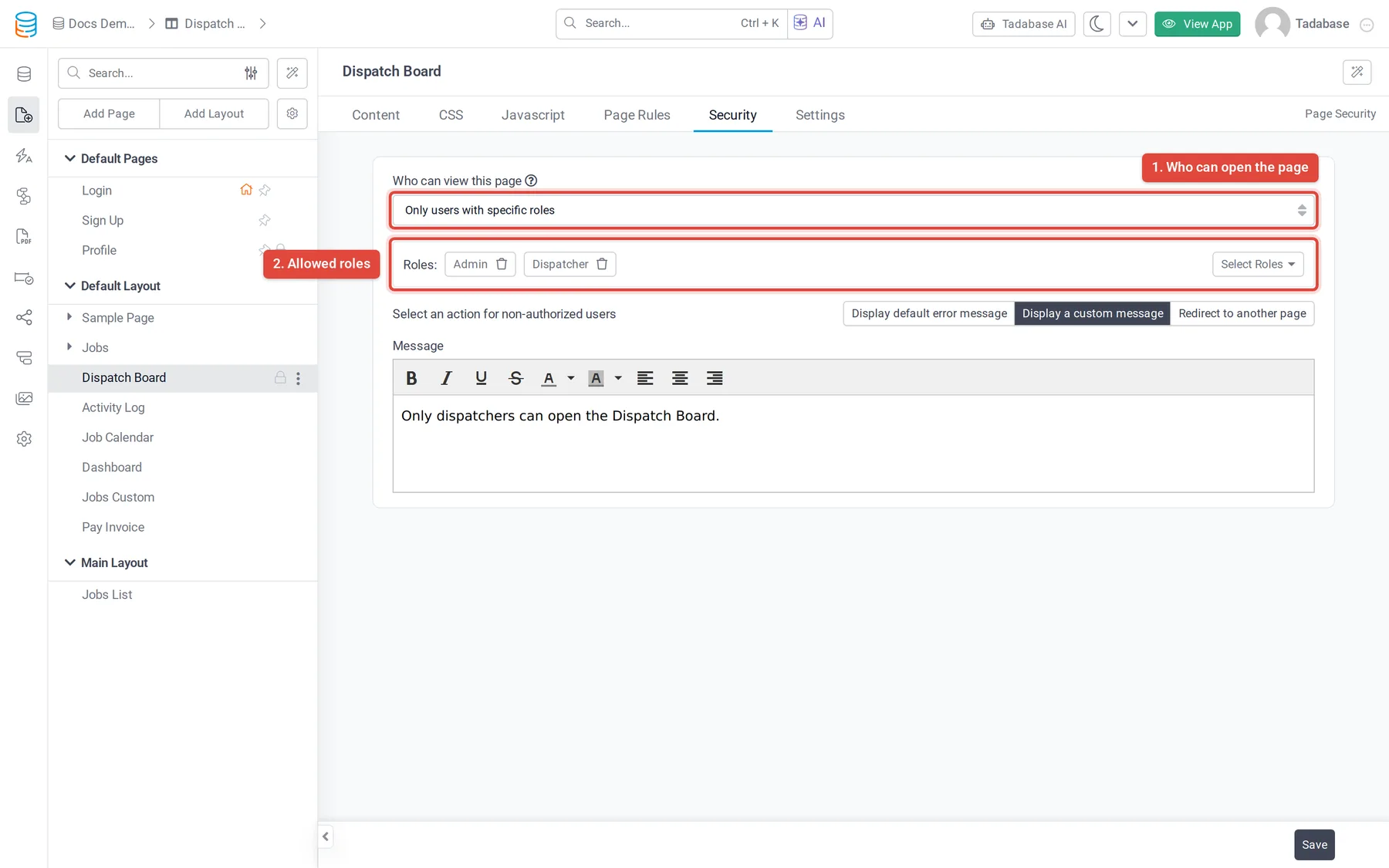
Who can view this page #
| Option | On | Who can open it |
|---|---|---|
| Anyone, no login required | Layouts | Everyone, signed in or not. This is where layouts start. |
| Inherit from Layout | Top-level pages | The page adds no restriction of its own; the layout's security applies. |
| Inherit from parent | Record (child) pages | The page adds no restriction of its own. |
| Any logged in user | Pages and layouts | Anyone who is signed in to the app, whatever their role. |
| Only users with specific roles | Pages and layouts | Signed-in users who have at least one of the roles you pick. |
A secured page or layout shows a lock icon in the page list. The Login and Sign Up pages have no Security tab, and the default Profile page starts as Any logged in user.
How layout and page security work together #
The layout and the page are each checked when they load, so a user must pass both. If the layout allows only the Admin role, a page in that layout is closed to everyone else even when the page itself is set to Inherit from Layout. Put shared restrictions on the layout, and add tighter ones on single pages.
What blocked users see #
| Option | Result |
|---|---|
| Display default error message | A red notice: "You don't have permission to access this page." |
| Display a custom message | The text you write in the Message box. If the box is empty, the app's standard message is shown. This option is selected until you pick another. |
| Redirect to another page | The user is sent to the page you choose under Page. If that page no longer exists, they go to the home page. |
Limit a record page to the connected user #
On a page that shows a record from a table connected to your Users table, the Security tab also has Page restricted to logged in user by field? once the page is restricted to logged-in users or roles. Pick the connection field, and a user can open the page only for records connected to them through that field. Anyone else sees the page's permission message.
To filter what records users see across the whole app, use record-level security.
Check that it works #
Security applies in the live app. After saving, open the page's address in a private browser window (not signed in), then sign in as users with and without the allowed roles. For roles and how to assign them, see Create user roles and assign users to them.
Was this page helpful?
Something wrong or missing on this page? Tell us.