
Show records on a timeline
Add a Timeline that lists records down a vertical line, with one field shown on the line and the fields you choose beside it.
- Verified Nov 17, 2026
- Classic builder
A Timeline lists records one after another down a vertical line, in the order you choose. Each record shows one field on the line, usually a date, and the fields you pick beside it. Use it for a job's history, notes or milestones.
Add a timeline #
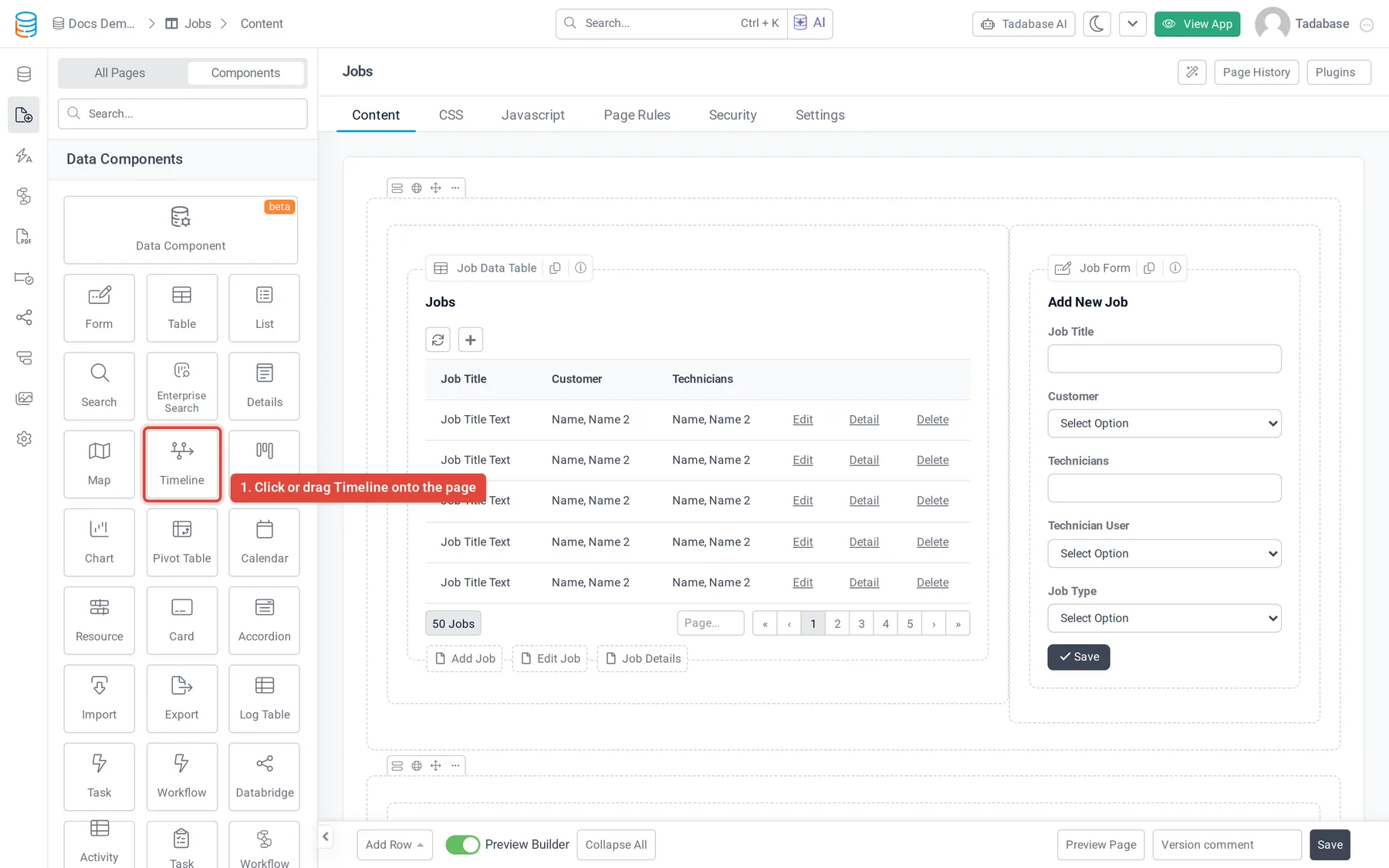
- Open the page In the Page Builder, open the page and its Content tab. Click the Components tab in the left panel.
- Add the Timeline Under Data Components, click Timeline or drag it into a column.
- Choose the records Answer Which records should this list display? by selecting a table, or records connected to the page's record or to the logged-in user. See Choose which table and records a component shows.
- Quick Add or Customize Click Quick Add to add it with default settings, or Customize to set it up first.
- Pick the timeline field and the content On the Fields tab, set Timeline Field and add the fields to show for each record (described below).
- Set the order On the Data Source tab, set Sort By, for example the date field, newest first. Then click Update & Close.
The settings window has five tabs: Data Source, Fields, Filters, Options and Design.
Choose what each record shows #
- Timeline Field is the value shown on the line for each record, such as the date of a note.
- Below it you lay out the content of one record; every record uses the same layout. Click fields on the left to add them, and arrange them in rows and columns.
- Under Links, add Edit Link, Delete Link, Record Details Page or Connected Page. See Links in components.
- Under Connected Fields, add fields from tables the record is connected to.
Options and filters #
| Setting | Where | What it does |
|---|---|---|
| Title | Fields tab, above the layout | A title shown above the timeline. |
| No Records Found Text | Options | Text shown when there are no records. |
| Record Limit | Options | How many records show per page: 10, 25, 50, 100 or All. |
| Sort By and Limit Records | Data Source > Data Table | The order of the records, and whether all of them or only a set number are loaded. |
| Filter groups | Data Source > Filters | Click Add New Filter Group to show only some records. See Choose which records a component shows. |
| Filter Tabs | Filters | Tabs above the timeline that people click to filter it. |
The Design tab sets the component's fonts, background, border, spacing and CSS.
Was this page helpful?
Something wrong or missing on this page? Tell us.