
Set up PDF layouts (headers, footers, margins)
Create a PDF layout with a theme, paper size, orientation, margins, background, header and footer, and assign it to your PDF Pages.
- Verified Nov 17, 2026
- Classic builder
On this page
A PDF layout holds the page setup that PDF Pages print with: theme, paper size, orientation, margins, background, header and footer. Make one layout, such as a company letterhead, and use it on many PDF Pages. Layouts are used by PDF Pages only, not by PDF Forms.
Create a PDF layout #
- Open PDF Layouts In the builder's left bar, click the PDF icon, then PDF Layouts.
- Start a layout Click Create New PDF Layout. The New PDF Layout screen opens.
- Name it Enter a Name. The Active switch at the top right and the Default switch are also here.
- Set the page, background, header and footer Fill in the sections below. Each one is described in the tables that follow.
- Save and preview Click Save. Click Download Preview to download a sample PDF with this layout.
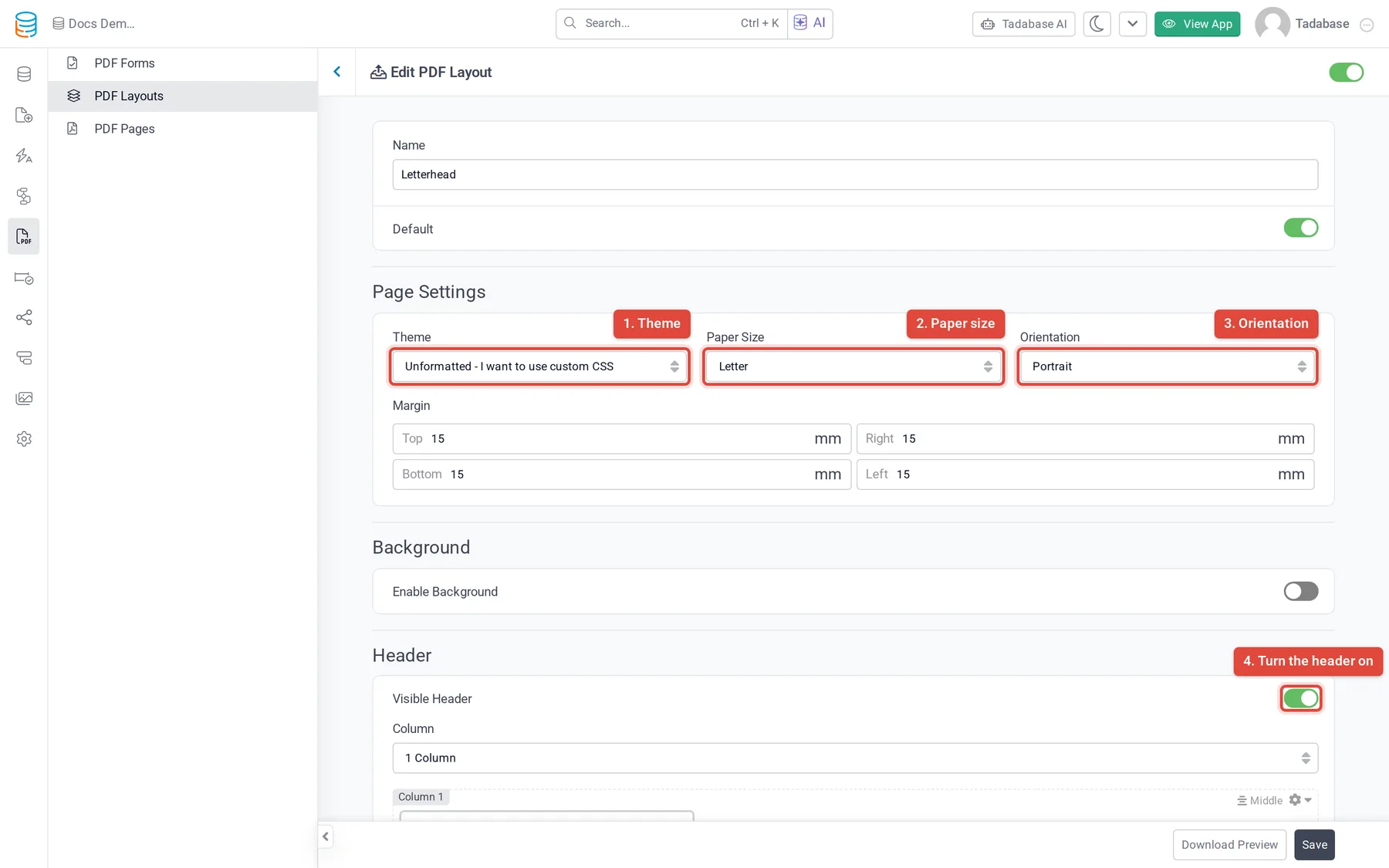
Page Settings #
| Setting | What it does | New layout starts at |
|---|---|---|
| Theme | The styling for tables, lists and text. Unformatted - I want to use custom CSS prints without a theme, so you can style the page in its CSS tab. | The first theme in the list |
| Paper Size | A0 to A9, B0 to B10, Letter, Legal, Ledger, Tabloid, Executive or Folio. Custom shows Width and Height boxes in mm. | Letter |
| Orientation | Portrait or Landscape. | Portrait |
| Margin | Top, Right, Bottom and Left, in mm, between the edge of the paper and the content. | 15 mm each |
Background #
Turn on Enable Background, then upload an Image, pick a Color, or both, to print behind the page's content.
Header and footer #
Turn on Visible Header (or Visible Footer) to set it up. The header and footer have the same settings:
| Setting | What it does |
|---|---|
| Column | 1 Column, 2 Column or 3 Column. |
| Each column | Use the gear menu to choose Text or Image. The align menu sets the vertical alignment: Top, Middle or Bottom. |
| Text | Type the text. The + button (Add Page Variable) inserts Current Page Number, Total Page Number, Current Date (MM/ |
| Image | Upload an image, such as your logo. |
| Background Color, Font Color | Colors for the header or footer. |
| Font Size | In px. Starts at 12. |
| Height | In mm. Starts at 12. |
| Spacing | How many mm between the header and the content below it, or between the footer and the content above it. |
For example, a letterhead might use a 3-column header with the logo in column 1, the company name in column 2 and "Page [currentPageNumber] of [totalPageNumber]" in column 3.
Use a layout on a PDF Page #
- Open the PDF Page Click the PDF icon, then PDF Pages, then the page.
- Choose the layout On the Settings tab, pick the layout under PDF Layout.
- Save Click Save. The PDF Pages list shows the layout in the Layout column; click it to open the layout.
Changing a layout changes every PDF Page that uses it.
Edit or delete a layout #
The PDF Layouts list shows each layout's Name and whether it Is Default?. Click a layout to edit it. To delete it, open it, click Delete at the bottom and confirm. Check first that no PDF Page still uses it.
PDF Layouts in Settings #
Older guides placed PDF Layouts under the builder's Settings. The Settings menu no longer lists them; the PDF menu is where you manage layouts now. An old Settings link to PDF Layouts opens the same layouts, because both screens read and save the same list.
Plans #
PDF Layouts are available on plans that include PDF Pages. See Plans.
Was this page helpful?
Something wrong or missing on this page? Tell us.