
Create a layout and assign it to pages
Add a layout for your app's header, menus and footer, work with the page container, rename, copy or delete a layout, and choose which pages use it.
- Verified Nov 17, 2026
- Classic builder
On this page
A layout is the frame around your pages: the header, logo, menus and footer. Every page that uses a layout shows the same frame, so you set up navigation once. Use more than one layout when different users should see a different app, for example staff and customers.
The default layout #
New apps start with a layout called Default Layout, holding a menu and the page container, and the default Login, Sign Up and Profile pages use it. You can rename it, change it or delete it like any other layout.
Add a layout #
- Open the page list In the Page Builder, select All Pages and click Add Layout.
- Choose a design Under Choose Layout, click a design. A preview appears beside the list. The last option, Custom, is a layout you build yourself from rows, columns and system components.
- Name it and save Enter the Layout Name and save. The layout appears in the page list, ready for pages.
For a step-by-step walk through the designed layouts and their menu options, see Give pages a shared layout.
What goes in a layout #
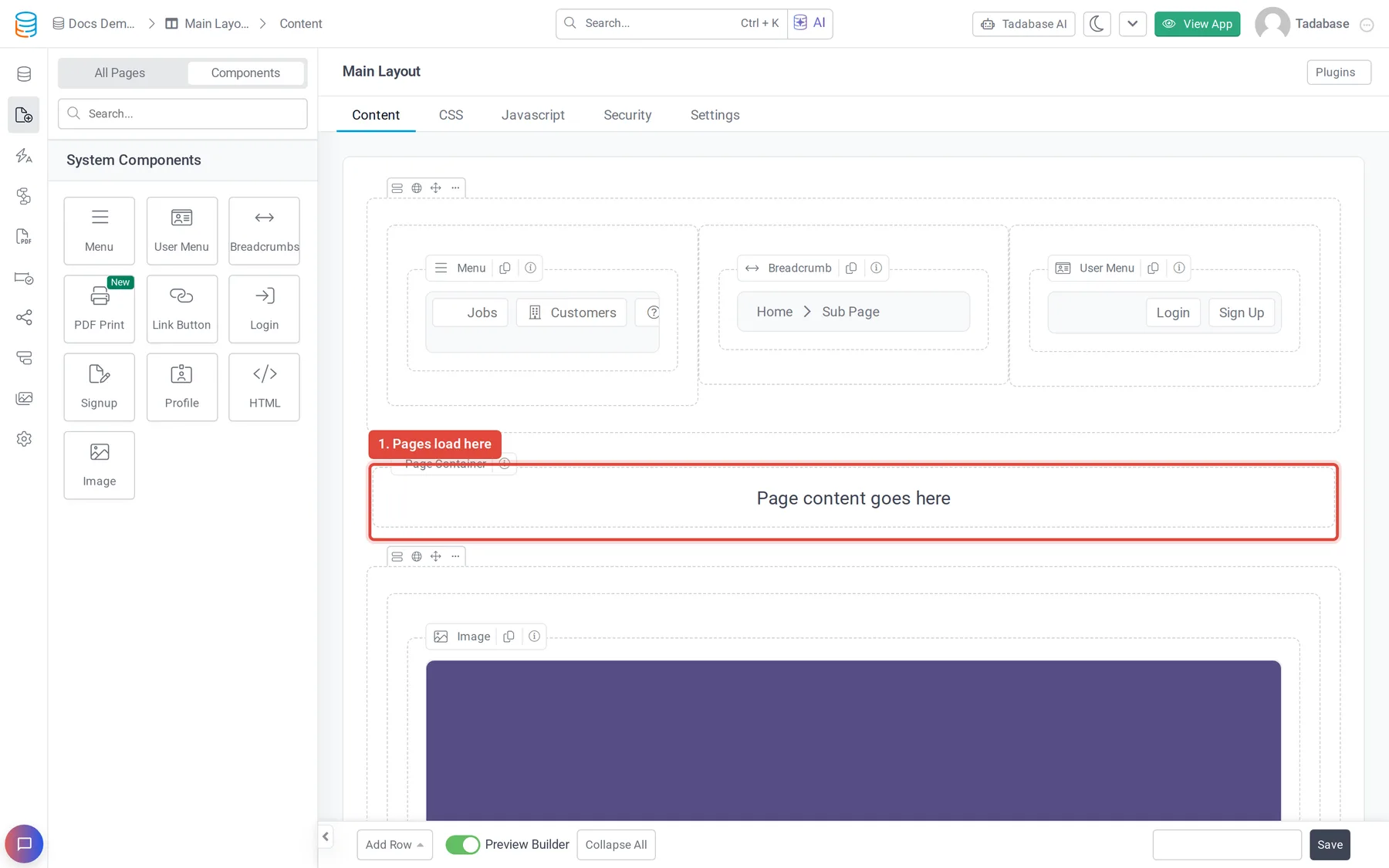
Click a layout in the page list to open its Content tab. A designed layout shows a preview with settings for each of its parts. A Custom layout uses the same rows and columns as a page, with two differences:
- Only System Components can go in a layout: menus, user menus, breadcrumbs, link buttons, HTML, images and so on. Data components such as forms and tables belong on pages.
- Every Custom layout has a Page Container.
The page container #
The Page Container marks where each page loads inside the layout. Rows above it appear above every page, like a header with a menu; rows below it appear under every page, like a footer. You cannot delete the page container, but you can drag it up or down between your rows.
Choose the layout for a page #
- New page: pick the Layout on the second step of the Create New Page window.
- Existing page: open the page's Settings tab and pick the Layout. Choose (No Layout) to show the page without any frame.
Record (child) pages always use their parent page's layout. In the page list, each page is listed under the layout it uses.
Rename a layout #
Open the layout's Settings tab, change Layout Name and click Save. The same tab has CSS Class, a class name you can target from your CSS.
Layout security and code #
- Security: who can open any page in the layout. See Control who can open a page or layout.
- CSS and Javascript: code for every page in the layout. See Add CSS and JavaScript to a page or layout.
Copy or delete a layout #
Open the layout's three-dot menu in the page list. Choose Copy and enter a New Layout Name to make a copy, or choose Delete and confirm to remove it.
Was this page helpful?
Something wrong or missing on this page? Tell us.