
Give pages a shared layout
Add a layout with a header and menus, put pages in it, and use different layouts to give each user role its own version of your app.
- Verified Nov 17, 2026
- Classic builder
On this page
A layout is the frame around your pages: the header, logo, menus and footer. Every page in a layout shows the same frame, so you set up navigation once. Use more than one layout when different users should see a different app, for example one for staff and one for customers.
Add a layout #
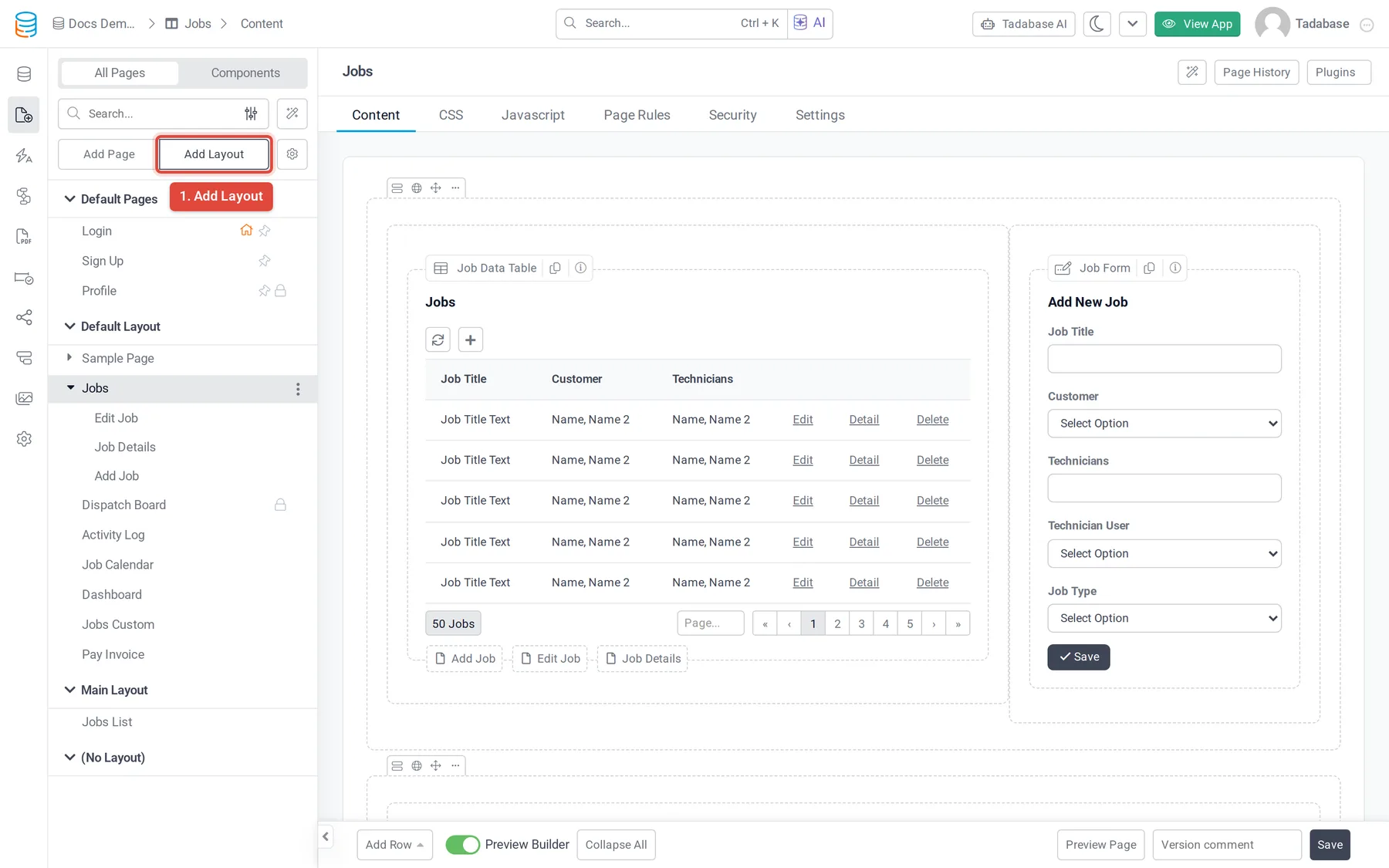
- Open the page list Open the Page Builder and select All Pages at the top of the left panel.
- Start a new layout Click Add Layout.
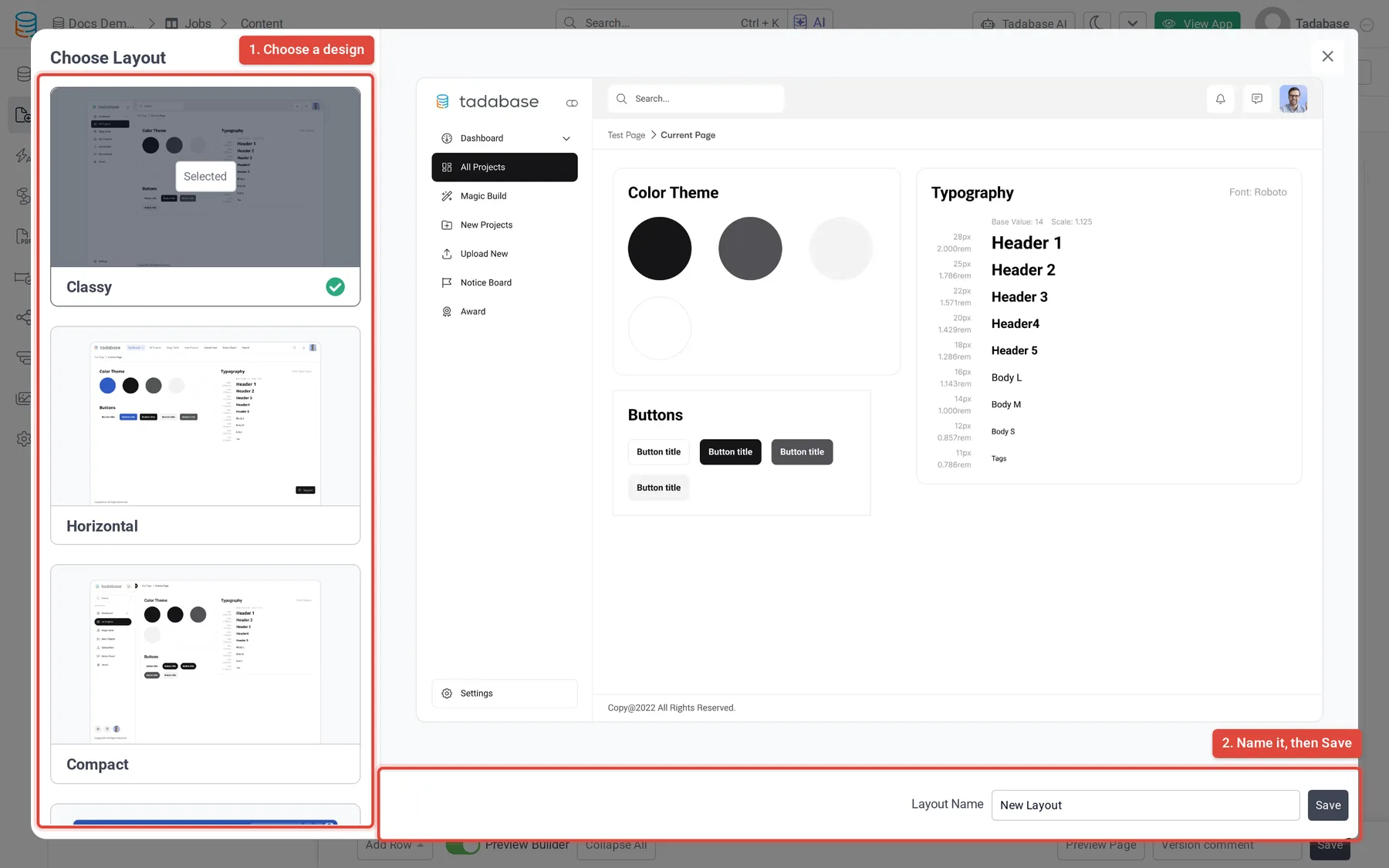
- Choose a design Under Choose Layout, click the design you want. A preview appears on the right.
- Name it and save Enter a Layout Name and click Save. The layout appears in the page list, with its pages listed under it.
Set up the header and menus #
Click the layout in the page list to open its Content tab. You see a live preview of the layout and, beside it, the settings for each part of it. Each design has its own parts, so the options differ from design to design.
- Menu items have a Type: Page (a page in your app, optionally shown in a popup with Show in Popup), Link (any web address), Custom, Image, or User Action (Login, Sign Up, Profile or Logout).
- You can show a part of the layout or a menu item only to logged-in users or to certain roles.
- Use Preview As to see the layout as Public, Non Logged In User, Any Logged In User or a specific role.
For every layout option, see Layouts.
Put pages in a layout #
- New page: choose the layout under Layout when you add the page. You can also add the page straight to one of the layout's menus.
- Existing page: open the page, go to its Settings tab and pick the layout under Layout. Choose (No Layout) to show the page without a frame.
Child pages use their parent page's layout. To see only one layout's pages in the page list, use the filter button next to the search box and choose Filter By Layout.
Give each role its own layout #
- Add one layout per audience For example, a Staff layout and a Customer layout, each with its own menus.
- Put each audience's pages in its layout Set the Layout of every page as above.
- Secure the pages Use the Security tab of the layout or of each page to choose which roles can open them.
Was this page helpful?
Something wrong or missing on this page? Tell us.