
Add pages and child pages
Add a page in the Page Builder, use the built-in Login, Sign Up and Profile pages, and understand parent pages and the child pages they open.
- Verified Nov 17, 2026
- Classic builder
On this page
A page is a screen in your live app. You add pages in the Page Builder, then fill them with components that show and collect your data.
Pages that list records are parent pages. A page that shows or edits one record is a child page: it opens from a link on its parent and receives the record from it.
Add a page #
- Open the page list In the builder, open the Page Builder and select All Pages at the top of the left panel.
- Start a new page Click Add Page. A window opens with three steps: Choose Data Table, Choose layout & Navigation and Add Components and Options.
- Choose a data table Under Select the data table, click the table the page is about. If the table connects to your Users table, it is also listed under Records connected to the logged in user. You must pick a table to continue.
- Name the page and place it Enter the Page Name. If your app has layouts, choose one under Layout; if that layout has menus, you can also choose Add Page to Existing Menu. Click Next.
- Pick starter components Under Quick Add Component & Options, tick what the page should start with: Cards, a Table (or a List) with Add New, Edit, Details and Delete, and a Form. All are ticked by default. Untick everything to get a blank page.
- Create it Click Create. The new page opens on its Content tab, ready for more components.
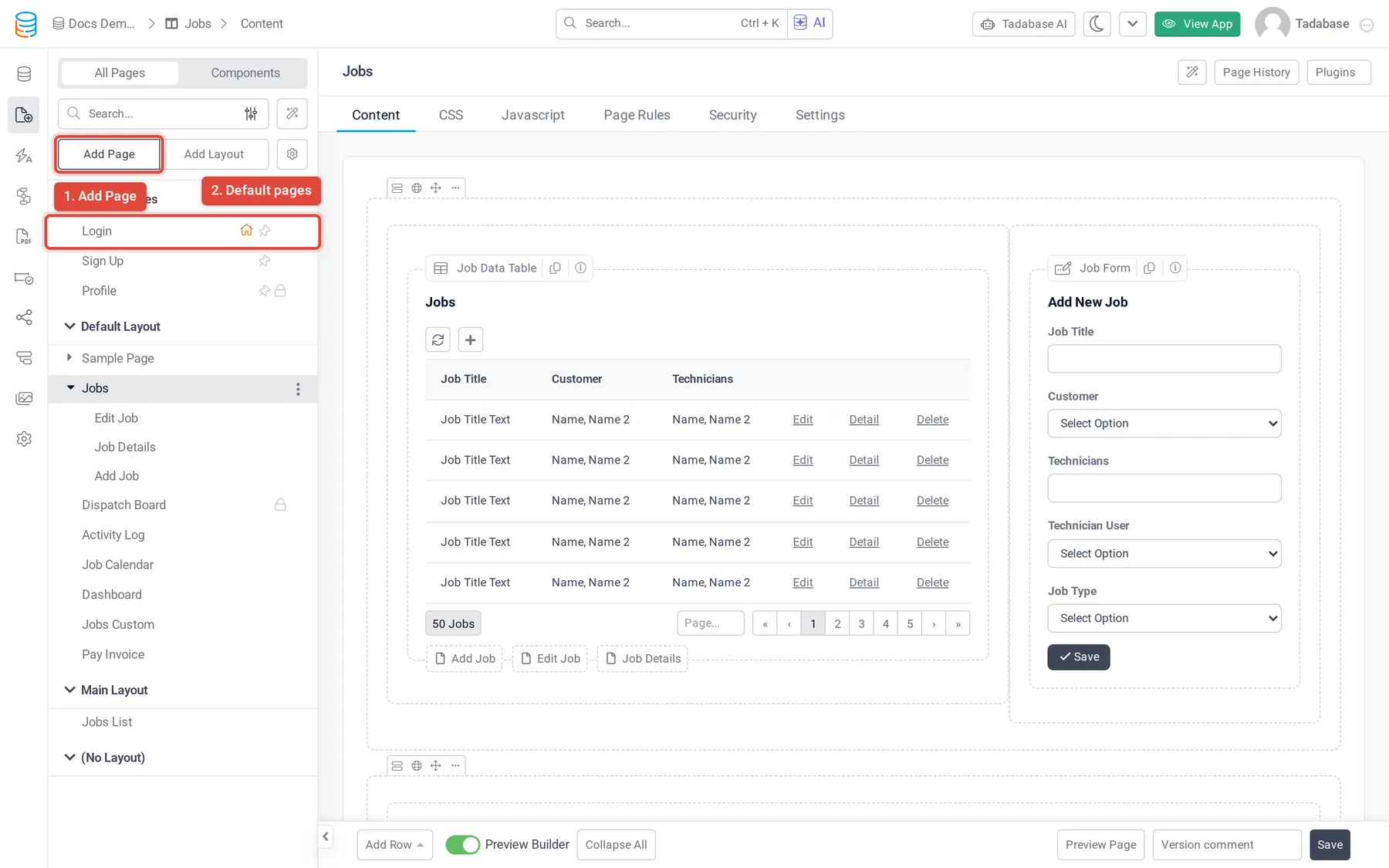
If you tick Details, Edit or Add New, the builder also creates the child pages those links open (for example Jobs Details and Edit Jobs for a Jobs table).
To change a page's name, URL slug, layout or home-page setting later, open the page and use its Settings tab. To copy or delete a page, use the menu next to its name in the page list. See Pages for every page setting.
The default pages #
New apps come with three pages in a Default Pages group at the top of the page list: Login, Sign Up and Profile. Each is marked with a pin icon.
- You can edit their content and settings like any other page.
- You cannot copy or delete them: their menu has no Copy or Delete option.
- To build your own login, sign-up or profile screen elsewhere, add the Login, Signup or Profile component to any page.
A blank app created from your app list also gets a sample page called Default Page in a layout called Default Layout. It is only there to help you start; you can change it or delete it.
Parent pages and child pages #
A parent page is a page you add with Add Page. It does not depend on any one record: it can list all jobs, show a dashboard of charts, or hold a landing page.
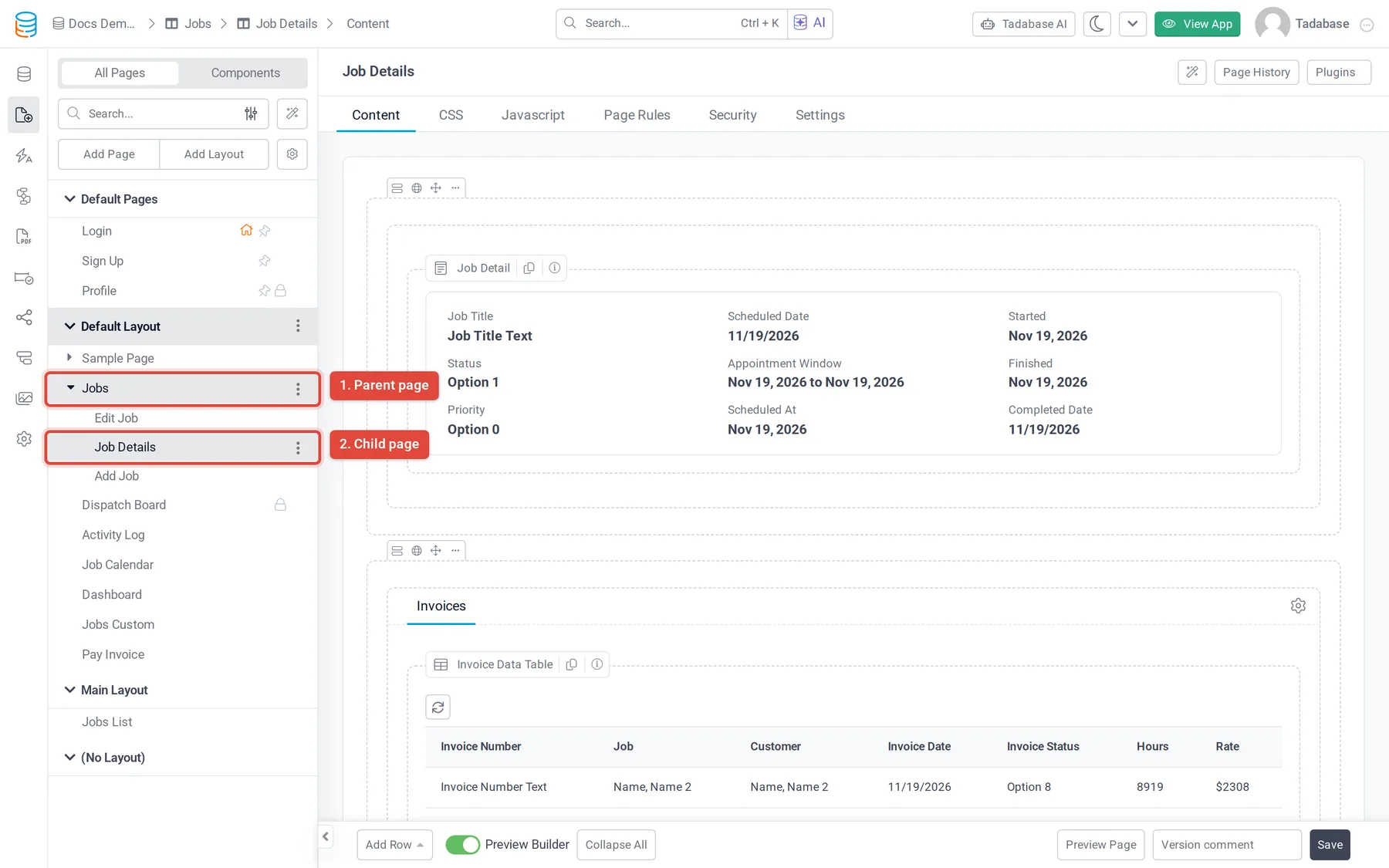
A child page belongs to one parent page and is opened from a link on it, such as a Details or Edit link in a table. The link passes the record the user clicked, so the child page always shows that record. Use child pages to:
- Show the details of one record.
- Edit one record with a form.
- Show the records connected to it, for example the invoices of one job.
In the page list, child pages sit under their parent page. Click the arrow next to a parent page to show them.
Who can open a page, and page history #
- Each page has a Security tab that sets who can open it. See User access management.
- The builder keeps earlier versions of your pages so you can restore one. See Page versioning.
Was this page helpful?
Something wrong or missing on this page? Tell us.