
Delete records
Delete one record or many in the Data Builder, let people delete records in your app, and know how to get deleted data back.
- Verified Nov 17, 2026
- Classic builder
On this page
You can delete records one at a time or in batches, in the Data Builder or from your app. A deleted record is gone from the table, so check what you are deleting first.
Delete one record in the Data Builder #
- Open the record On the table's Records tab, click the expand icon at the start of the row (Edit record).
- Delete it Click Delete at the bottom of the record and confirm.
Delete many records in the Data Builder #
Selected rows: tick the rows, click Delete in the bar that appears, check the count and click Delete.
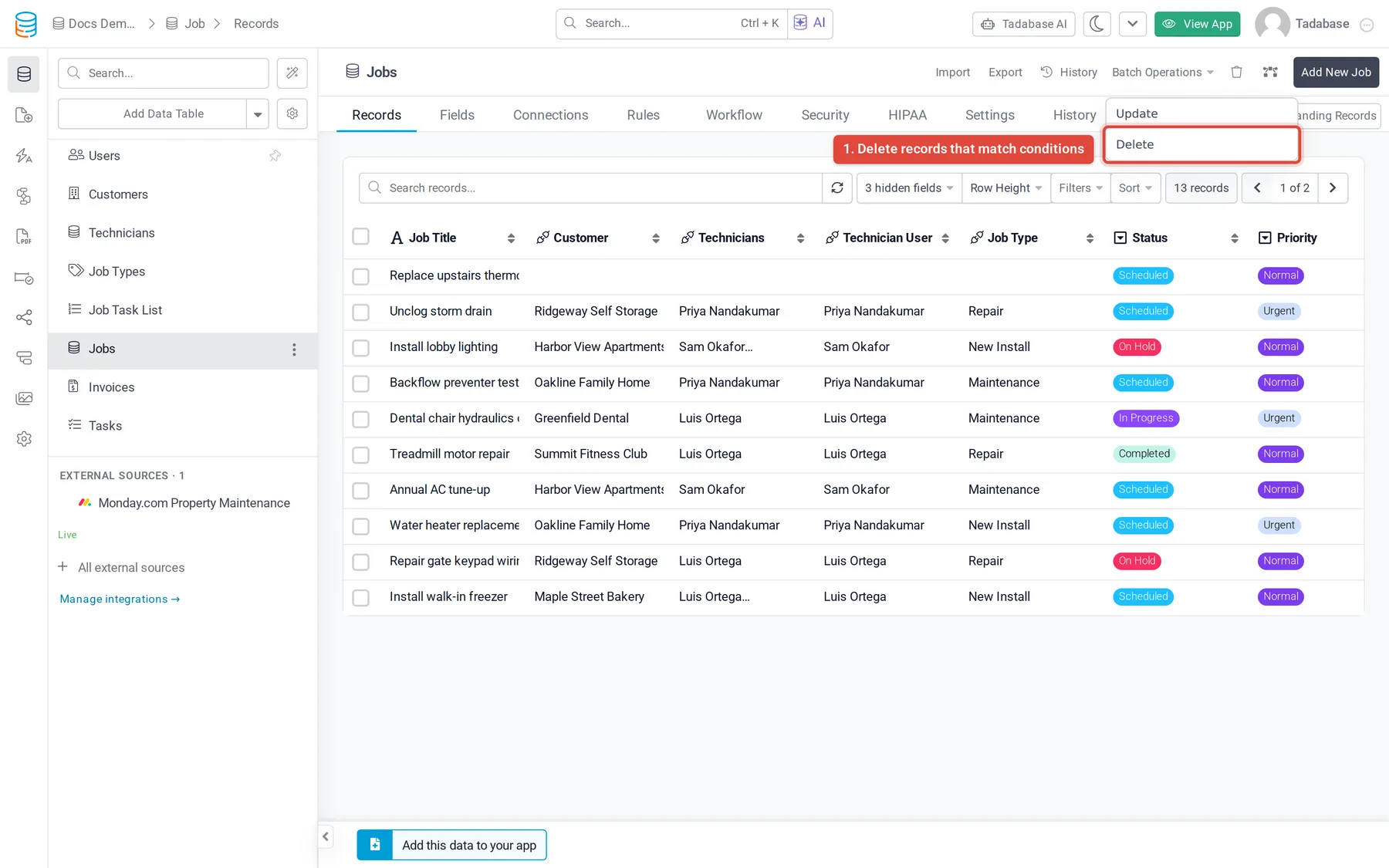
Records that match conditions:
- Open Batch Operations On the Records tab, click Batch Operations > Delete.
- Set conditions Click Add New Condition and choose which records to delete, for example Status is Cancelled.
- Review Click Next. The dialog says how many records will be deleted.
- Delete Click Delete. A large delete may be queued and finish in the background.
Let people delete records in your app #
- Delete Link: edit a table component, open Columns > Links and click Delete Link. Each row gets a delete link. Edit that column to change its Confirm message. Details components do not offer a Delete Link.
- Batch deletes: edit a table component, open Options and, under Batch Operations, turn on Allow Batch Deletes. People get a Delete button that deletes the records matching their conditions. Batch Delete Required Conditions and Batch Delete Max Limit keep each delete small.
See Table component.
Can I get a deleted record back? #
There is no undo for a deleted record. Plan for it before you delete:
- Backups: restore your app from a backup. See Backing up and restoring your app.
- Deleted Records Log: on plans that include it, turn on Log Deleted Records in the table's Settings under Record Tracking. The trash icon on the Records tab then lists deleted records with when and where they were deleted from.
- Record logs: see Record logs for what each record's history keeps.
Was this page helpful?
Something wrong or missing on this page? Tell us.