
Connect tables with connection fields
Add a connection field between two tables, choose whether a record links to one or many records, then connect the actual records.
- Verified Nov 17, 2026
- Classic builder
On this page
A connection field links records in one table to records in another, such as each job to its customer. You store the customer's details once, and every job shows them through the connection.
Decide which table gets the field #
Add the connection field to the table whose records belong to the other one. A job belongs to a customer, so add the field to Jobs and point it at Customers. The customer can still list all of its jobs through the same connection.
Add a connection field #
- Open the table In the Data Builder, open the table that gets the field (for example Jobs).
- Start a new connection Click the Connections tab, then Add New Connection. On the Fields tab you can also click Add New in the Connections panel.
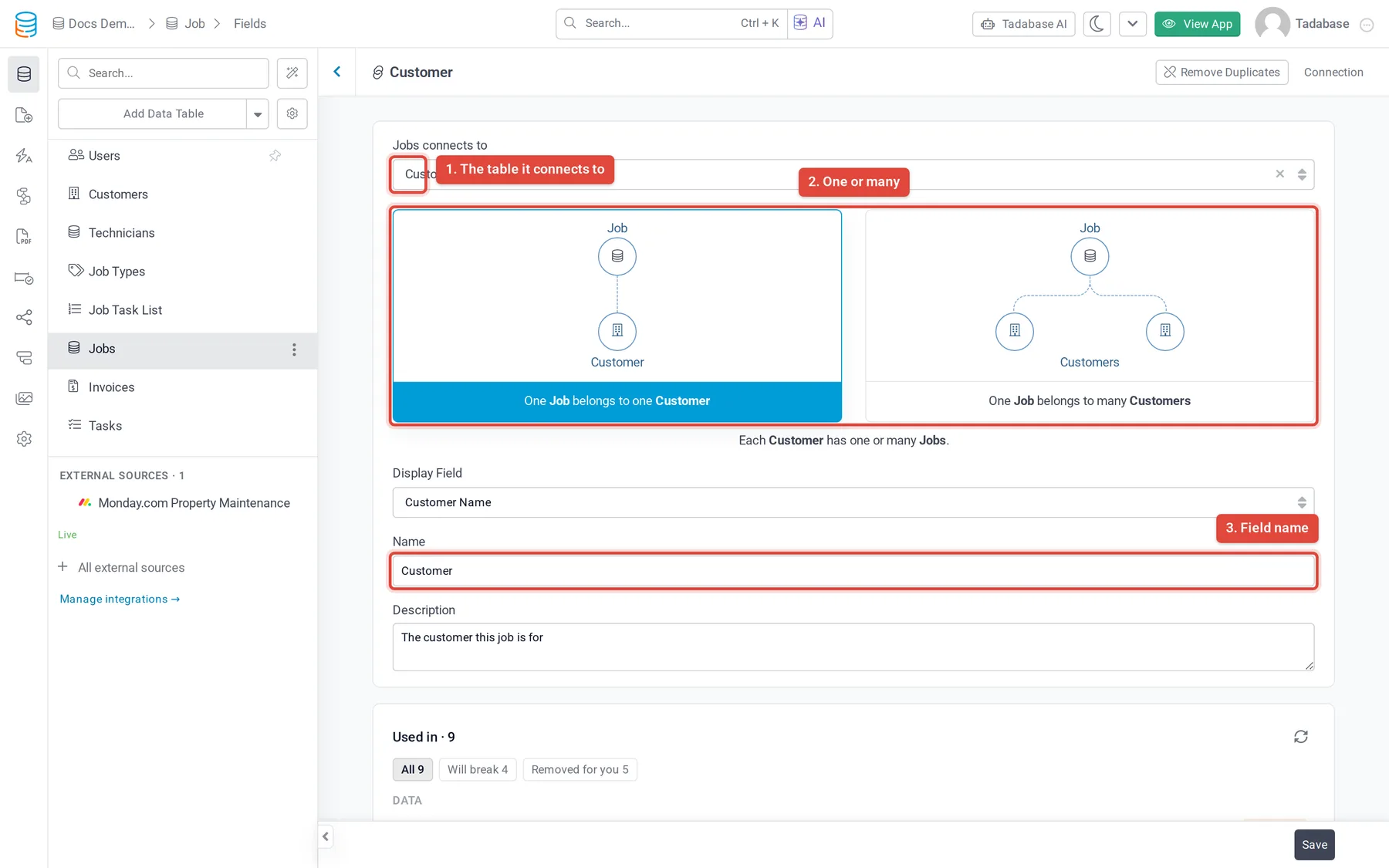
- Pick the other table In Jobs connects to (the label uses your table's name), pick the table to connect to, such as Customers.
- Choose the relationship Click one of the two boxes. Each box reads in plain words, for example One Job belongs to one Customer or One Job belongs to many Customers.
- Choose the display field In Display Field, pick the field that names each connected record, such as the customer's name. It starts with the other table's Default Display Field.
- Name it and save Check the Name (and add a Description if you like), then click Save.
| Choice | Means | When you link a record |
|---|---|---|
| One Job belongs to one Customer | Each job has one customer. Each customer can have many jobs. | You pick one customer. |
| One Job belongs to many Customers | A job can have several customers, and a customer can have many jobs. | You can pick several customers. |
When the connection points to the Users table, you can turn on Auto assign to logged-in user: a record saved with this field empty is connected to the person who saved it.
Connect the records #
- In the Data Builder: open a record on the Records tab. The connection field is a picker that lists the other table's records by their display field. Pick one (or several) and click Save.
- In your app: add the connection field to a form. People pick the connected record when they add or edit a record. See Form component.
See how tables connect #
A table's Connections tab shows its outgoing and incoming connections, in Visual, List and Diagram views. On the Records tab, the Show Relation Graph button opens a graph of the tables this one connects to.
Next steps #
- Add records
- Connection settings in detail: Connect tables with connection fields and See how your tables connect
Was this page helpful?
Something wrong or missing on this page? Tell us.