
Find your way around the builder
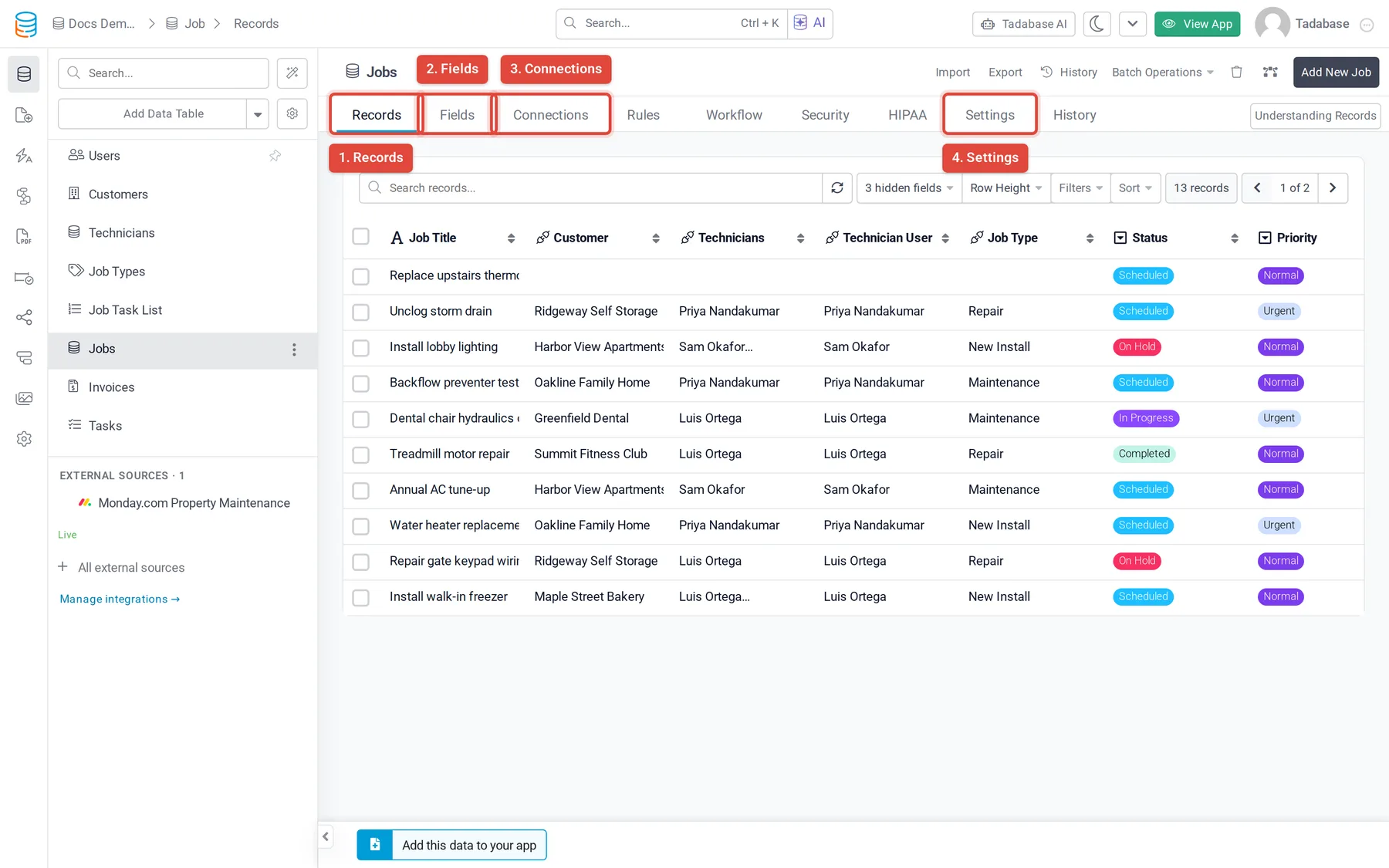
A tour of the classic builder: the left bar (Data Builder, Page Builder, Automation, Workflows, PDF, Pipes, Settings), the top bar, and a table's tabs.
- Verified Nov 17, 2026
- Classic builder
On this page
When you open an app, the builder shows a bar of icons down the left side and a bar across the top. The left bar takes you to each part of the app; hover over an icon to see its name.
The left bar #
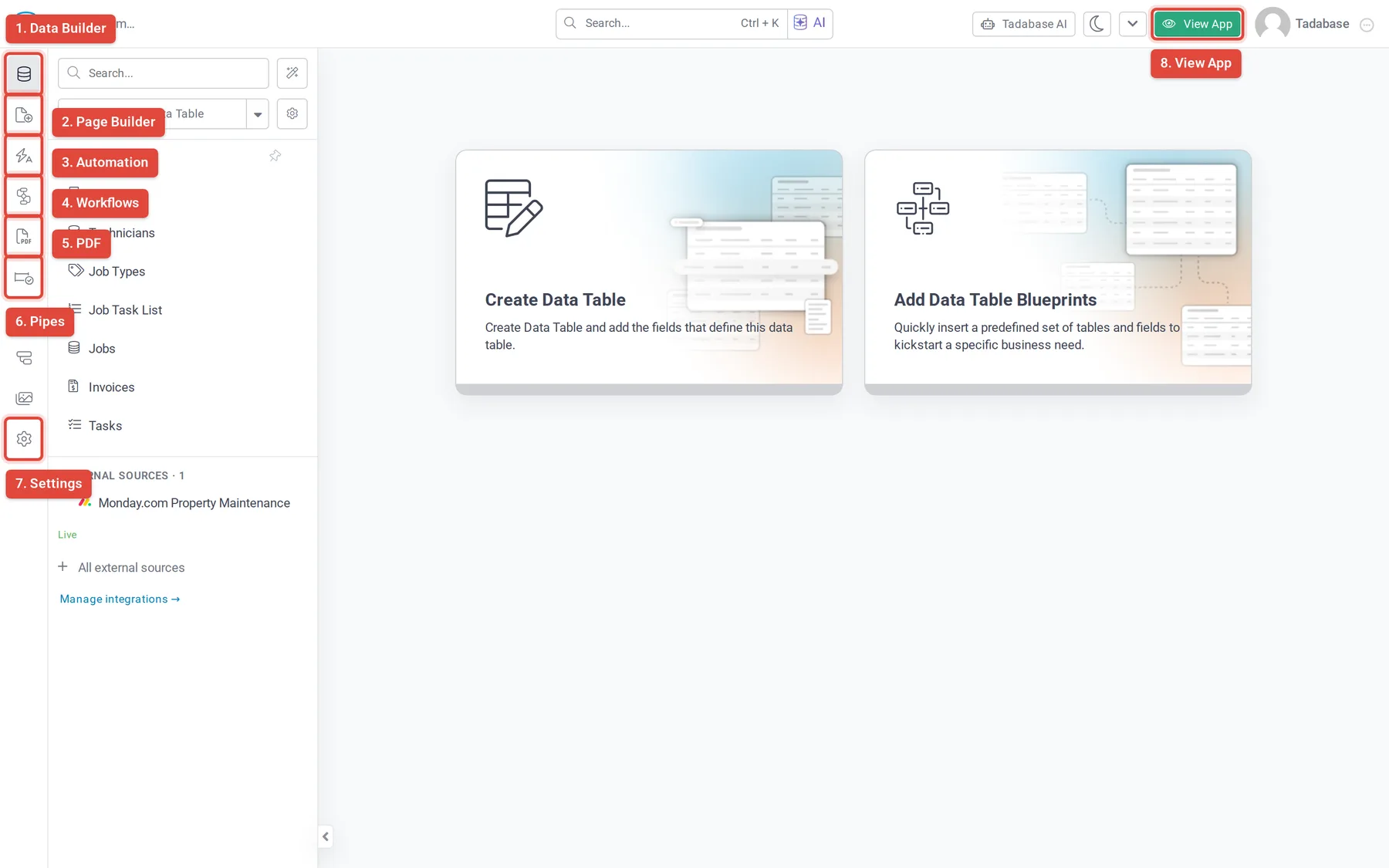
| Icon | What it is for |
|---|---|
| Data Builder | Your data tables, their fields and their records. See Data tables. |
| Page Builder | The pages, layouts and components of the live app. See The Page Builder. |
| Automation | Import and export templates, outgoing webhooks, embeddable components, and older automation tools that workflows are replacing. See Older automation tools. |
| Workflows | Steps that run when records change, on a schedule, or from a button. See Workflows. |
| PDF pages and forms built from your records. See PDFs. | |
| Pipes | Ready-made connections to outside services that you call from forms and workflows. See Pipes. |
| Data Model | A diagram of your data tables and their connections. |
| Settings | App settings such as General Settings, Domain Settings, User Settings, Themes and Billing. See General settings. |
Hover over Data Builder to see more choices, such as Row Level Security Overview on plans that include it.
If an icon carries a plan-limit badge, that feature is not in your plan. Hover over the icon to see the message.
The top bar #
- The Tadabase logo (Back to App List) returns to My Apps.
- The app name and the path to where you are, for example the table you have open.
- Search... (or Ctrl + K) searches the app.
- The arrow menu holds Dashboard (this app's usage), Share and Help.
- View App opens the live app in a new tab. See Preview and open your live app.
- Your account menu, on the far right, holds Edit Profile, Change Password, your subscriptions and Log Out.
Inside a data table #
Click a table in the Data Builder list to open it. Its tabs run across the top:
| Tab | What you do there |
|---|---|
| Records | See, add, edit and delete the table's records. See Records. |
| Fields | Add, edit, reorder and delete fields. Click a field to open its settings. See Fields. |
| Connections | See and add connections between this table and others. See Connections. |
| Settings | How the table and its records are named, the default sort, and other table options. |
The Users table also has a Roles tab, where you manage the app's user roles. Other tabs, such as Workflow and Security, appear when your plan includes those features.
Was this page helpful?
Something wrong or missing on this page? Tell us.