
Create your account and your first app
Sign up, sign in to the classic builder, and create your first app from scratch, from a template, or as a copy of an app you already have.
- Verified Nov 17, 2026
- Classic builder
On this page
Create a Tadabase account, sign in to the classic builder, and make your first app. You can start from scratch, install a template, or copy an app you already have.
Create your account #
- Sign up Start from tadabase.com and follow the sign-up link. You can sign up with an email address and a password, or with your Google account.
- Confirm your email address If you signed up with an email address, Tadabase emails you a verification code. Enter it to finish. Google sign-ups are already confirmed.
Every new account starts with a 14-day trial.
Sign in to the builder #
- Open the sign-in page Go to build.tadabase.io/signin.
- Sign in Enter your email address and password. If you signed up with Google, use Sign in with Google instead.
- Enter your code, if asked If two-factor sign-in is on for your account, Tadabase emails you a code after your password. Enter it to finish signing in.
Forgot your password? Click Forgot password on the sign-in page and follow the email.
To turn on two-factor sign-in, open your account menu in the top right of the builder, choose Edit Profile, and switch on Require Two Factor Authentication (2FA).
Create your first app #
After you sign in you land on My Apps, the list of your apps. If you have no apps yet, the start screen opens straight away.
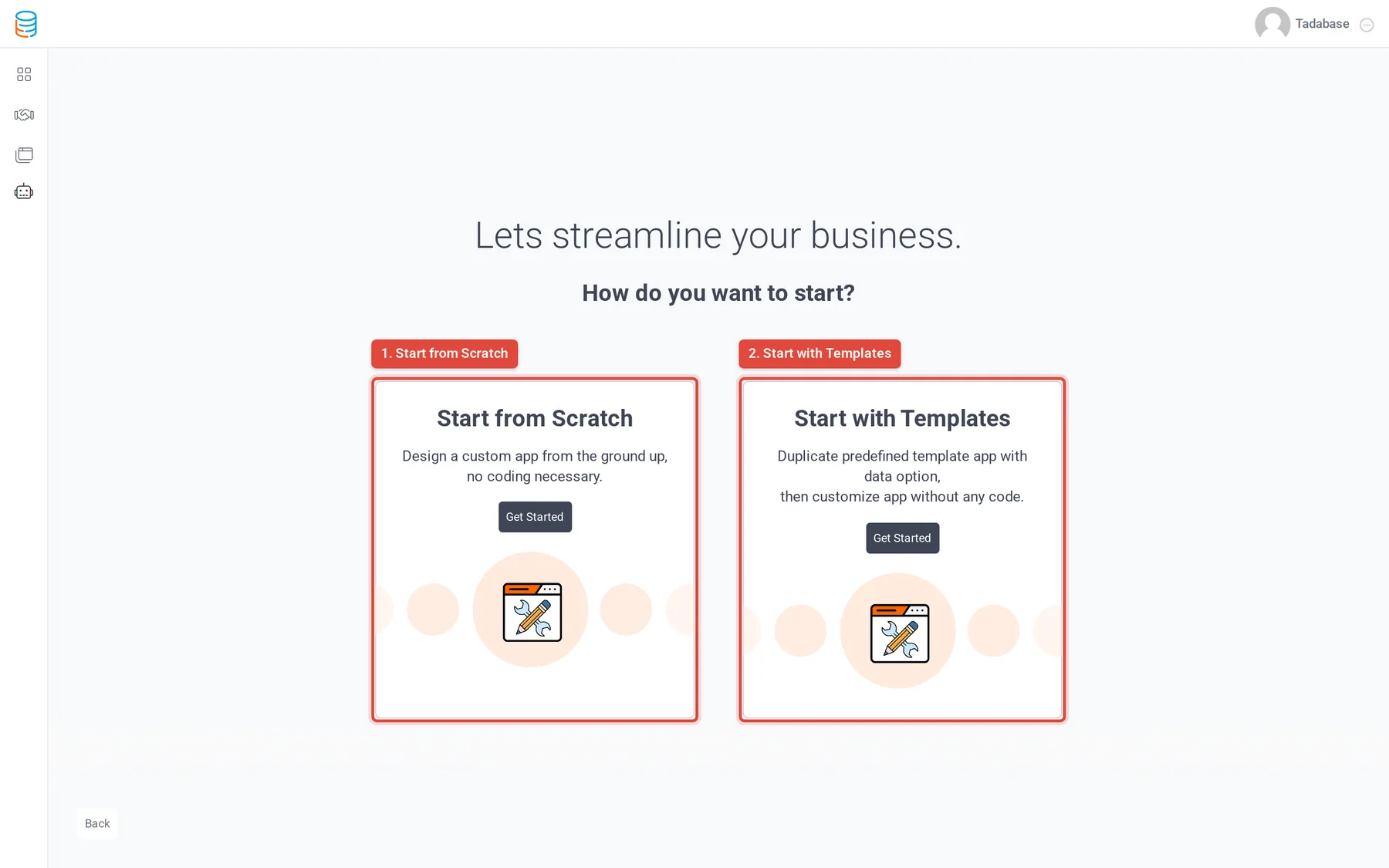
- Click Create a New App On My Apps, click Create a New App. The screen asks How do you want to start?
- Choose Start from Scratch Under Start from Scratch, click Get Started.
- Name the app Fill in App Name and App Description. Both are required. If the screen asks whether you would like a one-on-one demo, choose Yes or No.
- Create it Click Create. Tadabase creates the app and opens it in the builder.
Start from a template #
- Open the templates On the start screen, under Start with Templates, click Get Started. You can also click Templates in the left bar of My Apps.
- Pick a template Click Preview to look at a template, then Install on the one you want.
- Install it Enter a Name for your copy and click Save & Install.
Copy an app you already have #
- Open the app's actions On My Apps, open the Actions menu (⋮) of the app and choose Copy App.
- Name the copy Enter a Name. Switch on Include Data? to copy the records too; leave it off to copy only the structure.
- Copy it Click Copy App. The new app shows Copying... with its progress in My Apps until it is ready.
Open your app #
Click an app on My Apps to open it in the builder. Next, read Find your way around the builder.
Your app gets a web address on a Tadabase domain. To use your own domain instead, see Custom domains.
Was this page helpful?
Something wrong or missing on this page? Tell us.