
Edit records
Edit records in the Data Builder or in your app: edit forms, inline editing, batch updates and workflow buttons.
- Verified Nov 17, 2026
- Classic builder
On this page
You can change records yourself in the Data Builder, or let the people using your app change them with edit forms, inline editing and batch updates.
In the Data Builder #
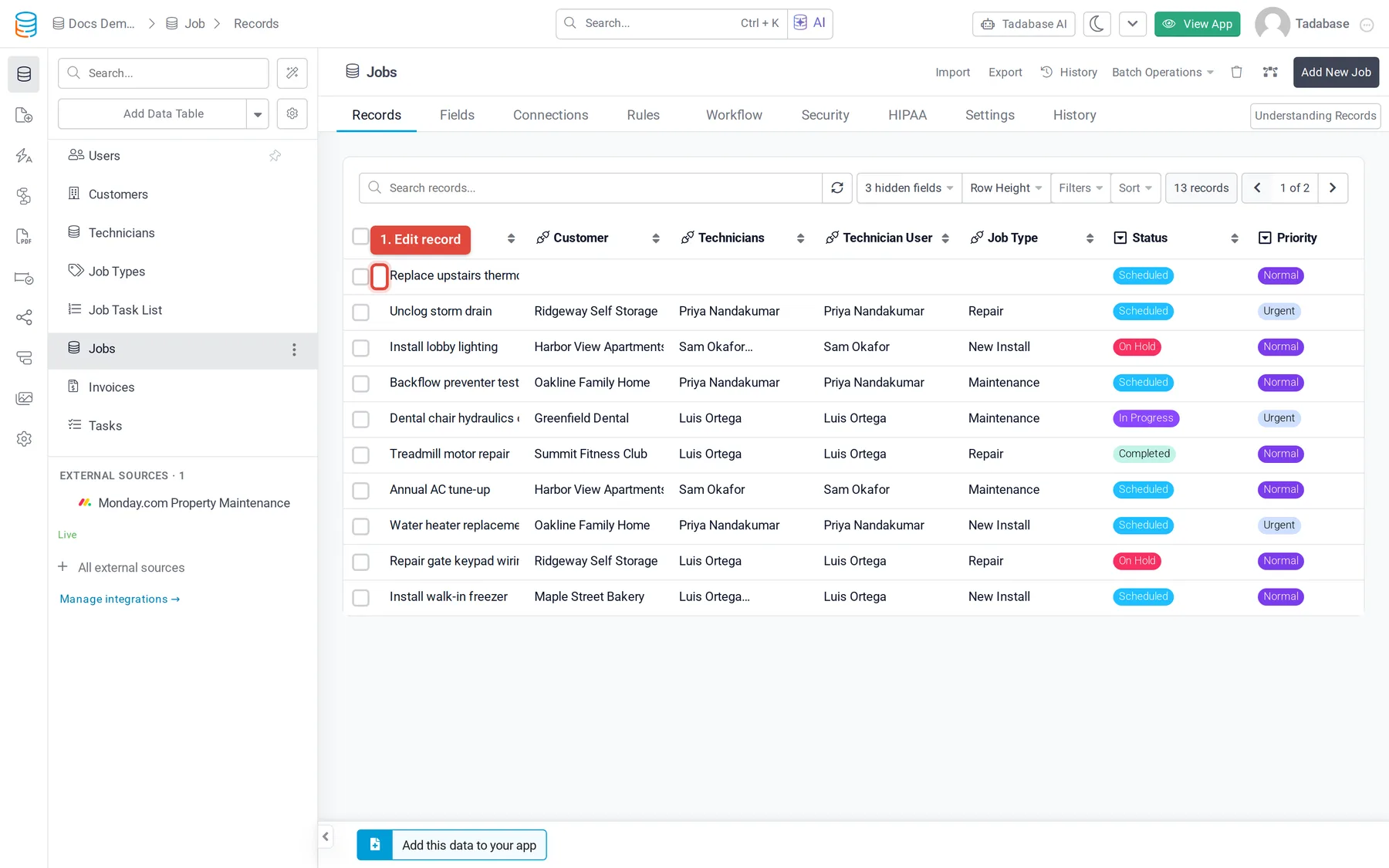
- One record: on the table's Records tab, click the expand icon at the start of the row (Edit record). Change the values and click Save.
- One value: click a cell, then click the expand icon that appears in it to edit just that value. Calculated fields, such as formulas, rollups and equations, cannot be edited.
Update many records at once #
- Open Batch Operations On the Records tab, click Batch Operations > Update. To update only some rows, tick them first and click Update in the bar that appears.
- Choose the records Under Conditions, click Add New Condition to pick which records change. If you started from the bar for ticked rows, the dialog updates those rows.
- Set the values Under Values, pick a field, then Custom Value (and enter it) or Set Blank Value. Click Add New Value for more fields.
- Review Click Next. The dialog says how many records will be updated.
- Run it Click Update.
With Trigger Immediately off, the update is queued and runs in the background, which suits large tables.
Let people edit records in your app #
- Open the component In the Page Builder, open the page and edit its table component.
- Add an Edit Link On the Columns tab, open Links and click Edit Link. A new column is added.
- Use the edit page Tadabase adds a child page with an edit form for one record. Change which fields the form shows on that page.
Click the edit icon on the Edit column to change its settings:
| Setting | What it does |
|---|---|
| Show in Popup | Opens the edit form in a popup on the same page instead of going to the child page. |
| Popup Title | The title of that popup. |
| Open link in new window | Opens the edit page in a new browser tab (when the popup is off). |
Inline editing in table components #
With inline editing on, people change a value right in the table without opening a form. Edit the table component, open its Options tab and turn on Enable Inline Editing. To leave out one column, edit that column and turn off Allow Inline Editing. See Inline editing.
Batch updates in your app #
A table component can offer an Update button for many records at once. Edit the component, open Options and, under Batch Operations, turn on Allow Batch Updates. Choose the fields people may change in Allowed Fields for Batch Update, and use Batch Required Conditions and Batch Max Limit to keep updates small. See Table component.
Workflow buttons and automation #
A button in your app can start a workflow that updates the record, its connected records, or both, such as marking a job done and stamping the date. Workflows can also update records on a schedule or when a record changes. See Triggering workflows from pages and buttons.
Was this page helpful?
Something wrong or missing on this page? Tell us.