
Create and manage data tables
Add a data table, name it, set its display and sort defaults, and delete it when you no longer need it.
- Verified Nov 17, 2026
- Classic builder
On this page
A data table holds one kind of thing your app tracks, such as Customers or Jobs. Its fields work like the columns of a spreadsheet and its records like the rows. You create and manage tables in the Data Builder.
Add a table #
- Open the Data Builder In the builder, open Data Builder. Your tables are listed on the left.
- Start a new table Click Add Data Table above the list, then click Create Data Table.
- Name it Type a Table Name, such as
Customers. If a suggestion appears as you type, pick it to add its recommended fields, or keep your own name. - Create it Click Create Table. Then add the fields that describe each record on the table's Fields tab.
The arrow on the Add Data Table button has more ways to start a table: Add table from scratch, Add table from CSV, and on plans with the newer importer, Add table from Import. See Import records from a CSV file for imports.
What you find on a table #
Click a table in the list to open it. The tabs across the top are:
| Tab | What it's for |
|---|---|
| Records | See, add, edit, search and filter the table's records. See Add, edit and find records. |
| Fields | Add and edit the fields of the table. See Fields overview. |
| Connections | See and add the connections between this table and others. See Connect tables. |
| Rules | The older table automation, which workflows replace. |
| Workflow | The workflows that run on this table, when workflows are on for your app. |
| Roles | Only on the Users table: the user roles of your app. |
| Security | Record-level security for the table, when it is on for your app. See Record-level security. |
| Settings | The table's name, defaults and logging, and the Delete button. |
Change a table's settings #
Open the table and click the Settings tab. When you change something, a bar shows Unsaved Changes: click Save to keep the change or Discard to undo it.
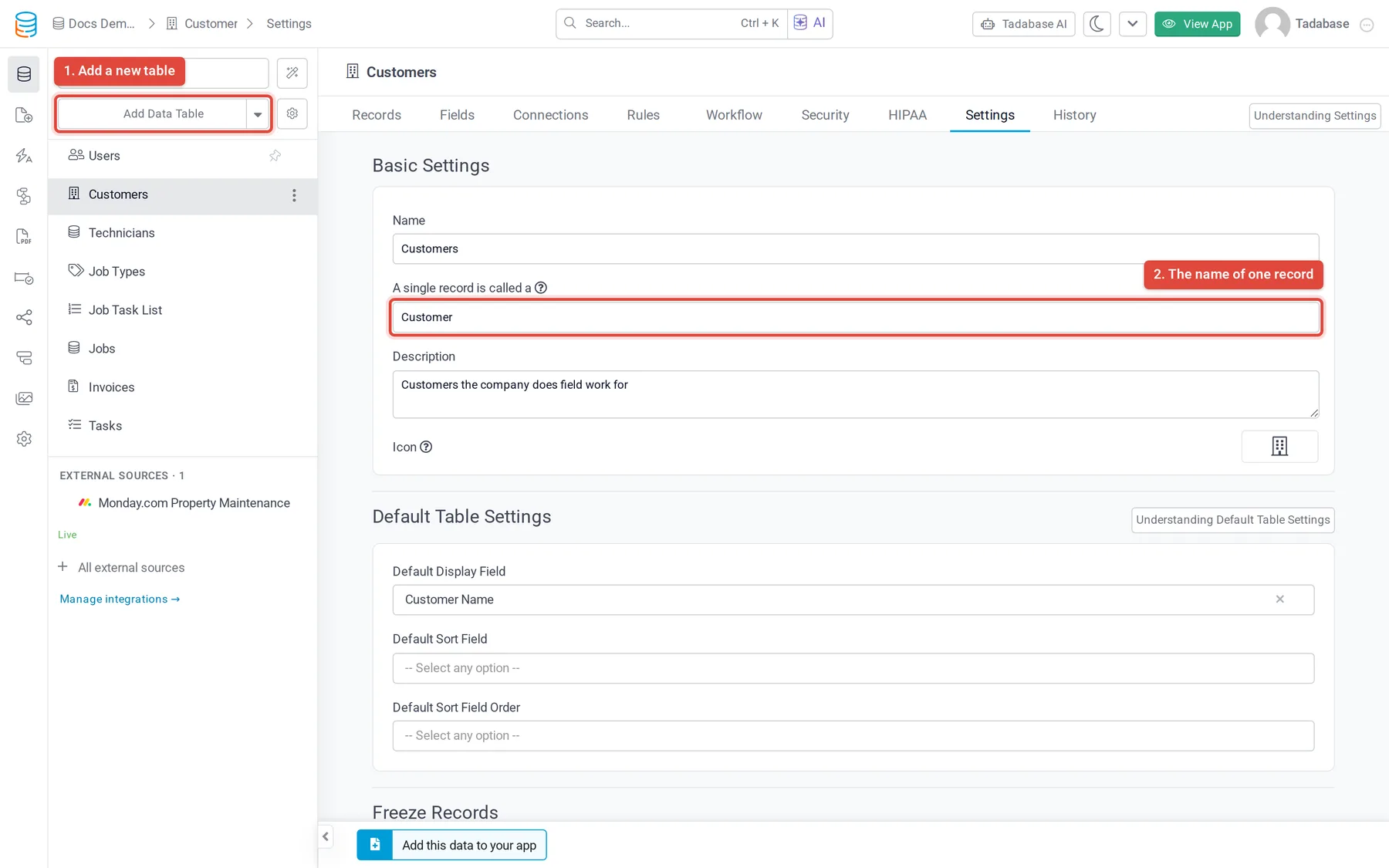
| Setting | What it does |
|---|---|
| Name | The table's name, shown in the table list and across the builder. |
| A single record is called a | The singular name of one record, such as Customer. It makes buttons and connection descriptions read naturally. |
| Description | A note for builders about what the table is for. |
| Icon | The icon shown next to the table in the list. |
| Default Display Field | The field that names a record of this table. When you add a connection to this table, it is the starting Display Field. |
| Default Sort Field and Default Sort Field Order | The field and order (ASC or DESC) a new table or list component on a page starts sorted by. |
| Log Record Changes and Log Deleted Records | Under Record Tracking, shown when your plan includes record logging. See Track record changes and deleted records. |
| Search Engine Friendly URL's? | Under SEO Settings, on plans that include it. When on, pick the SEO Field to use for this table's records. |
Connect tables to each other #
Tables become useful together when their records are linked, for example each Job to its Customer. You link them with a connection field. See Connect tables with connection fields, and See how your tables connect for a map of every connection in your app.
Delete a table #
- Open the table's settings Open the table and click the Settings tab, then click Delete at the bottom. The Users table has no Delete button.
- Check what uses it The dialog lists everything outside the table that uses it, grouped as Blocks delete, Deleted with the table, Will break, Removed for you and Possible use. Fix anything under Blocks delete first.
- Confirm Type the table's name and click Delete table.
The table, its fields and its records move to Deleted tables, where you can restore them for a number of days shown in the dialog. Right after the delete, the message at the top of the builder has an Undo link. See Restore a deleted table, and Table Usage to check what uses a table before you delete it.
Was this page helpful?
Something wrong or missing on this page? Tell us.