
Combine fields with a Text Formula
Build one text value from other fields and your own text, such as a full address or a job label, including values from a connected record.
- Verified Nov 17, 2026
- Classic builder
On this page
A Text Formula field joins other fields and your own text into one value, in the order you set. It works like CONCAT in a spreadsheet. Use it for labels such as a customer's full address, or a job title that includes the customer's name from a connected record.
Add a Text Formula field #
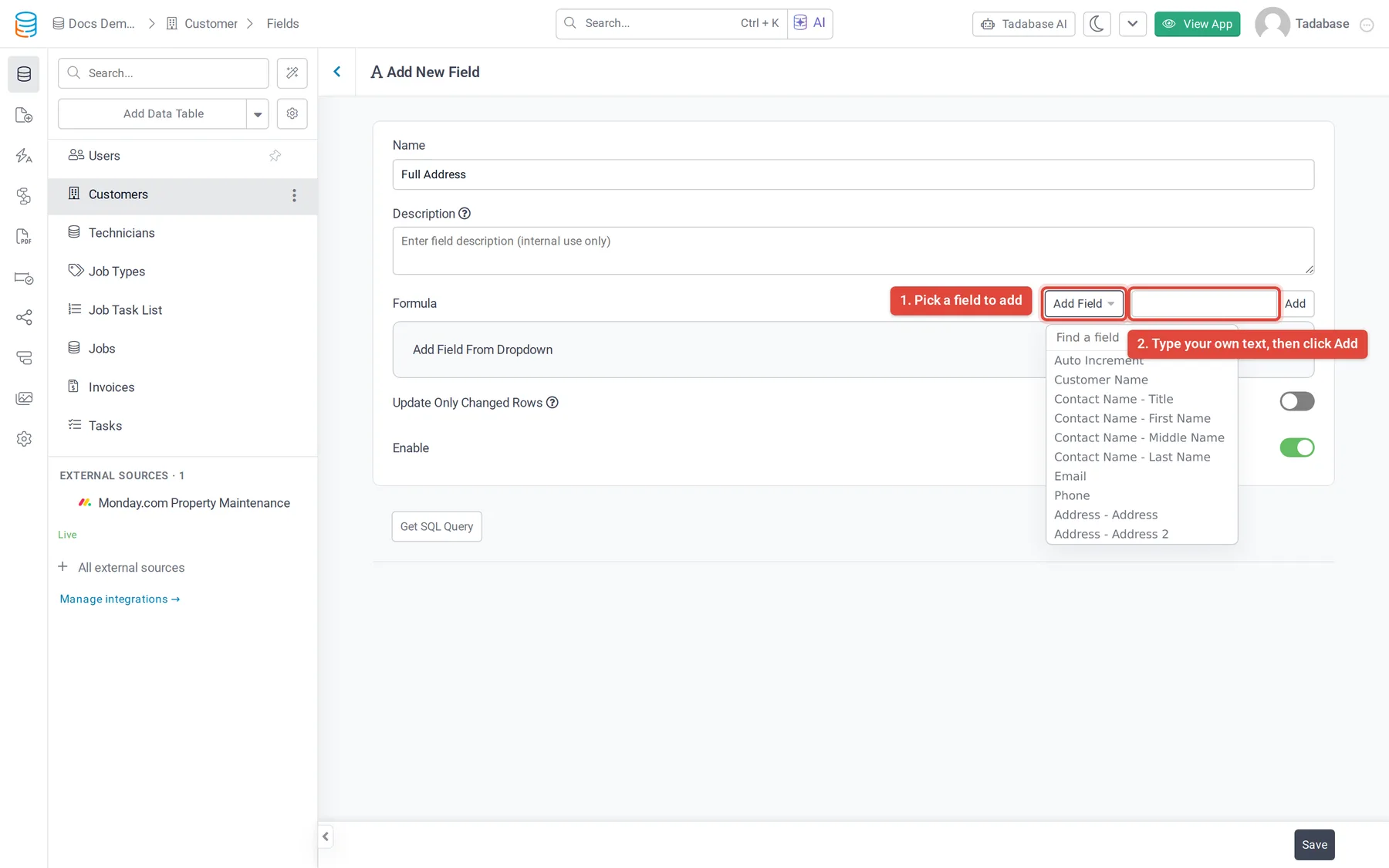
In this example the Customers table gets a Full Address field that reads 12 Main St, Springfield, 01101.
- Open the table In the Data Builder, open the Customers table and click the Fields tab.
- Choose the field type Click Add New Field. Under Equation, click Text Formula, then click Add and Configure.
- Name it Enter a Name, for example
Full Address. Description is optional and only visible in the builder. - Add the first field Next to Formula, click Add Field and pick Address - Address. Type in Find a field to filter a long list.
- Add your own text Type
,(a comma and a space) in the box next to Add Field, then click Add. Spaces at the start and end are kept, so use this for separators. - Add the rest Add Address - City, another
,, and Address - Zip the same way. The line under the formula shows the result in order. - Save Click Save. The field fills in for every record in the table.
Change the order or remove a part #
- Drag a part left or right to move it.
- Click the x on a part to remove it.
- Each part is either a field or a piece of text. To change a piece of text, remove it and add the new text.
Use a field from a connected table #
The Add Field list also shows fields of connected tables, with the connection in front of the field name. For example, in the Jobs table you could combine the job number with the customer's name from the Customers table.
Fields you can add #
Text, Long Text, Rich Text, Email, Phone Number, Link, Number, Currency, Rating, Slider, option fields, Decision Box, Equation and Rollup fields. Person Name and Address fields are split into their parts, such as Name - First Name and Address - City.
Date and time fields, Date Formula, Number Formula, other Text Formula fields, File, Image, Signature and connection fields are not offered. To put a date into text, use an Equation. The full list for every calculation type is in Fields you can use in equations and formulas.
Other settings #
Enable is on by default. Turn it off to stop the field recalculating when records change; values already saved stay as they are.
Common problems #
- Words run together. Add a piece of text with a space (or
,) between fields. - A part is blank. An empty field adds nothing, so the separators around it still show.
- The field you want is not in the list. Check the type against the list above; dates need an Equation.
Was this page helpful?
Something wrong or missing on this page? Tell us.