
Check table size and usage with Table Usage
See how many fields and records each table has and every place outside it that uses it, so you know what deleting a table would break.
- Verified Nov 17, 2026
- Classic builder
On this page
Table Usage lists every table in your app with its number of fields and records and each place outside the table that uses it: connections from other tables, fields that read from it, pages and workflows. Check it before you delete a table.
Open Table Usage #
- Open Field & Table Usage In the builder, open Settings and click Field & Table Usage.
- Choose All tables Under Tables on the left, click All tables.
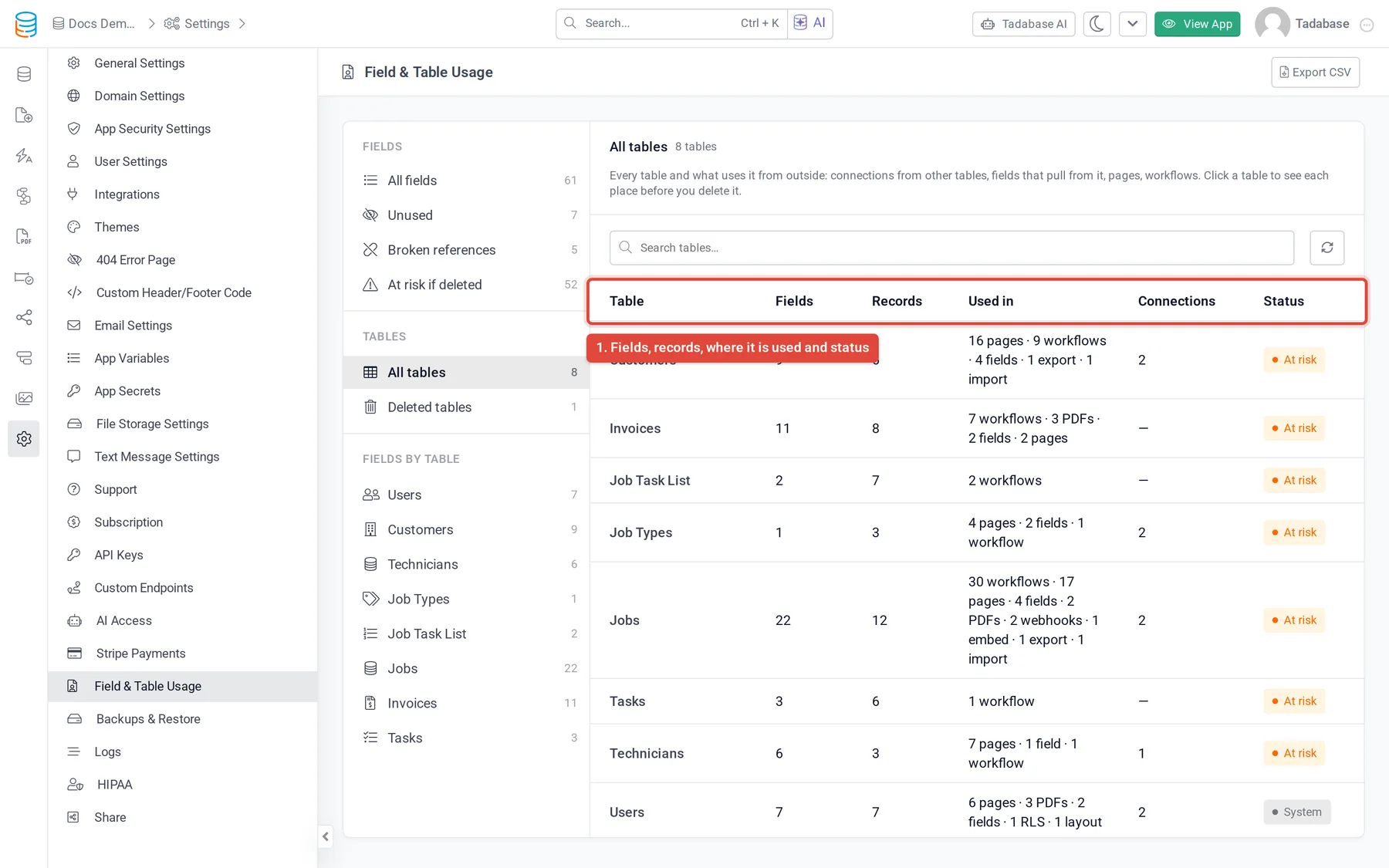
Read the list #
| Column | What it shows |
|---|---|
| Fields | How many fields the table has. |
| Records | About how many records it holds. The number is approximate. |
| Used in | The places outside the table that use it, for example 3 pages · 1 workflow, or Not used outside it. |
| Connections | Connection fields on other tables that point at this table. |
| Status | What a delete would do (see below). |
| Status | What it means |
|---|---|
| Unused | Nothing outside this table uses it. |
| In use | Only connections and page items use it, and those are handled for you when you delete it. |
| At risk | Deleting it breaks pages, workflows or formulas outside it. |
| Can't delete | A security condition on another table reads it. Change that first. |
| System | The Users table. It can't be deleted. |
Use the search box to find a table, and the refresh button to check again. Export CSV downloads the list. If a note says some places couldn't be checked, the counts may be low.
See each place that uses a table #
Click a table to open its panel. It shows the record count and groups every place by what a delete would do:
| Group | What happens on delete |
|---|---|
| Blocks delete | Fix these first. The table can't be deleted while they remain. |
| Deleted with the table | Connection fields on other tables. They move to Deleted Fields with the table and come back when you restore it. |
| Will break | Pages, workflows, formulas on other tables and other places that read it. They stop working until you restore the table or change them. |
| Removed for you | Page columns and inputs of those connections. |
| Possible use | Text matches in custom code. Check them yourself. |
Each entry links to the place it names. Show its fields lists the table's fields with their own usage (see Find where a field is used with Field Usage).
Delete a table #
- Click Delete table In the table's panel, click Delete table…. Deleting a table from the Data Builder opens the same dialog.
- Review the list The dialog shows the table's fields, records and every place that uses it, grouped as above. Delete table stays off while anything blocks the delete.
- Type the table's name Type the table's name to confirm and click Delete table.
The table moves to Deleted tables with its fields, records and the connections deleted with it. While it is deleted, filters on its fields match no records, so nobody sees extra records. A message with Undo appears for about 20 seconds; after that, restore it from Deleted tables. See Restore a deleted table.
Table Statistics in the Data Builder #
The Data Builder has a shorter summary. Click the gear button next to Add Data Table and choose Show Table Statistics. The All Table Stats window lists each table with its number of fields, rules, tasks, imports, exports and webhooks; click a number to open that list. Rules and tasks here are the older automation tools that workflows replaced, and the window does not count workflows or records.
Was this page helpful?
Something wrong or missing on this page? Tell us.